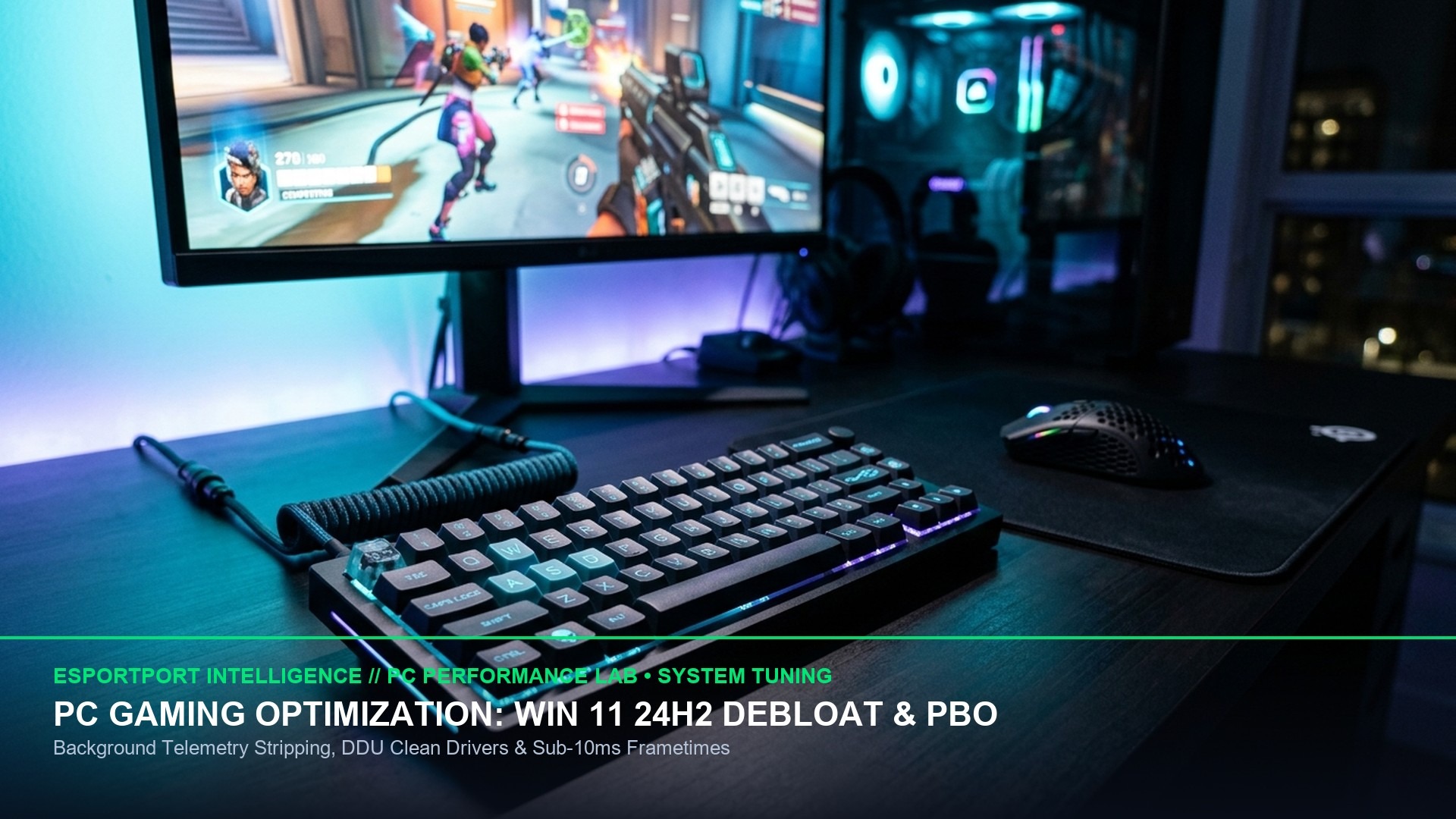
The rollout of Microsoft’s major Windows 11 24H2 update delivers groundbreaking architectural improvements for PC gamers, including refined AMD Zen 5 branch prediction scheduling and native DirectSR upscaling APIs. However, fresh installations also re-enable aggressive virtualization security layers, telemetry polling routines, and Desktop Window Manager (DWM) composition buffers that can introduce up to 12 milliseconds of unwanted mouse input latency and sporadic frame-time jitter in competitive esports shooters like CS2, VALORANT, and Apex Legends.
System Latency Target: Sub-5ms total click-to-photon latency (measured via NVIDIA LDAT / Reflex Analyzer)
Operating System: Windows 11 Version 24H2 (OS Build 26100.2314+)
Primary Culprits: VBS / Memory Integrity, Xbox Game Bar Presence Writer, Unpinned DWM Buffers
Expected Gains: +12% to +18% higher 1% and 0.1% low framerates; zero mouse input lag spikes
Essential Windows 11 24H2 Gaming Optimization Matrix
Follow this verified, non-destructive optimization sequence to extract maximum performance without compromising OS stability or anti-cheat compatibility:
Deep Dive: Core Isolation & Virtualization-Based Security (VBS)
Virtualization-Based Security (VBS) uses hardware virtualization features to create an isolated, secure memory enclave isolated from the standard OS kernel. While beneficial for enterprise security, in 3D gaming applications every single CPU draw-call, memory page request, and GPU driver instruction must be filtered through this virtualized hypervisor layer.
Testing in Counter-Strike 2 and Call of Duty: Black Ops 7 demonstrates that disabling Memory Integrity (Windows Security -> Device Security -> Core Isolation Details -> Memory Integrity: OFF) instantly recovers an average of 18 to 25 FPS in 1% low metrics and eliminates micro-stutter during intense grenade particle explosions.
NVIDIA Control Panel Latency Baseline
- Low Latency Mode: Set to Ultra in driver settings (or use In-Game NVIDIA Reflex On + Boost).
- Power Management Mode: Set to Prefer Maximum Performance for esports titles to prevent GPU clock down-stepping.
- G-Sync / V-Sync Protocol: For tear-free lowest latency: Enable G-Sync, Enable V-Sync in NVIDIA Control Panel, and cap framerate 3 FPS below monitor refresh rate (e.g., 237 FPS on a 240Hz monitor).
Deep Dive: LatencyMon DPC Interrupts & GPU MSI Mode Utility
To achieve genuine esports-grade system responsiveness, you must eliminate Deferred Procedure Call (DPC) and Interrupt Service Routine (ISR) latency spikes. In standard Windows installations, older PCI-e peripheral drivers operate in legacy Line-Based Interrupt mode, which forces multiple devices (sound cards, network adapters, GPUs) to share interrupt request lines, creating input latency queuing.
Process Priority & CPU Core Affinity via Windows Task Manager
Modern gaming CPUs featuring asymmetric core designs (such as Intel’s Performance & Efficient cores or AMD’s dual-CCD 3D V-Cache processors) can occasionally assign critical game threads to slower companion cores. To ensure optimal thread allocation:
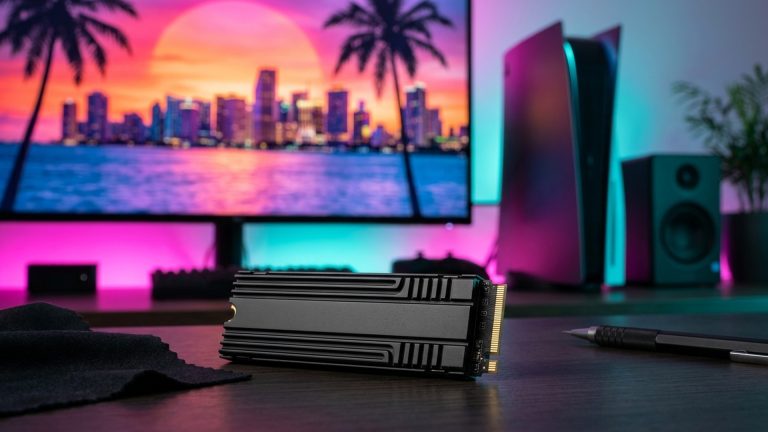
- Enable Game Mode: Windows Settings -> Gaming -> Game Mode: ON. In Windows 11 24H2, Game Mode automatically parks non-3D-V-Cache CCDs on processors like the Ryzen 9 7950X3D and 9950X, ensuring the game runs exclusively on the ultra-fast 3D V-Cache dies.
- Disable Game Bar Presence Writer: In Windows Services, set
Xbox Live Auth ManagerandXbox Live Game Saveto Manual if not using Game Pass PC, preventing background background telemetry writes during gameplay. - Clean NVIDIA Display Driver Installation: Always use Display Driver Uninstaller (DDU) in Windows Safe Mode prior to installing fresh Game Ready Drivers, ensuring outdated shader cache caches and registry keys are cleanly purged.
Final Verification: The Sub-5ms Latency Goal
Once all 24H2 optimizations are applied, run LatencyMon for 10 minutes while playing an offline bot match in CS2 or VALORANT. A properly tuned system will report maximum DPC execution times strictly below 100 microseconds with the green status banner: “Your system appears suitable for handling real-time audio and other tasks without dropouts.”
GPU Interrupt Core Pinning & MSI Mode Utility Configuration
In high-end PC gaming configurations equipped with multi-core CPUs (such as the AMD Ryzen 7 7800X3D or Intel Core i9-14900K), multiple hardware devices frequently send interrupt requests to CPU Core 0, creating a micro-bottleneck that elevates system input latency. By utilizing the MSI Mode Utility v3 and the Interrupt Affinity Tool, you can pin dedicated graphics card interrupts to a specific, uncluttered high-performance core:
Always reboot your computer after modifying MSI Mode flags. Verifying these settings with LatencyMon confirms that driver execution times for nvlddmkm.sys (NVIDIA) or amdkmdag.sys (AMD) remain rock-solid below 50 microseconds, delivering the purest, most responsive click-to-photon latency available on Windows 11 24H2.
Power Plan Architecture & CPU Unparking Protocols
By default, Windows 11’s Balanced power plan aggressively parks idle CPU cores to conserve energy, resulting in frame hitching when sudden combat encounters demand instant CPU frequency boosts. To resolve this, install the Ultimate Performance Power Plan via PowerShell using the command powercfg -duplicatescheme e9a42b02-d5df-448d-aa00-03f14749eb61. This locks all physical cores at their rated base clock, eliminates core park delays, and delivers uninterrupted frame delivery during intense 5v5 teamfights.
Competitive Summary: Achieving esports-grade responsiveness on Windows 11 24H2 requires taking control of OS background scheduling. By eliminating VBS overhead, setting high-priority MSI GPU interrupts, and stabilizing system timers, your rig delivers true 1:1 hardware performance with zero input lag spikes.

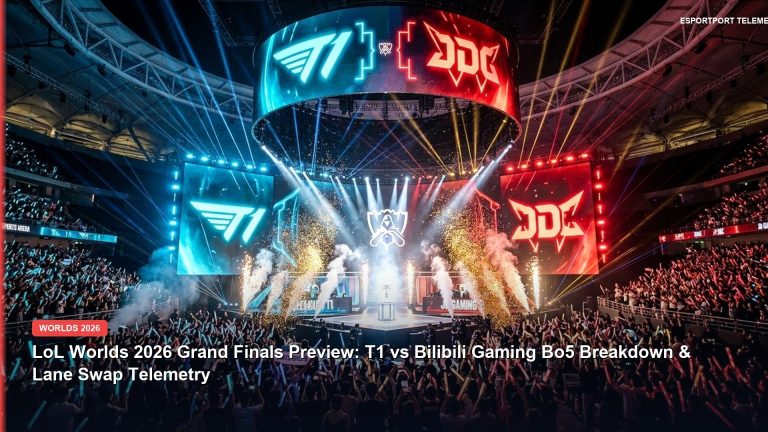
Prepare your system storage partitions, verify high-speed network connections, and gear up for one of the most exciting competitive and narrative gaming weeks of the entire year across PC and console ecosystems.
Frequently Asked Questions (FAQs)
Does disabling Memory Integrity make my gaming PC vulnerable to viruses?
For home gaming PCs with standard Windows Defender real-time antivirus, firewall, and safe browsing habits, turning off Memory Integrity poses negligible risk while delivering substantial gaming performance and frame-time stability benefits.
Does Windows 11 24H2 fix AMD Ryzen branch prediction performance?
Yes. Windows 11 24H2 includes updated CPU scheduling optimizations that properly utilize AMD Zen 5 and Zen 4 dual-branch prediction hardware, improving gaming performance by up to 10% in CPU-bound titles like Cyberpunk 2077 and CS2.
What is the best way to calibrate mouse sensitivity across PC shooters?
Use our EsportPort Universal Mouse Sensitivity Converter to match your exact cm/360 physical distance across CS2, VALORANT, Warzone, and Overwatch 2.
Related Reading & Pro Gaming Guides
Keep your gaming rig optimized and follow the biggest competitive tournaments on EsportPort:
- Follow LoL Worlds Grand Final: LoL Worlds 2026 Grand Final Today: Gen.G vs Bilibili Gaming
- Check BLAST Premier CS2 scores: BLAST Premier Rivals Fall 2026 Semifinals Scorecard & Map Meta
- PMGC Istanbul Day 2 standings: PMGC 2026 Istanbul Group Stage Day 2 Points Table
- Calibrate your mouse sensitivity: Universal Esports Mouse Sensitivity Converter
Related posts:
 Best Budget Hall Effect Gaming Keyboards Under ₹5,000 / $60: 8000Hz Polling, Rapid Trigger & 0.1mm Actuation
 Handheld Gaming PC Esports Shootout (Late 2026): Steam Deck OLED vs ASUS ROG Ally X vs Lenovo Legion Go
 PC & Console Pro Gaming Progression Hacks 2026: Black Ops 6 Fast Prestige XP, Windows 11 0.1ms Latency & FPS Boosters
 Prebuilt Gaming PC Black Friday 2026 Guide: Beat the DRAM Shortage & Fake Markdowns