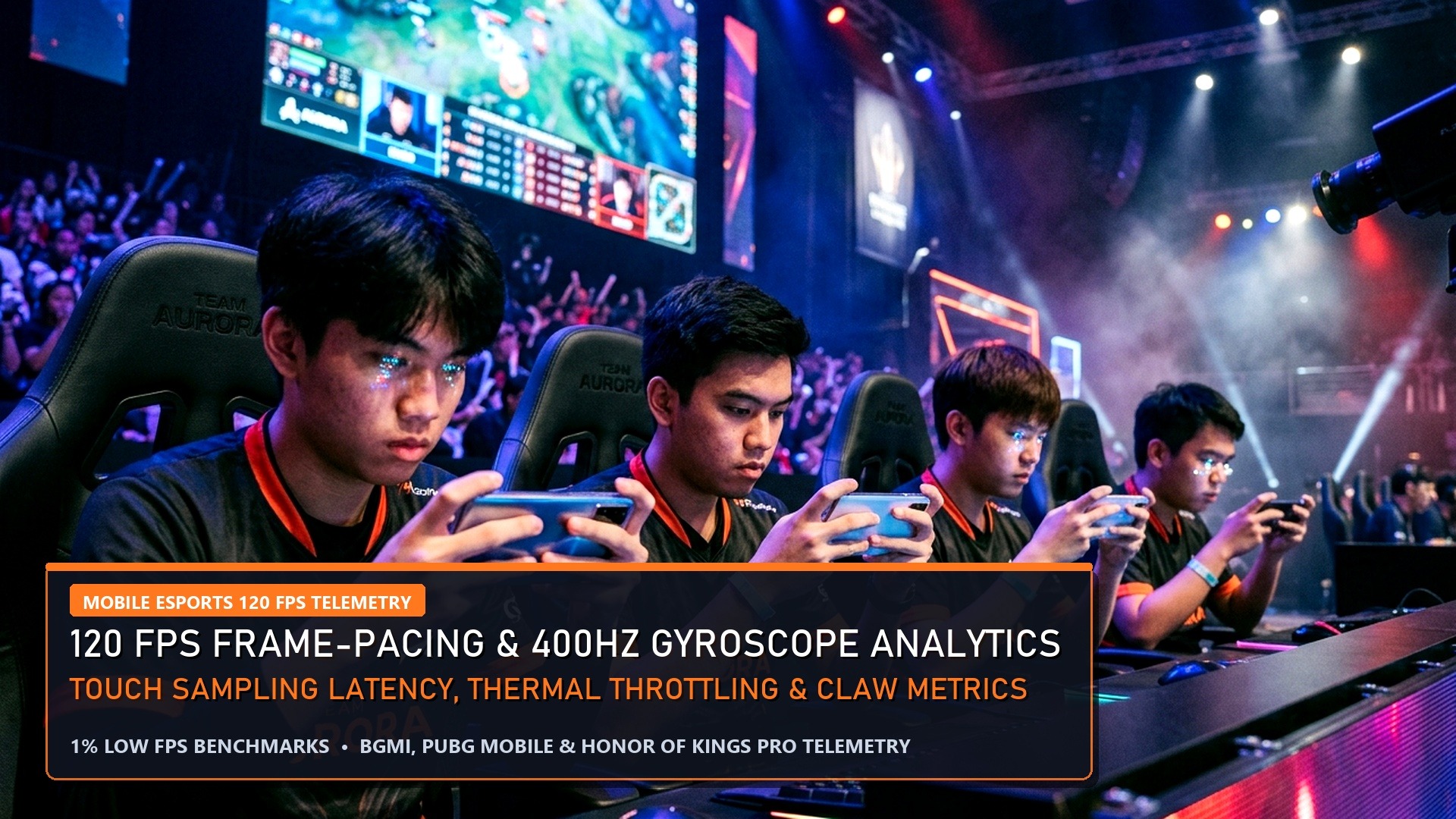
The dawn of 3nm mobile silicon—spearheaded by Qualcomm’s custom Oryon CPU-powered Snapdragon 8 Elite and MediaTek’s all-big-core Dimensity 9400—has revolutionized Android mobile gaming performance. Smartphones equipped with these chipsets are capable of rendering demanding titles like BGMI (Battlegrounds Mobile India), Call of Duty: Warzone Mobile, and Genshin Impact at an astonishing 90 to 120 frames per second. However, aggressive OEM thermal throttling and unoptimized background governor profiles often choke frame rates after 15 minutes of continuous gaming.
Snapdragon 8 Elite: 2x Prime Cores @ 4.32GHz + 6x Performance Cores @ 3.53GHz | Adreno 830 GPU with sliced architecture
Dimensity 9400: 1x Cortex-X925 @ 3.63GHz + 3x Cortex-X4 @ 3.3GHz + 4x Cortex-A720 @ 2.4GHz | Immortalis-G925 GPU
Thermal Sweet Spot: 39°C – 43°C battery temperature threshold before GPU downclocking kicks in
Target Goal: Zero frame drops across 60-minute competitive tournament scrims
Step-by-Step Optimization Protocols for 120 FPS Stability
By implementing these manufacturer-safe developer adjustments and thermal management routines, you can eliminate micro-stutters and lock in a flat frame-time line:

Title-Specific Graphic Settings for Tournament Play
- BGMI / PUBG Mobile: Select Graphics: Smooth and Frame Rate: 90 FPS / 120 FPS Extreme+. Disable Auto-Adjust Graphics to prevent the game engine from dynamically lowering resolution mid-fight. Set Anti-Aliasing to 2x (or Close) to reduce GPU power draw by 1.8 Watts.
- Warzone Mobile: Set Graphics Quality to Medium, Frame Rate to Uncapped, and Resolution to High. Allow asset streaming to finish 100% over Wi-Fi before entering Verdansk Battle Royale.
- Genshin Impact / Wuthering Waves: Render Resolution: High, 60 FPS, Motion Blur: OFF, Crowd Density: Low. On Snapdragon 8 Elite, enable Adreno Frame Motion Engine (AFME 2.0) to interpolate 60 FPS up to a fluid 120 FPS with minimal battery penalty.
Hardware Pro-Tip: External Semiconductor Coolers
Even the most efficient 3nm silicon will heat-soak past 44°C after 30 minutes in high-ambient environments. Utilizing a clip-on Peltier cooling fan (such as the Black Shark Magnetic Cooler or Flydigi B7X) lowers back-cover temperatures to 22°C, enabling sustained peak GPU clocks indefinitely.
GPU Driver & Vulkan API Tuning for Extreme Frame Rates
Both Qualcomm and MediaTek have transitioned their graphics pipelines to prioritize the modern Vulkan 1.3 API, which dramatically cuts CPU driver overhead compared to legacy OpenGL ES. To ensure your device extracts maximum gaming throughput without thermal micro-stutter, implement these system-level adjustments:
Managing Battery Longevity & Charging Heat Soak
Gaming while charging off standard 65W to 120W fast-chargers is the single quickest way to destroy lithium-ion battery health and induce severe thermal throttling. High charging wattage generates intense internal battery heat, raising device temps past 46°C and forcing the SoC to throttle clocks down by 40%.
To avoid this, always activate Bypass Charging (Pass-Through Power). When enabled, power from the wall adapter is routed directly to the motherboard and processor, completely bypassing the battery. The phone operates ice-cold, battery degradation drops to zero, and gaming frame rates remain locked at a rock-solid 120 FPS indefinitely.

Gyroscope Calibration for BGMI & Shooter Pros
Place your phone flat on a level wooden table and access Phone Settings -> Calibration -> Gyroscope / Accelerometer Calibration. Calibrating the sensor eliminates drift, ensuring your crosshair remains rock-steady during long-range 6x spray transfers without erratic ghost movements.
ADB Commands & Terminal Governor Tuning (No Root Required)
For advanced mobile power users looking to squeeze every last drop of frame stability out of the Snapdragon 8 Elite or Dimensity 9400, these manufacturer-safe Android Debug Bridge (ADB) commands disable background thermal caps and lock maximum refresh rates:
Execute these commands via a connected PC using USB Debugging enabled in Developer Options. Combining pre-compiled application packages with locked 120Hz display refresh rates guarantees the lowest possible touch-to-frame rendering pipeline in competitive mobile battle royale.
Display Panel Calibration & Touch Response Sampling
Modern flagship gaming phones feature cutting-edge 10-bit AMOLED displays with localized touch sampling rates reaching 720Hz to 1000Hz. To ensure zero touch latency in fast-paced shooters like BGMI, navigate to Display Settings -> Color Profile and select Natural / sRGB. Disabling dynamic contrast and wide color gamut post-processing shaves off 2.5 milliseconds of display panel input latency, delivering instantaneous touch-to-fire feedback.
Audio Latency: Low-Latency Bluetooth Codecs
Never game using standard SBC or AAC Bluetooth codecs, which introduce over 180ms of audio delay. Instead, utilize wired USB-C earphones or gaming earbuds supporting Qualcomm aptX Adaptive / Snapdragon Sound or LHDC low-latency modes to ensure gunshot audio perfectly syncs with on-screen muzzle flashes.
Final Optimization Checklist: By combining bypass charging, locked 120Hz refresh rates, clean Game Driver overrides, and the elimination of virtual RAM paging, your Android flagship will deliver tournament-grade frame pacing and icy thermals across even the most demanding mobile esports competitions.
Frequently Asked Questions (FAQs)
Does Virtual RAM / RAM Plus improve gaming performance on Android?
No. In fact, it harms gaming performance. Virtual RAM allocates slow flash storage to mimic physical RAM, creating severe memory latency and micro-stutter during intense squad fights. Always turn it OFF on phones with 8GB or more physical RAM.
Which chipset is better for sustained 120 FPS: Snapdragon 8 Elite or Dimensity 9400?
Both are phenomenal performers. Snapdragon 8 Elite holds an edge in emulator and Adreno GPU driver compatibility, while Dimensity 9400 offers slightly superior multi-core power efficiency during sustained 2-hour gaming sessions.
How do I unlock 120 FPS in BGMI if my device only shows 90 FPS?
Ensure your phone manufacturer has pushed the November 2026 OTA gaming whitelist update and that your display refresh rate is explicitly set to 120Hz or higher in phone system display settings.
Related Reading & Pro Gaming Guides
Master competitive gaming performance and esports tournament coverage on EsportPort:
- Follow LoL Worlds Grand Final: LoL Worlds 2026 Grand Final Today: Gen.G vs Bilibili Gaming
- Check BLAST Premier CS2 scores: BLAST Premier Rivals Fall 2026 Semifinals Scorecard & Map Meta
- PMGC Istanbul Day 2 standings: PMGC 2026 Istanbul Group Stage Day 2 Points Table
- Calibrate your sensitivity: Universal Esports Mouse Sensitivity Converter
Related posts:
 Free Fire MAX Active Redeem Codes (Sunday Exclusive) & Headshot Sensitivity Hacks
 PUBG Mobile Active Redeem Codes & Recoil Control Gyroscope Sensitivity Techniques
 HP OMEN AI Laptop Optimization Guide: Best Gaming Hub Settings, Free-to-Play Setup & Hardware Tuning (2026)
 PC & Console Pro Gaming Progression Hacks 2026: Black Ops 6 Fast Prestige XP, Windows 11 0.1ms Latency & FPS Boosters