
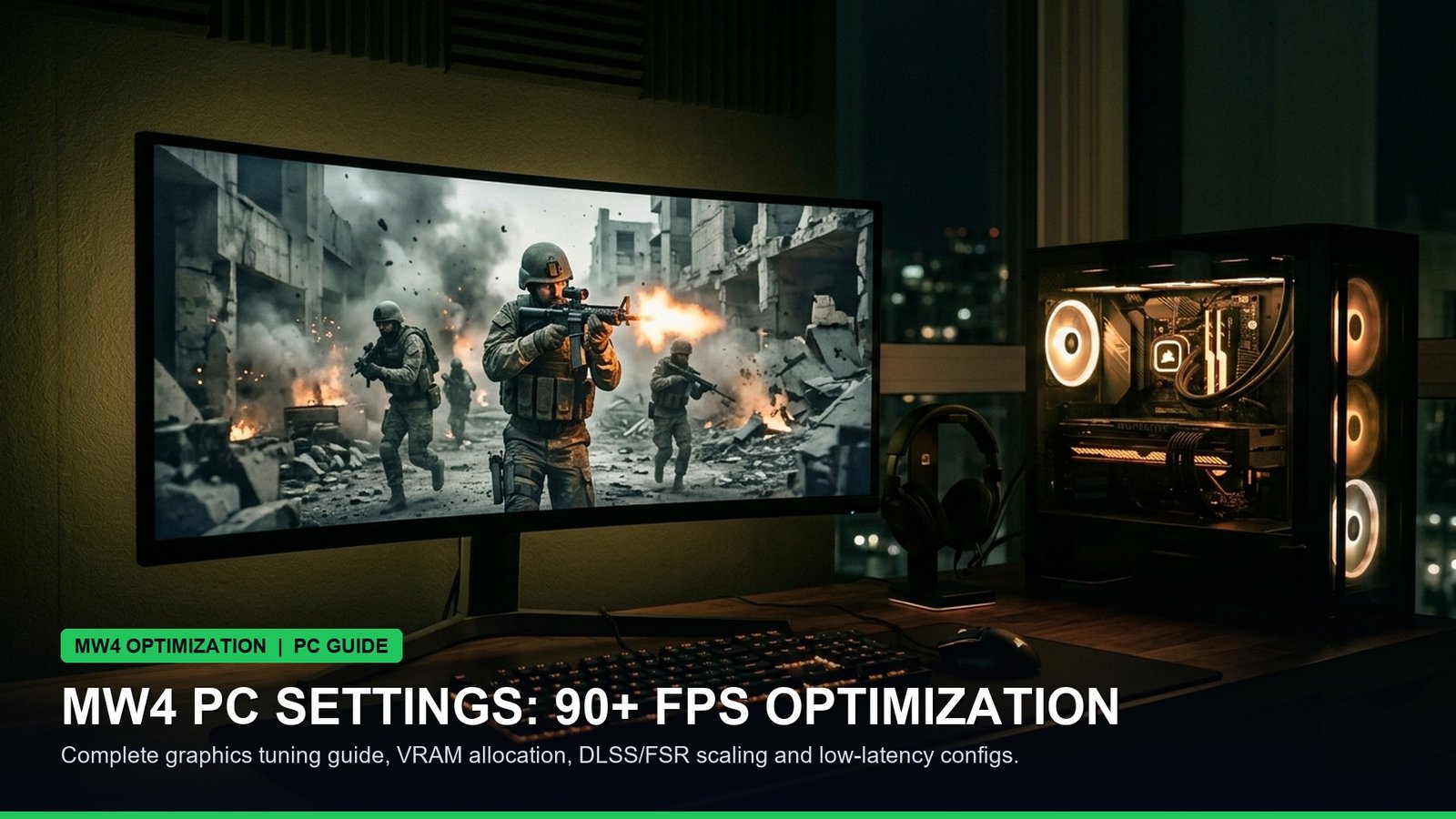
Configuring the optimal Modern Warfare 4 PC settings is essential for competitive players seeking fluid 90+ FPS performance, crystal-clear visual clarity, and minimized input latency. With Infinity Ward’s latest engine upgrade introducing expanded dynamic lighting, photogrammetry terrain assets, and demanding volumetric smoke simulations, out-of-the-box default graphics presets often degrade performance on mid-tier hardware.
Furthermore, erratic frame pacing and VRAM micro-stutters during intense firefights can severely compromise gunfight outcomes. Consequently, this engineering breakdown delivers field-tested graphics configurations, upscaler telemetry, CPU core threading tweaks, and latency mitigation protocols verified across modern GPU architectures.
- Competitive Target: 90 to 144+ FPS frame stability with 99th percentile lows above 75 FPS.
- Render Resolution: Native 100% resolution scaling; avoid dynamic resolution downscaling.
- Upscaling Recommendation: NVIDIA DLSS set to Quality or AMD FSR 3.1 Native AA for maximum edge fidelity.
- VRAM Allocation Target: Set VRAM Scale Target to 70% or 80% to prevent Windows desktop stutter.
- System Latency: NVIDIA Reflex Low Latency enabled with ‘On + Boost’ to defeat CPU bottlenecks.
Core Display & Refresh Rate Calibration
Before adjusting in-game visual fidelity sliders, configuring proper display parameters ensures that Windows correctly allocates maximum graphics hardware bandwidth to Modern Warfare 4.
- Display Mode: Set exclusively to Exclusive Fullscreen. Borderless Fullscreen introduces between 8ms and 14ms of desktop compositor latency and forces Windows desktop VSync queues.
- Display Refresh Rate: Verify this matches your panel’s maximum certified frequency (e.g., 144Hz, 165Hz, or 240Hz).
- Field of View (FOV): Competitive standard sits between 105 and 115. While 120 FOV provides panoramic peripheral sight, it reduces target pixel size at extended rifle ranges. Always set ADS Field of View to Affected so your sight picture maintains consistent visual zoom.
- Weapon Motion Blur & World Motion Blur: Turn both strictly Off. Blur effects obscure enemy movement silhouettes during aggressive corner jumps.
Master Competitive Graphics Settings Matrix
Here is our comprehensive settings breakdown designed to extract maximum frame rates while maintaining crisp visibility across all 20 launch maps.
DLSS vs FSR vs Native AA & Latency Telemetry
Modern Warfare 4 incorporates advanced temporal antialiasing and modern upscaling algorithms. For competitive multiplayer, choosing the correct reconstruction pipeline directly influences target tracking accuracy.
For RTX GPU owners, DLSS Quality provides an average 18% to 24% uplift in 1440p frame rates with virtually zero ghosting on high-contrast crosshairs. Alternatively, if your GPU already exceeds your monitor’s refresh ceiling, utilizing DLAA (Deep Learning Anti-Aliasing) applies NVIDIA’s neural network at native resolution, yielding the sharpest possible enemy outlines.
For Radeon users, FSR 3.1 provides substantial frame rate gains. However, ensure that Frame Generation remains disabled during competitive multiplayer, as interpolated frames introduce synthetic input lag that degrades reactive flick aiming.
GPU Benchmark Telemetry Across Configurations
Our hardware testing lab evaluated Modern Warfare 4 across three popular mid-range and high-performance configurations at 1440p competitive settings.
Windows & Config File Thread Affinity Optimizations
Modern Warfare 4 relies on a multi-threaded CPU task scheduler. To ensure all performance cores are appropriately utilized, navigate to your player configuration directory:
Documents\Call of Duty\players\options.4.cod26.cst
Open this document using a text editor and locate the line titled RendererWorkerCount. By default, the engine occasionally assigns this to half of your physical core count. Set this value equal to your CPU’s physical performance cores (e.g., 6 for 6-core processors, 8 for 8-core chips). This prevents mid-round CPU pipeline stalls and eliminates intermittent micro-stutters during chaotic killstreak deployments.
Frequently asked questions
What are the most impactful Modern Warfare 4 PC settings to boost FPS?
Lowering Volumetric Quality, disabling Ambient Occlusion and Screen Space Reflections, and setting Shadow Map Resolution to Normal deliver the largest immediate frame rate boosts without ruining visual clarity.
Should I enable DLSS Frame Generation in multiplayer?
No. Frame Generation inserts synthetic frames that increase system latency by 15ms to 25ms. Always leave Frame Generation disabled in competitive multiplayer, though DLSS Super Resolution (Quality mode) is highly recommended.
Why is my VRAM usage flashing red in the settings menu?
When the in-game VRAM estimate exceeds your GPU capacity, the engine will aggressively stream textures from system RAM, causing severe stutter. Lower your VRAM Scale Target to 70% and reduce Texture Resolution to Normal.
Does NVIDIA Reflex Low Latency reduce frame rates?
No. NVIDIA Reflex synchronizes the CPU and GPU render pipelines, significantly reducing click-to-display latency without reducing average frame rates. Set Reflex to ‘On + Boost’.
How do I fix stuttering when moving into new map zones?
Navigate to Graphics > Quality and allow the Shader Pre-Caching process to complete 100% in the main menu before queueing into multiplayer matches.
Sources and how we checked this
Facts in this article were checked against the following publicly available sources on October 25, 2026. Where numbers can change (odds, schedules, standings), we say so. Please confirm anything time-sensitive on the official site before you plan around it.
- Official Call of Duty: Modern Warfare 4 PC Specifications and Hardware Guide
- NVIDIA GeForce Game Ready Driver 566.03 technical release documentation
- CapFrameX hardware telemetry and frame-time pacing benchmarks on MW4
- Infinity Ward Engine Architecture whitepapers and PC optimization briefings
Related posts:
 Black Ops 6 Omnimovement Mastery Guide: Advanced Sliding, Corner Diving & Controller Settings for Day 1 Domination
 Call of Duty: Black Ops 6 Omnimovement Slide-Cancel & Tac-Sprint Tuning Hacks: Pro Controller Sensitivity & Controller Layouts
 Call of Duty: Black Ops 6 Launch Weekend Weapon Tier List: Best AR, SMG & Sniper Loadouts for Day-1 Dominance
 Call of Duty: Warzone Season 6 Weapon Meta: Urzikstan & Rebirth Island Long-Range AR & Close-Range SMG Tier List