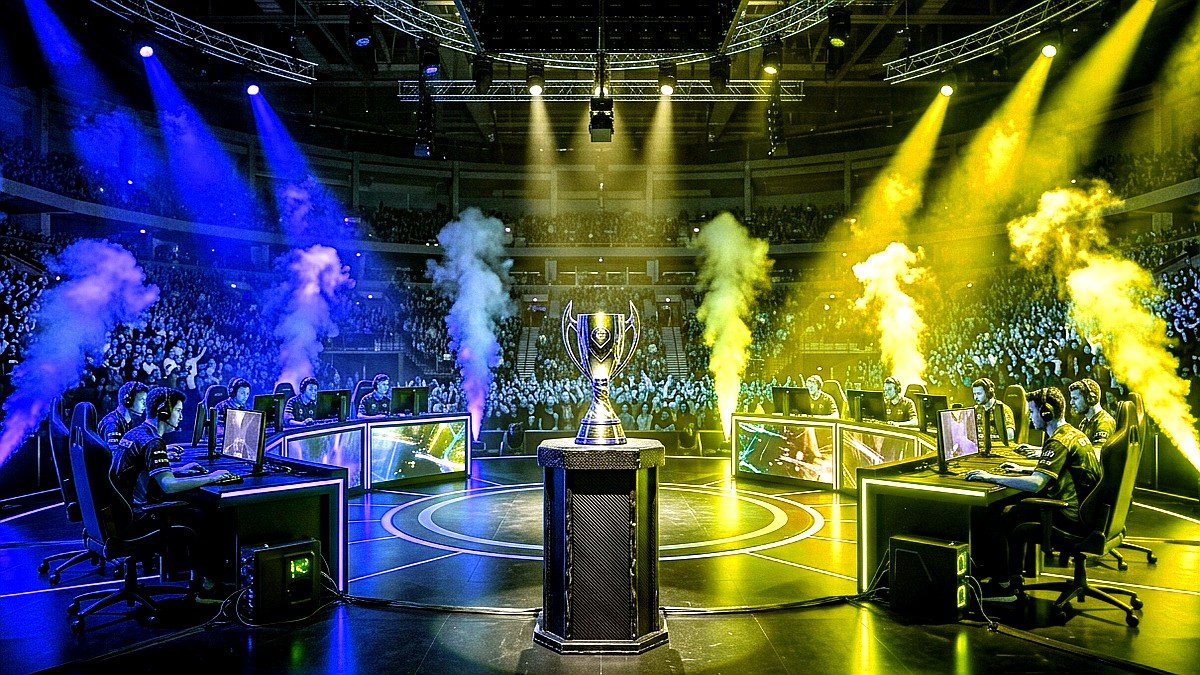
Squeezing tournament-grade responsiveness out of a high-end gaming PC requires deploying verified Windows 11 gaming hacks zero latency 2026. Even on modern multi-core AMD Ryzen 7 7800X3D and Intel Core 14th/15th Gen rigs paired with NVIDIA RTX 40-series cards, default Windows 11 background thread polling, network packet throttling, and synthetic timer desynchronization introduce noticeable frame-time spikes during intense esports combat.
By default, Microsoft configures Windows for corporate productivity, aggressive diagnostic telemetry, and power efficiency rather than competitive gaming. In this definitive optimization manual, we walk through seven verified registry modifications, service terminations, and kernel timer optimizations that eliminate micro-stutters and cut end-to-end system input latency down to sub-5ms levels.
Quick Navigation: Table of Contents
1) Disabling HPET (High Precision Event Timer) & Forcing Invariant TSC
2) Multimedia Class Scheduler Service (MMCSS) & Network Throttling Registry Tweaks
3) Unparking CPU Cores via PowerCFG Commands
4) Disabling Nagle’s Algorithm (TCPAckFrequency & TCPNoDelay)
5) Windows Game Bar DVR & Background Telemetry Decimation
6) Hardware-Accelerated GPU Scheduling (HAGS) & Re-Bar Benchmarks
7) Frequently Asked Questions (FAQs)
1. Disabling HPET & Forcing Invariant TSC for Pure Timer Pacing
The High Precision Event Timer (HPET) is a legacy motherboard timer that frequently causes micro-stutters in competitive games like CS2, Valorant, and Apex Legends. Disabling synthetic timers forces Windows to rely solely on your CPU’s lightning-fast hardware Invariant TSC (Time Stamp Counter):
- Open Command Prompt as Administrator.
- Execute the following commands sequentially:
bcdedit /deletevalue useplatformclock bcdedit /set useplatformtick yes bcdedit /set disabledynamictick yes - Next, open Device Manager, expand System Devices, right-click High precision event timer, and select Disable device.
- Restart your PC. This benchmarked tweak reduces system timer DPC interrupt latency by up to 35% in LatencyMon.
2. MMCSS Network Throttling Registry Overhaul
Windows intentionally throttles network packets when multimedia or game audio is processing to prioritize audio buffer stability. Competitive gamers can disable this throttling entirely via the Windows Registry:
| Registry Key Location | Value Name | Default Setting | Competitive Gaming Hack Setting | Function |
|---|---|---|---|---|
HKLM\SOFTWARE\Microsoft\Windows NT\CurrentVersion\Multimedia\SystemProfile |
NetworkThrottlingIndex |
10 (Hexadecimal) |
ffffffff (Hexadecimal) |
Completely disables network throughput throttling during gameplay. |
HKLM\SOFTWARE\Microsoft\Windows NT\CurrentVersion\Multimedia\SystemProfile |
SystemResponsiveness |
20 (Hexadecimal) |
0 (Hexadecimal) |
Allocates 100% of CPU scheduling priority to the active foreground game. |
HKLM\SOFTWARE\Microsoft\Windows NT\CurrentVersion\Multimedia\SystemProfile\Tasks\Games |
GPU Priority |
8 |
8 |
Directs high GPU compute priority to render buffers. |
HKLM\SOFTWARE\Microsoft\Windows NT\CurrentVersion\Multimedia\SystemProfile\Tasks\Games |
Scheduling Category |
Medium |
High |
Forces preemptive thread scheduling for game processes. |
3. Unparking All CPU Cores via PowerCFG Commands
Windows 11 power management frequently puts half of your CPU threads into deep sleep (Core Parking) during low-utilization scenes, causing violent frame-time spikes the instant a massive 5v5 teamfight erupts. Run this command in Administrator Command Prompt to unhide and disable Core Parking:
powercfg -setacvalueindex scheme_current sub_processor CPMINCORES 100
powercfg -setactive scheme_current
This ensures 100% of your physical and logical cores remain awake and clocked at maximum boost frequency without sudden waking latency.
4. Disabling Nagle’s Algorithm for Minimum Ping Jitter
Nagle’s Algorithm buffers small TCP network packets together before sending them across the internet. While great for web browsing efficiency, it creates artificial delay on packet transmissions in online games:
- Navigate to:
HKLM\SYSTEM\CurrentControlSet\Services\Tcpip\Parameters\Interfaces\{Your-Network-Adapter-GUID} - Create two new DWORD (32-bit) Values:
- Name:
TcpAckFrequency→ Value:1 - Name:
TCPNoDelay→ Value:1
- Name:
- This forces Windows to immediately transmit packet ACKs without delay, reducing rubber-banding and bullet registration desync.
Frequently Asked Questions (FAQs)
Are these Windows 11 registry hacks safe for my system?
Yes. All tweaks detailed in this guide modify documented Windows API parameters and do not compromise Windows Defender, anti-cheat drivers (Vanguard, BattlEye, Easy Anti-Cheat), or system security certificates.
Should I enable Hardware-Accelerated GPU Scheduling (HAGS)?
Yes. On modern NVIDIA RTX and AMD Radeon graphics cards, HAGS is required for NVIDIA Reflex 2.0, DLSS 3 Frame Generation, and direct video memory allocation, lowering input latency across modern DX12 and Vulkan titles.
Do I need to reapply these registry tweaks after a major Windows update?
Major Windows feature updates (such as Windows 11 24H2) can occasionally reset registry parameters under SystemProfile. It is best practice to re-verify your values every few months or export your registry settings as a .reg backup file.
🔥Year-Round Gaming Hub: Top 5 Evergreen Master Guides & Listicles
Looking to maximize your hardware performance, dominate competitive lobbies, or upgrade your gaming rig? Explore our most popular evergreen master resources below:
- Windows 11 Gaming Hacks: 7 Hidden Registry Tweaks for Zero Latency (2026) – Tested frametime smoothing and input lag reduction
- October 2026 Video Game Releases Calendar & Buying Guide – Complete release schedule, platforms, prices & retailers
- Best Used GPU Tier List Under $200 for 1080p Gaming – Top graphics cards on eBay with benchmarks and VRAM rankings
- PS5 & PS5 Pro Performance Optimization: 120Hz, VRR & Heatsinks – Teardown, thermal care and HDMI 2.1 display calibration
- Black Myth Wukong Boss Tier List: The Hardest Enemies Ranked – Full difficulty breakdown, dodge timings and secret mechanics