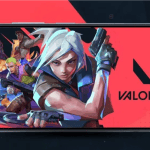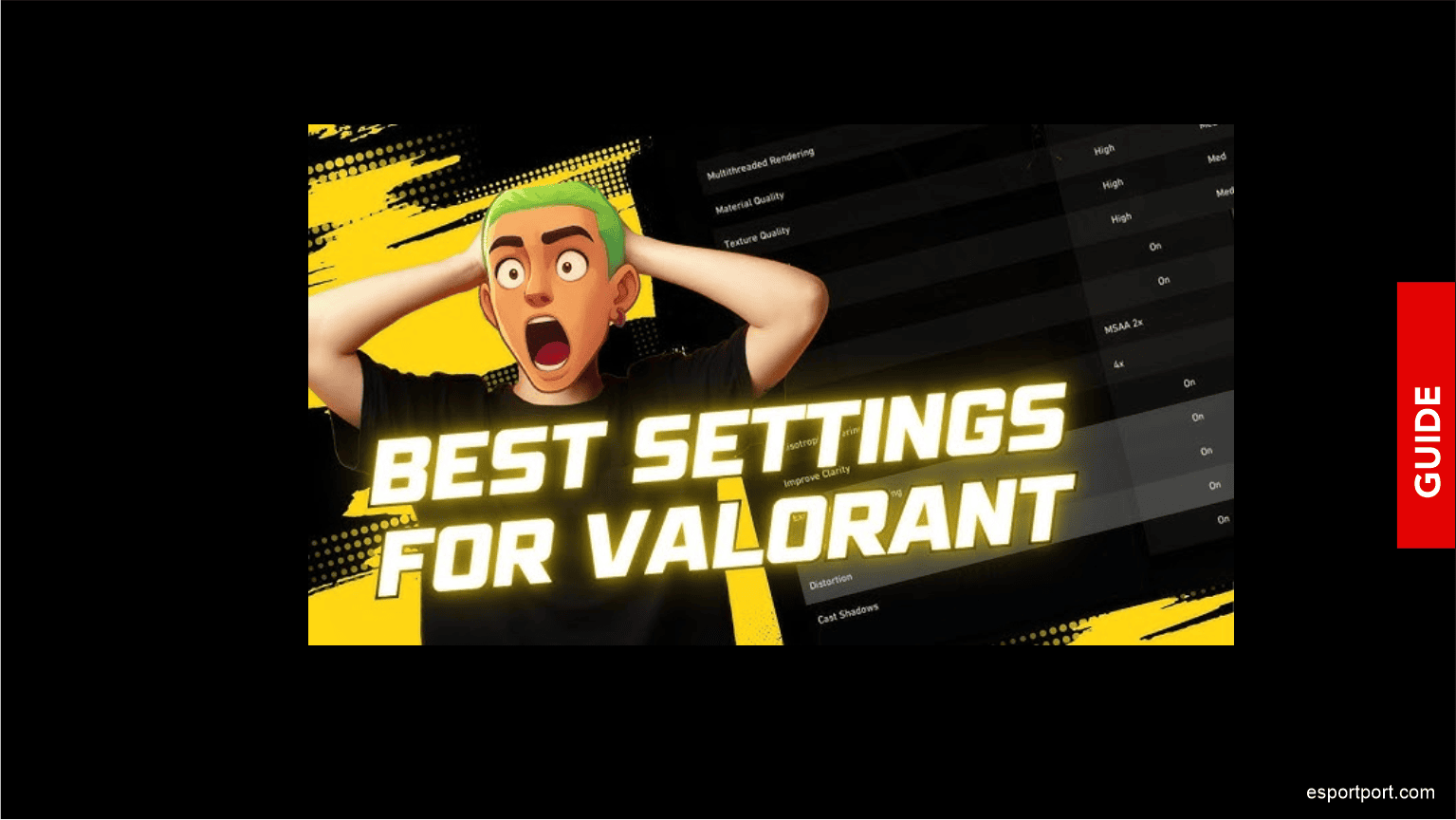
Valorant Best Settings 2026 Pro Player Config Max FPS
🚨 TL;DR SUMMARY 🚨
- Best Resolution: 1280×960 Stretched (used by 60% of pro players at Champions 2026)
- Best Graphics Settings: All quality settings to Low + Material Quality to Medium — this gives you maximum FPS without making the game look unplayable.
- Best Mouse Settings: 400 DPI + 0.35 In-Game Sensitivity (TenZ’s exact config)
- Expected FPS Gain: Following this guide will add 30-60 FPS on almost every PC setup.
There is a massive, dirty secret that Riot Games will never tell you: The default Valorant graphics settings are actively sabotaging your performance. The “High” and “Ultra” presets are designed to make the game look good in screenshots — not to win gunfights.
Every single professional player at Valorant Champions 2026 in Seoul was using heavily customized low-settings configurations. The reason is simple: higher FPS = lower input lag = winning more gunfights on pure mechanics alone.
We have compiled and tested the best Valorant settings for 2026 so you can copy the exact configuration that the world’s best players use!
🖥️ Part 1: Resolution & Display Settings
The Best Resolution for Competitive Play
The single biggest setting change you can make is switching from your native resolution to a stretched resolution:
- Best Option:
1280x960(4:3 Stretched) - Why: Enemy player models appear wider and easier to hit. This resolution was used by over 60% of players at Champions 2026.
- Alternative:
1920x1080(Native) — if you prefer accuracy over stretched models
How to Set Stretched Resolution:
- Right-click your Desktop → Display Settings
- Set your monitor resolution to 1280×960
- Open your GPU Control Panel (NVIDIA/AMD)
- Set Scaling to “Full-Panel” (not “Aspect Ratio”)
- Launch Valorant — the game will automatically use the stretched resolution!
Monitor Settings
- Brightness: 80% (higher brightness makes enemies more visible in dark corners)
- Refresh Rate: Always use the maximum your monitor supports (144Hz / 240Hz)
- Response Time: Set to “Fast” or “Fastest” in your monitor’s OSD menu
⚙️ Part 2: The Exact Video Settings (Copy These!)
Go to Settings → Video in Valorant and set exactly:
| Setting | Value | Reason |
|---|---|---|
| Display Mode | Fullscreen | Lowest input lag |
| Resolution | 1280×960 | Stretched models |
| Frame Rate Limit | Always (set to your Hz + 10) | Prevents frame drops |
| Material Quality | Medium | Keeps textures sharp |
| Texture Quality | Low | Big FPS gain |
| Detail Quality | Low | Big FPS gain |
| UI Quality | Low | FPS gain |
| Vignette | OFF | Better clarity |
| VSync | OFF | Reduces input lag |
| Anti-Aliasing | None | Biggest FPS gain |
| Anisotropic Filtering | 1x | FPS gain |
| Improve Clarity | OFF | FPS gain |
| Bloom | OFF | Better visibility |
| Distortion | OFF | Better visibility |
| First Person Shadows | OFF | Big FPS gain |
ALSO READ: Are you following the professional Valorant scene? Therefore, you must read our Valorant Champions 2026 Live Score: Leviatan vs Heretics!
🖱️ Part 3: Mouse Settings (The Most Important Config)
Raw Input & Mouse Settings
- Go to Windows Settings → Bluetooth & Devices → Mouse
- Set Pointer Speed to exactly 6/11 (the middle notch)
- Disable “Enhance Pointer Precision” — this is mouse acceleration and it completely destroys your muscle memory!
In-Game Sensitivity
The professional consensus at Champions 2026 was:
- 400 DPI + 0.35 Sensitivity (TenZ / Aspas config — great for aggressive players)
- 800 DPI + 0.20 Sensitivity (Chronicle config — great for precise players)
- The Rule: Your crosshair should travel from the left side of your screen to the right side in one full arm swipe. If it moves too far or not far enough, adjust until it does.
🌐 Part 4: Network Settings for Low Ping
In-Game Network Settings
Go to Settings → General and enable:
- “Show Network Problems” — shows you when packets are being dropped
- “Show FPS” — monitor for sudden drops during matches
PC Network Optimization
- Open Windows Settings → Network → Change Adapter Options
- Right-click your network adapter → Properties
- Uncheck “QoS Packet Scheduler” — this reserves 20% of your bandwidth for Windows updates!
- Click OK and restart Valorant
DNS Settings (Same as BGMI Fix!)
- Open your Wi-Fi adapter properties
- Double-click “Internet Protocol Version 4”
- Set Preferred DNS:
8.8.8.8 - Set Alternate DNS:
1.1.1.1
🎯 Part 5: Best Crosshair Settings
Copy this exact crosshair code used by professional players:
- TenZ Crosshair Code:
0;P;c;1;h;0;f;0;0t;1;0l;4;0a;1;0f;0;1b;0 - Aspas Crosshair Code:
0;s;1;P;c;5;h;0;f;0;0t;1;0l;3;0o;0;0a;1;0f;0;1b;0
To import: Go to Settings → Crosshair → Import Profile Code → Paste the code above!
What is your current rank in Valorant? Share your before and after FPS numbers after applying these settings in the comments below!