CS2 Best Settings 2026 300 FPS Lag Fix Guide
🚨 TL;DR SUMMARY 🚨
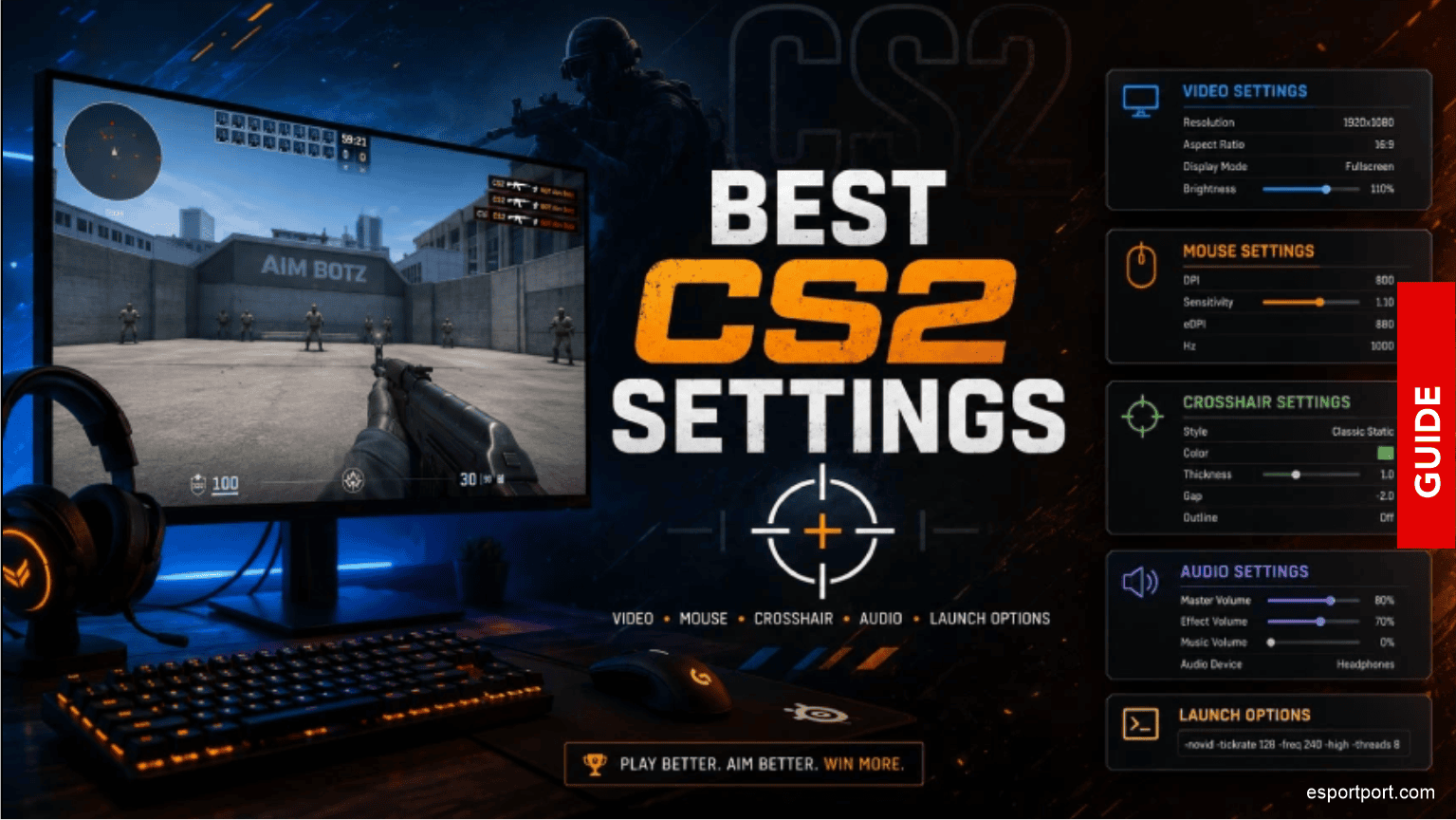
- Best Resolution: 1280×960 Stretched (used by b1t, NiKo, and ZywOo at EWC 2026)
- Most Important Setting: Disable “Multisampling Anti-Aliasing Mode” — this single change can add 40-80 FPS instantly.
- Best Launch Command:
-novid -high -freq 144— paste this into Steam right now for an instant performance boost. - Expected Gain: This guide will add 50-150 FPS depending on your hardware.
Counter-Strike 2 is the most unforgiving competitive shooter in the world. At the elite level seen at the EWC 2026 Grand Finals in Paris, every single frame of advantage matters. The difference between winning a pistol round and losing it can come down to whether your game stuttered for 16 milliseconds during the peek.
The professional players competing for millions of dollars at the EWC were running heavily optimized configurations with specific launch commands, registry tweaks, and graphics settings fine-tuned over years of competitive play. We have compiled all of it into one complete CS2 best settings guide for 2026!
⚙️ Part 1: The Critical Launch Options
Launch options are hidden commands that CS2 executes before the game even loads. They are the single most powerful performance tool available and they are completely free.
How to Set Launch Options:
- Open Steam Library
- Right-click Counter-Strike 2
- Click “Properties”
- Click “General” tab
- Find the “Launch Options” text box
- Paste exactly:
-novid -high -freq 144 -tickrate 128 +cl_forcepreload 1What Each Command Does:
-novid— Skips the intro video (saves 5 seconds every launch)-high— Sets CS2 as a “High Priority” process in Windows Task Manager-freq 144— Forces your monitor to run at 144Hz (change to 240 if you have a 240Hz monitor)-tickrate 128— Forces 128-tick servers in offline practice mode+cl_forcepreload 1— Pre-loads all map textures to eliminate stutters during gameplay
🖥️ Part 2: Video Settings (Copy Exactly)
Go to CS2 Settings → Video and set:
| Setting | Value | FPS Impact |
|---|---|---|
| Display Mode | Fullscreen | +10 FPS |
| Resolution | 1280×960 | +30 FPS |
| Aspect Ratio | 4:3 | Stretched models |
| Refresh Rate | Maximum (144/240Hz) | Critical |
| Brightness | 110% | Better visibility |
| V-Sync | Disabled | -Input lag |
| Multisampling (MSAA) | None | +50-80 FPS |
| Global Shadow Quality | Very Low | +20 FPS |
| Model/Texture Detail | Low | +10 FPS |
| Effect Detail | Low | +10 FPS |
| Shader Detail | Low | +10 FPS |
| Boost Player Contrast | Enabled | Better enemy visibility |
| Wait for V-Sync | Disabled | -Input lag |
| Motion Blur | Disabled | Better clarity |
ALSO READ: Do you want to watch the world’s best CS2 players compete? Therefore, you must read our EWC 2026 CS2 Grand Finals: NAVI vs Vitality Full Recap!
🌐 Part 3: Network & Ping Optimization
In-Game Network Commands
Open your CS2 Console (press the ` key) and paste these commands one by one:
What these do: These commands maximize the data exchange rate between your PC and the CS2 servers, significantly reducing the gap between what you see on screen and what is actually happening on the server.
Windows Network Tweaks
- Press Windows + R → Type
ncpa.cpl→ Press Enter - Right-click your network adapter → Properties
- Uncheck “QoS Packet Scheduler”
- Double-click “Internet Protocol Version 4”
- Set DNS to:
- Preferred:
1.1.1.1 - Alternate:
8.8.8.8
- Preferred:
🖱️ Part 4: Mouse & Sensitivity Settings
Windows Mouse Settings
- Search “Mouse Settings” in Windows
- Set Pointer Speed to 6/11 (exactly the middle position)
- Disable “Enhance Pointer Precision” — this is the #1 mistake that destroys CS2 aim
Pro Player Sensitivity Reference (EWC 2026)
- b1t (NAVI EWC MVP): 400 DPI — 1.35 Sensitivity — 0.54 eDPI
- ZywOo (Vitality): 400 DPI — 2.0 Sensitivity — 0.8 eDPI
- NiKo (G2): 400 DPI — 1.35 Sensitivity — 0.54 eDPI
The Rule for Finding Your Sensitivity: Set your DPI to 400. Then adjust in-game sensitivity until your crosshair moves exactly 180 degrees (half a screen turn) in one full arm swipe across your mousepad.
💾 Part 5: Windows Optimizations
These system-level tweaks will eliminate background interference and give CS2 maximum resources:
Disable Xbox Game Bar
- Go to Settings → Gaming → Xbox Game Bar
- Toggle it OFF — it consumes RAM and causes stutters
Set Power Plan to High Performance
- Search “Power Plan” in Windows
- Select “High Performance” or “Ultimate Performance”
- Never use “Balanced” while gaming
Update GPU Drivers
- NVIDIA users: Download GeForce Experience and click “Check for Drivers”
- AMD users: Download AMD Adrenalin and check for updates
- Out-of-date GPU drivers are responsible for 30% of all CS2 stuttering issues
What is your current CS2 rank? Drop your FPS before and after applying this guide in the comments — we would love to see the improvement!