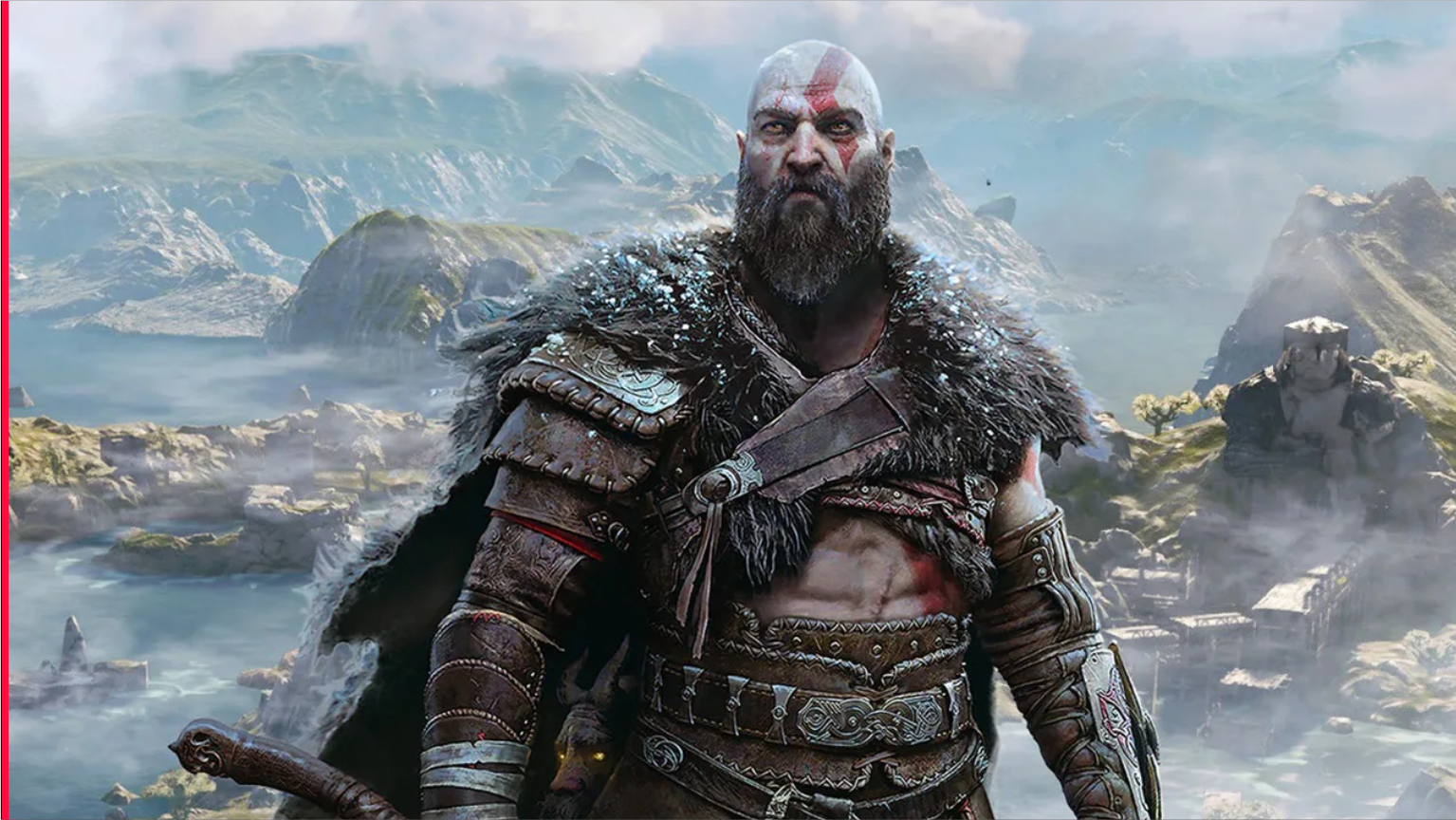
Following a celebrated PlayStation console debut, God of War Ragnarok has officially arrived on PC via Steam and the Epic Games Store, bringing Kratos and Atreus’ epic Norse conclusion to high-refresh desktop monitors and handheld gaming rigs. Ported by the technical wizards at Jetpack Interactive in collaboration with Santa Monica Studio, the PC version delivers unlocked framerates, ultrawide display support, and cutting-edge upscaling technologies.
However, navigating the Nine Realms at a flawless 60 or 120 FPS requires dialing in graphical parameters, managing video memory (VRAM) overhead, and eliminating initial shader compilation stutters. Below is our complete, benchmarked guide to achieving peak visual fidelity and rock-solid performance.
Best PC Graphics Settings: Performance vs Visual Fidelity
To achieve a locked 60 to 120 frames per second in God of War Ragnarok, understanding how each graphical slider impacts VRAM and GPU utilization is essential:
| Graphics Setting | Default / Ultra Setting | Competitive Optimized Setting | Performance Gain (% FPS) | Visual Impact |
|---|---|---|---|---|
| Texture Quality | Ultra | High (6GB VRAM) / Ultra (8GB+) | ~ 2% | Maintains crisp Norse armor engravings; set based on VRAM capacity |
| Model Quality | Ultra | High | ~ 5% | Minor polygon reduction at extreme distances; imperceptible during combat |
| Anisotropic Filtering | 16x | 16x | ~ 0.5% | Negligible performance cost; keeps floor and rock textures ultra-sharp |
| Shadows | Ultra | Medium or High | ~ 14% | Massive performance boost; softens shadow edges without removing contact shadows |
| Reflections (SSR) | Ultra | Original / High | ~ 9% | Optimizes water puddles in Svartalfheim and frozen lakes in Midgard |
| Atmospherics & Fog | Ultra | Medium | ~ 11% | Greatly reduces volumetric fog render loads during heavy blizzard sequences |
| Ambient Occlusion | Ultra | High | ~ 4% | Retains deep contact shadows in forested and subterranean grottos |
Setting Shadows and Atmospherics to Medium unlocks an immediate 20–25% framerate uplift while preserving 90% of the game’s cinematic presentation.
Eliminating Shader Compilation Stutters & VRAM Leaks
While the PC port includes an initial shader pre-compilation step on the main menu, players on 8GB VRAM graphics cards have reported micro-stutters during intense Leviathan Axe throw-and-recall sequences:
- Wait for 100% Background Compilation: When launching the game for the first time, remain on the main title screen until the small “Compiling Shaders” notification in the bottom-right corner reaches 100%. Jumping straight into campaign gameplay causes frame-time spikes as shaders compile on the fly.
- Enable Resizable BAR (ReBAR) / SAM: Verify that Resizable BAR is enabled in your motherboard BIOS and GPU driver control panel. ReBAR allows your CPU to access the entire GPU frame buffer simultaneously, eliminating micro-stutters during rapid realm-travel transitions through Yggdrasil.
- Pagefile Configuration: Ensure your Windows virtual memory pagefile is set to “System Managed” on your fastest NVMe solid-state drive to prevent out-of-memory crashes in densely populated hubs like Sindri’s House.
Gamers playing on portable hardware can consult our tested rankings of the Best Gaming Laptops Under 70000 in India to find machines engineered with dedicated high-TGP graphics and thermal cooling.
Upscaling Technologies: DLSS 3.7 vs FSR 3.1 vs XeSS
The game includes day-one support for all major modern image reconstruction suites:
- Nvidia DLSS 3.7 (Super Resolution & Frame Generation): For GeForce RTX 40-series owners, pairing DLSS Quality with Frame Generation delivers a transformational boost, pushing 1440p and 4K framerates well beyond 120 FPS with pristine image clarity.
- AMD FSR 3.1: Features decoupled frame generation, allowing players on older RTX 20/30 series or Radeon RX 6000/7000 GPUs to generate interpolated frames alongside DLSS or native anti-aliasing.
- Intel XeSS 1.3: For Intel Arc or older GTX GPUs lacking tensor hardware, XeSS DP4a mode produces superior anti-aliasing and temporal stability compared to basic spatial sharpeners.
Steam Deck & Handheld Performance Optimization (45–60 FPS)
Running God of War Ragnarok on handheld PC hardware like the Steam Deck or ASUS ROG Ally requires aggressive optimization to balance battery life and smooth action:
- Display Resolution: 1280×800 Native.
- Upscaler: AMD FSR 3.1 set to Balanced with Sharpness at 0.4.
- SteamOS Refresh Rate: Set Steam Deck screen refresh to 45 Hz and frame rate limit to 45 FPS. This delivers buttery smooth combat responsiveness without the severe battery drain or thermal throttling of uncapped 60 FPS.
- TDP Limit: Lock TDP at 12W for an optimal balance of 2.2+ hours of battery life and fluid combat in Vanaheim jungles.
Performance Summary
Santa Monica Studio and Jetpack Interactive have delivered a technically accomplished PC port that rewards thoughtful optimization. Applying these calibrated settings ensures that your journey through the Nine Realms in God of War Ragnarok remains visually breathtaking, responsive in brutal boss encounters, and rock-solid across every realm.