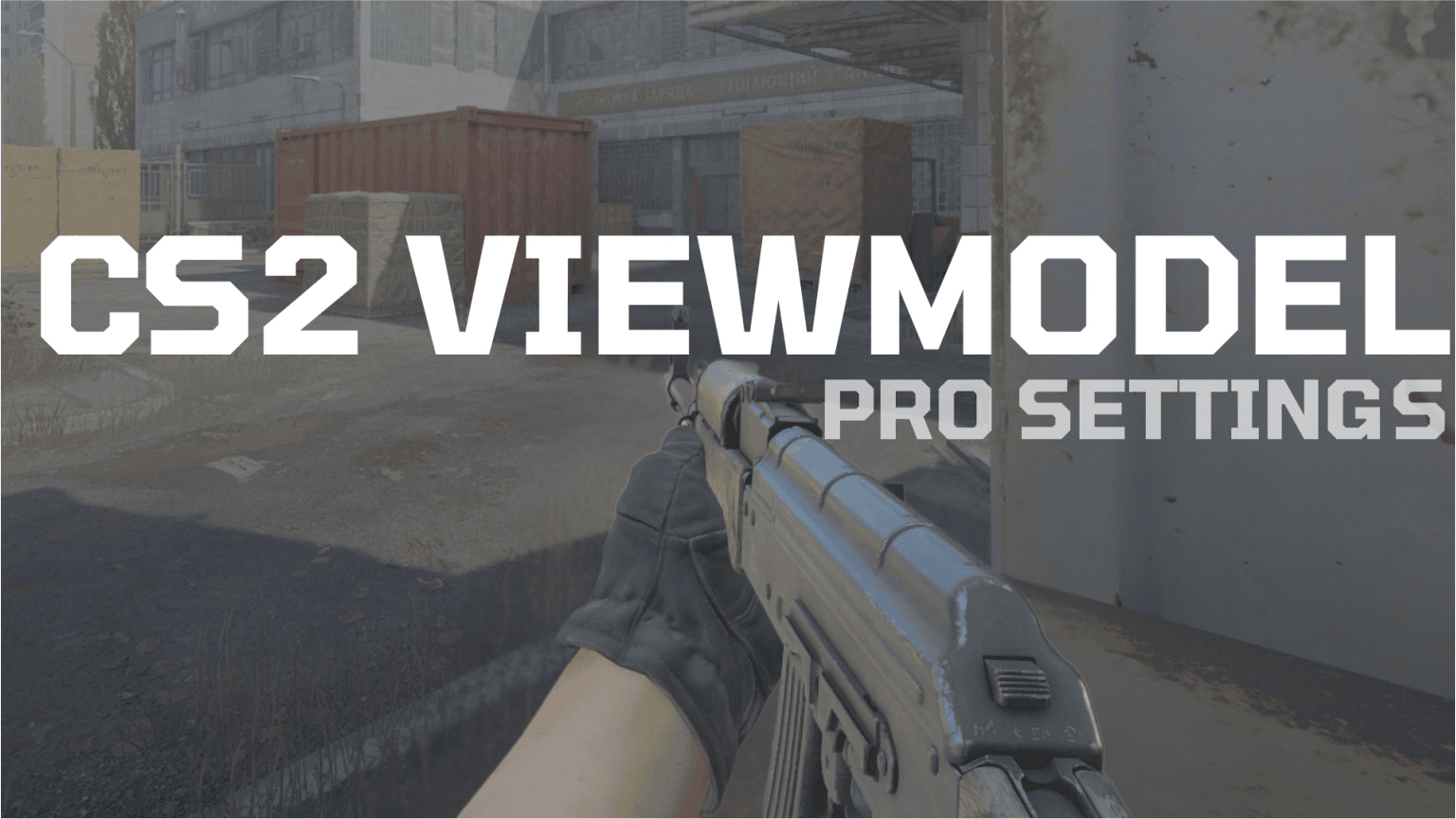
CS2 Pro crosshair codes 2026
First, achieving the Global Elite rank in Counter-Strike 2 (CS2) requires absolute mechanical perfection. Because Valve massively updated the Source 2 engine graphics, the visual clutter on maps like Inferno and Mirage is significantly higher than in CS:GO. Consequently, amateur players constantly lose long-range duels because their default crosshair blends into the background.
Therefore, you must optimize your visual settings. If you want to instantly improve your headshot percentage and screen visibility, you must copy the exact CS2 pro crosshair codes 2026 and viewmodel commands detailed below.
1. Top CS2 Pro Crosshair Codes (August 2026)
Historically, professional players prefer small, static crosshairs with vibrant colors (like cyan or green) that contrast heavily against sandy map textures. We have extracted the exact, updated crosshair strings used by the best AWPers and Riflers in the world.
- m0NESY (G2 Esports) – Extremely Precise:
CSGO-aKmnx-x2mK5-2A4eN-p94a3-QWWtP - ZywOo (Team Vitality) – Balanced Assaulter:
CSGO-Qzpx5-BRL18-xFPCS-pTfL4-GJW3F - NiKo (G2 Esports) – The One-Tap Rifle:
CSGO-Umk5s-ZpKfR-T2DMC-9XKLG-7V45C
How to Import Crosshair Codes in CS2
If you have never imported a profile before, you must carefully follow these steps inside the CS2 client:
- Copy your preferred pro code from the list above.
- Open the CS2 Settings Menu (gear icon) and navigate to the Game tab.
- Click on the Crosshair sub-menu.
- Click the Share or Import button at the bottom of the screen.
- Finally, paste the code into the text box and click Import.
ALSO READ: Are you also trying to rank up in Riot’s tactical shooter? Therefore, you must read our “Ultimate Valorant Pro Crosshair Codes Guide!”
2. Best CS2 Viewmodel Settings
Furthermore, your crosshair is completely useless if your massive weapon model is blocking 20% of your screen. You must push the weapon as far away from the center of your screen as mathematically possible.
To apply these professional viewmodel settings, you must first enable the Developer Console in your Game Settings. Once enabled, press the tilde key (~), paste these exact commands into the console, and press Enter:
viewmodel_fov 68(Pushes the gun furthest away from the camera)viewmodel_offset_x 2.5(Pushes the gun to the far right edge of the screen)viewmodel_offset_y 0viewmodel_offset_z -1.5(Lowers the gun toward the bottom of the screen)viewmodel_presetpos 3(Locks the classic competitive preset)
ALSO READ: Do you want to learn more advanced console commands? Therefore, you must study our “Essential CS2 Console Commands Guide!”
In conclusion, you do not need to invent your own settings from scratch. By copying the exact crosshairs and viewmodels utilized by Major Champions like m0NESY and ZywOo, you mathematically guarantee that bad visual settings are not holding you back. Therefore, you should load into a Deathmatch server and test these new codes today!
Which pro player’s crosshair do you prefer using? Did the viewmodel commands make your screen feel wider? Let us know in the comments below!