
Unlocking peak responsiveness on your PS5 Pro takes more than connecting standard cables out of the box. Specifically, exact HDMI 2.1, VRR, and PSSR toggles clear noisy foliage shimmer while delivering smooth 120Hz responsiveness. In addition, modern holiday games easily cross 200GB—like the 212GB GTA 6 console pre-load and bandwidth perks in our UK broadband download boost report. Therefore, matching clean display settings with a cooled NVMe drive removes silent hardware bottlenecks.
For minimal PS5 Pro input lag and clean visuals, plug a 48 Gbps Ultra High Speed HDMI 2.1 cable directly into your TV’s 4K/120Hz socket, set Resolution, 120Hz Output, and VRR to Automatic, switch TV HDMI mode to Enhanced Format (VRR), enable PlayStation’s ‘Enhanced Image Quality’ override for PSSR shimmer, and add a heatsink-equipped PCIe Gen4 x4 M.2 NVMe SSD (5,500 MB/s+).
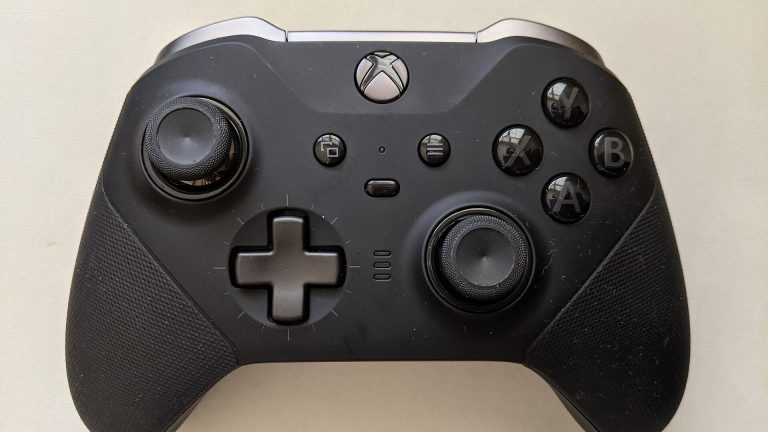
- Cable & Port: Plug a 48 Gbps Ultra High Speed HDMI 2.1 cable straight into your screen’s 4K/120Hz port.
- Video Output: Set Resolution, 120Hz Output, and VRR to Automatic plus TV Enhanced Format (VRR).
- PSSR Shimmer Fix: Turn on firmware’s Enhanced Image Quality override alongside recent title patches.
- NVMe Expansion: Pick a PCIe Gen4 x4 M.2 SSD (250GB–8TB, 5,500 MB/s+) with a mandatory cooling heatsink.
1. PS5 Pro HDMI 2.1, 120Hz & VRR Input-Lag Hacks
Half of console input lag comes from bad port handshakes or older HDMI cords rather than weak console silicon. Whenever cables fall below 48 Gbps bandwidth, panels silently lock output modes or block VRR features. Meanwhile, smooth Variable Refresh Rate sync hides frame drops cleanly across 120Hz monitors and living-room OLED TVs. First, audit these four video pipeline details across your console and screen:
- Check for 48 Gbps Ultra High Speed Labels: Skip old unmarked cords buried behind your media cabinet. Instead, rely on Sony’s pack-in cable or verified Ultra High Speed HDMI 2.1 leads.
- Use Your TV’s Dedicated 120Hz Port: Most televisions only wire two full-bandwidth HDMI 2.1 ports (often labeled 4K/120Hz or paired near eARC). Plug directly into the display rather than looping through older soundbars.
- Lock Console Output Menus: Open Settings > Screen and Video > Video Output right away. Next, set Resolution to Automatic, 120Hz Output to Automatic, and VRR to Automatic.
- Match Television HDMI Format: Open your TV input manager and swap Standard signal mode to Enhanced Format (VRR) or Instant Game Response.
Afterward, open Video Output Information inside system settings to confirm active 4K/120Hz and VRR telemetry. Seeing live VRR status confirmed on screen ensures dynamic refresh windows protect smoothness during demanding combat bursts. In addition, if your display flashes black momentarily when launching 120Hz modes, check 4K Video Transfer Rate settings. Leaving transfer rate on Automatic usually keeps 48 Gbps handshakes steady without chroma banding issues.
2. Fixing PSSR Foliage & Reflection Shimmering on Console
PlayStation Spectral Super Resolution (PSSR) boosts ray-traced detail sharply beyond standard PlayStation 5 rendering. However, launch PSSR builds occasionally left buzzing pixel artifacts over wet streets, fences, and dense trees. Luckily, studio updates—like Silent Hill 2 Patch 1.08’s reflection fixes—have cleared major flaws.
Even better, recent PlayStation 5 Pro firmware gives users a system-wide override alongside game patches. First, install current system updates, then toggle on the Enhanced Image Quality option. As a result, titles built around older PSSR passes adopt refined upscaling filters instantly without waiting on studio rebuilds. In addition, leave automatic rest-mode updates active overnight so Sony’s verified title whitelists apply silently. Consequently, distant tree lines and water reflections stay stable even during fast 60FPS performance modes.
3. Official M.2 NVMe SSD Specs for 200GB+ Games
As blockbuster holiday downloads climb beyond 200 gigabytes each, shuffling console storage wastes precious evenings. Fortunately, dropping a PCIe Gen4 drive inside your PlayStation 5 Pro expansion slot adds fast space without load penalties. Still, every drive must obey Sony’s strict speed, form factor, and thermal cooling limits below. Hitting the 5,500 MB/s read floor keeps fast travel and dense world streaming identical to internal flash:
| PlayStation 5 Expansion Spec | Required Sony Specification | Practical Buyer Rule |
|---|---|---|
| Bus Interface | PCIe Gen4 x4 M.2 NVMe SSD | Never install slower PCIe Gen3 or SATA M.2 drives |
| Capacity Range | 250 GB – 8 TB | 2 TB or 4 TB ideal for 200GB+ modern sandboxes |
| Sequential Read Speed | 5,500 MB/s or faster recommended | Look for 6,500–7,400 MB/s Gen4 drives for margin |
| Supported Lengths | 2230, 2242, 2260, 2280, or 22110 | 2280 is the standard desktop/console size |
| Cooling Structure | Heatsink is MANDATORY | Buy pre-heatsinked SKU or slim compliant addon heatsink |
When shopping this month, pick 2TB or 4TB drives in the standard 2280 length with pre-fitted aluminum heatsinks. Installing two-terabyte capacity leaves generous room for multiple 200GB sandboxes alongside live-service staples. For example, pairing Sony’s expanded M.2 storage on PS5 Pro eliminates constant weekend redownloads whenever massive updates drop. After formatting inside the console bay, move active multiplayer shooters directly onto the fast NVMe partition.
4. Television Game Mode & Cable Mistakes to Avoid
- Leaving Motion Smoothing Switched On: TV frame interpolation injects severe controller lag across shooters. Therefore, force Picture Mode straight onto calibrated Game Mode before adjusting HDR.
- Installing a Bare NVMe Stick Without Cooling: Enclosed bay pockets warm rapidly during long texture streams. Consequently, Sony requires a fitted heatsink inside every expansion bay.
- Wiring Through Legacy HDMI 2.0 Soundbars: Older receivers silently block 4K/120Hz handshakes. Instead, plug your PS5 Pro straight into the television and pass sound outward over HDMI eARC.
- Testing Unpatched Retail Discs First: Always install latest title updates before evaluating image noise so PSSR profiles load cleanly.
Finally, twenty careful minutes inside display and expansion menus safeguards crisp responsiveness all season. Furthermore, re-running screen HDR calibration once Game Mode stays locked guarantees accurate shadow contrast inside dark scenes. Keep your console well ventilated behind open shelving so cooling fans run quietly under 4K loads. Dusting intake vents every couple of months also helps M.2 bays hold peak sustained transfer speeds. Once HDMI 2.1 bandwidth, Enhanced Image Quality, and cooled Gen4 storage align cleanly, your PlayStation 5 Pro handles huge late-2026 releases without hidden stutters.
Frequently Asked Questions
What HDMI cable does PS5 Pro need for 4K 120Hz and VRR?
You need a certified 48 Gbps Ultra High Speed HDMI 2.1 cord plugged directly into a 4K/120Hz TV or monitor port.
How do you stop PSSR shimmering on Sony’s console?
Update firmware and game builds first. Next, turn on PlayStation’s system-level ‘Enhanced Image Quality’ override toggle for older PSSR games.
Is a heatsink mandatory for an internal M.2 NVMe SSD?
Yes. Sony requires every internal M.2 NVMe expansion stick to include an effective heatsink cooling structure within bay clearance limits.
What minimum read speed does Sony recommend for M.2 SSDs?
Sony specifies a PCIe Gen4 x4 M.2 NVMe drive capable of 5,500 MB/s or faster sequential read speeds, between 250GB and 8TB.
Related posts:
 Sunday Pro PC & Mobile Hardware Hacks: How to Unlock 0.1ms Rapid Trigger Strafe Stopping, 1600 DPI Sensor Calibration & Unreal Engine 5 Stutter Fixes in Phantom Blade Zero
 The Ultimate Windows 11 & PS5 Pro Gaming Optimization Guide: Low Latency Mode, 100GB Shader Cache Fix & Zero 1% Low Stutters
 PlayStation 5 Pro Launch Day Setup: PSSR 4K Calibration, Enhanced Game Transfers & VRR HDMI 2.1 Optimization
 Windows 11 Gaming FPS Boost & Latency Hacks (2026): HAGS, Nvidia Ultra, AMD Anti-Lag & VBS Guide