
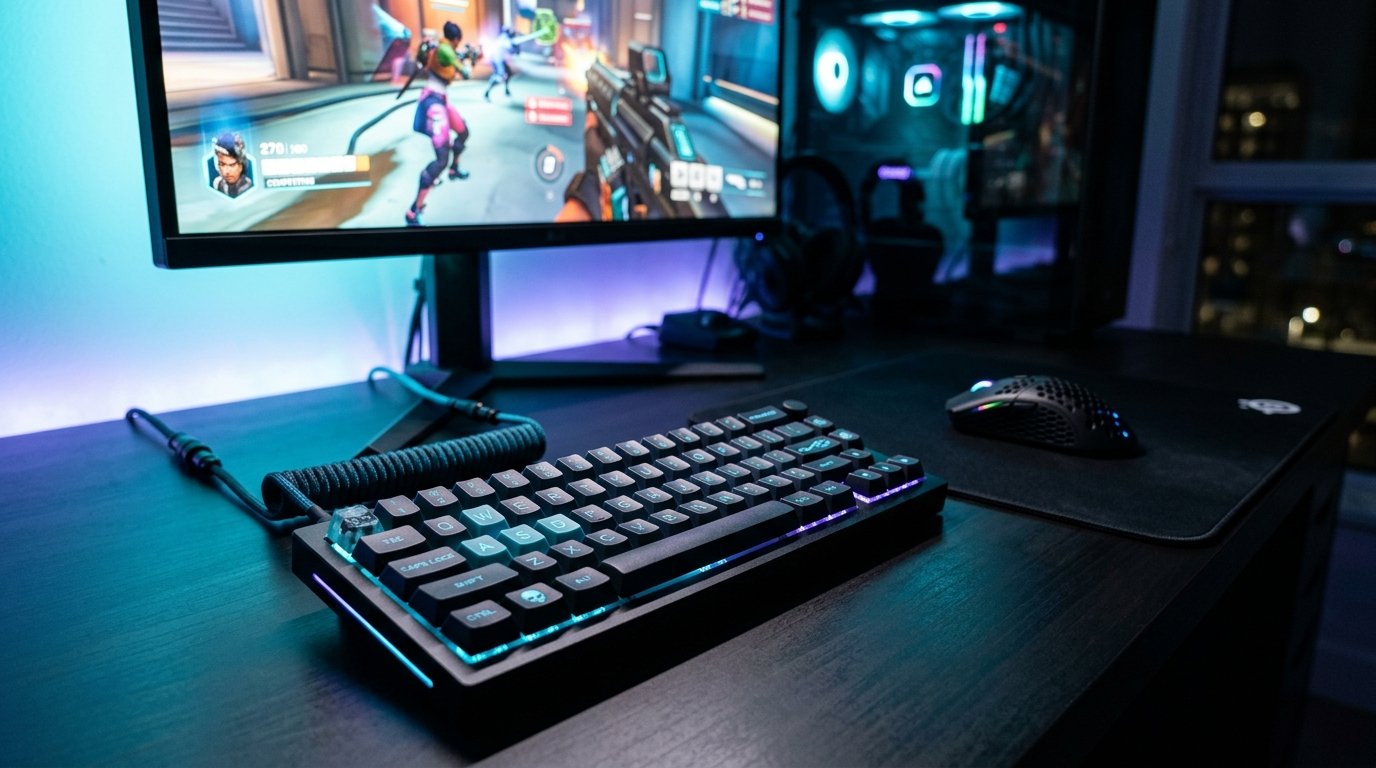
Competitive first-person shooter players know that a single frame or a 5-millisecond delay can determine the outcome of a crucial clutch round. This comprehensive Valorant Latency Optimization Guide breaks down the essential hardware, operating system, and in-game tweaks required to eliminate input lag, stabilize frame delivery, and ensure sub-tick responsiveness in both Valorant and Counter-Strike 2 across North American and European competitive servers.
Understanding End-to-End System Latency in Modern Tactical Shooters
Modern esports engines process player inputs through multiple interdependent rendering stages. Furthermore, mouse polling, CPU thread dispatching, GPU frame rendering, and monitor pixel response times all contribute to total latency. Consequently, minimizing system latency allows your crosshair placement to register instantly on moving hitboxes.
| Latency Component | Stock Latency (Default) | Optimized Latency (EsportPort Config) | Primary Competitive Impact |
|---|---|---|---|
| Mouse Input Polling | 1000Hz (~1.0 ms) | 2000Hz – 4000Hz (~0.25 ms) | Micro-adjustment tracking fidelity |
| Render Queue Pipeline | 15.0 – 25.0 ms | 4.5 – 7.2 ms (Reflex + Boost) | Peeker advantage neutralization |
| Display Refresh Frame-time | 144Hz (6.94 ms) | 240Hz – 360Hz (2.77 ms) | Visual clarity during fast flick shots |
Essential NVIDIA Driver & Windows Registry Tweaks
First and foremost, your operating system power delivery settings must prevent CPU core sleep states during intense firefights. Therefore, configuring Windows 11 Ultimate Performance Mode ensures sustained boost clock frequencies on your primary gaming cores.
- Enable NVIDIA Reflex Low Latency (On + Boost): Keeps the GPU clock speed pinned to maximum frequency, completely bypassing GPU render queues.
- Disable Fullscreen Optimizations: Right-click your game executable (e.g.,
VALORANT-Win64-Shipping.exe), navigate to Properties > Compatibility, and check “Disable fullscreen optimizations”. - Timer Resolution Calibration: Utilizing the Windows platform clock timer at 0.5ms resolution significantly smoothens frame time pacing during high-speed executes.
- Disable Enhanced Pointer Precision: Guarantee pure 1:1 hardware sensor tracking by turning off Windows mouse acceleration.
In addition, players upgrading their competitive setup should review our Call of Duty: Black Ops 6 Launch & Controller Guide and cross-reference our earlier breakdown on PC Gaming Latency & Aim Hacks for advanced hardware benchmarking.
In-Game Audio Buffer & Sub-Tick Packet Optimization
In CS2, network interpolation and sub-tick packet delivery dictate whether your shot connects before the opponent ducks behind cover. Meanwhile, setting rate 1000000 and keeping packet buffering to 0 in your autoexec guarantees instant server handshake.
Similarly, in Valorant, enabling raw input buffer under General Mouse settings eliminates operating system mouse translation bottlenecks. Consequently, tracking heads through smokes and fast-clearing corners becomes second nature.
Summary & Competitive Verification Checklist
By implementing these optimizations, competitive players can achieve a consistent reduction of 12 to 18 milliseconds in total click-to-photon latency. Always verify your in-game latency metrics via NVIDIA FrameView or Valorant’s built-in performance graph overlays before queueing ranked matches.
Related posts:
 CS2 Tournament Weekend Summary: NAVI Reign Supreme in Rio, Vitality Surge & Shanghai Major Qualifier Standings
 MLBB M6 World Championship Wild Card Summary: Team Liquid ID & Fnatic ONIC Secure Swiss Stage Seeds
 Nintendo Switch 2 Manufacturing Confirmed at Full Capacity: 12GB RAM, Custom DLSS 3.5 & Backwards Compatibility Leaks
 LoL Worlds 2026 Knockout Stage Summary: T1, Gen.G, WBG & BLG Advance to Semifinals as Western Hopes Fall