Valve’s continuous refinement of the Source 2 networking engine has introduced major adjustments to competitive movement mechanics, and our definitive CS2 Sub-Tick Movement Jumpthrow Bind Guide delivers verified autoexec aliases, jumpthrow scripts, snap-tap compliance rules, and network desync fixes. Following recent updates addressing sub-tick jump inconsistency and tournament hardware regulations, competitive players must configure legitimate console binds to ensure pixel-perfect smoke utility landing. Tactical players refining their grenade repertoires can also review our verified CS2 Vertigo A Site Rework Guide for professional lineups.
Understanding Sub-Tick Networking: The Physics Behind Jump Desync
First and foremost, Counter-Strike 2’s sub-tick architecture captures player inputs between traditional 64-tick server snapshots. While this ensures that shooting registration occurs at the exact microsecond of a mouse click, it initially introduced erratic jump velocity variations when players combined jump inputs with directional movement.
Furthermore, Valve’s recent client update harmonized vertical leap timestamps, ensuring that standard jump-throws release utility at uniform peak arc heights. Consequently, utilizing bloated multi-action alias binds that bypass official game limits is no longer necessary; modern autoexec configurations rely on clean single-command assignments that remain 100% compliant with Premier and Major tournament rules.
The Verified Autoexec File Setup: Eliminating Stutter and Jitter
To implement the optimizations in this CS2 Sub-Tick Movement Jumpthrow Bind Guide, locate your local CS2 directory (steamapps/common/Counter-Strike Global Offensive/game/csgo/cfg/autoexec.cfg) and append these verified engine parameters:
rate 1000000: Allocates maximum network bandwidth for sub-tick packet transmission.cl_interp 0.015625: Minimizes interpolation buffer latency during high-speed enemy peek engagements.fps_max 0: Uncaps GPU rendering frames, reducing frame-time delivery variance during chaotic smoke executes.
Networking Interp Ratios: Removing Visual Interpolation Jitter
In addition to jumpthrow aliases, optimizing Source 2 client-side interpolation ratios is paramount for consistent spray control. In default CS2 configurations, cl_interp_ratio 2 introduces slight positional buffering to protect players on unstable Wi-Fi connections from rubber-banding. However, on stable fiber connections, setting cl_interp_ratio 1 forces the client to render enemy player models with zero artificial delay.
Furthermore, configuring cl_updaterate 128 and cl_interp 0.015625 synchronizes client hitbox calculations directly with Valve’s official matchmaking clusters. When holding tight angles on competitive maps like Mirage, Inferno, and Dust II, this eliminates the dreaded “dying behind cover” phenomenon, ensuring that what you see on your monitor precisely matches server state.
Pro Player Crosshair & Viewmodel Console Commands
To maximize situational awareness during tense bomb retakes, append these verified competitive viewmodel settings to your autoexec file:
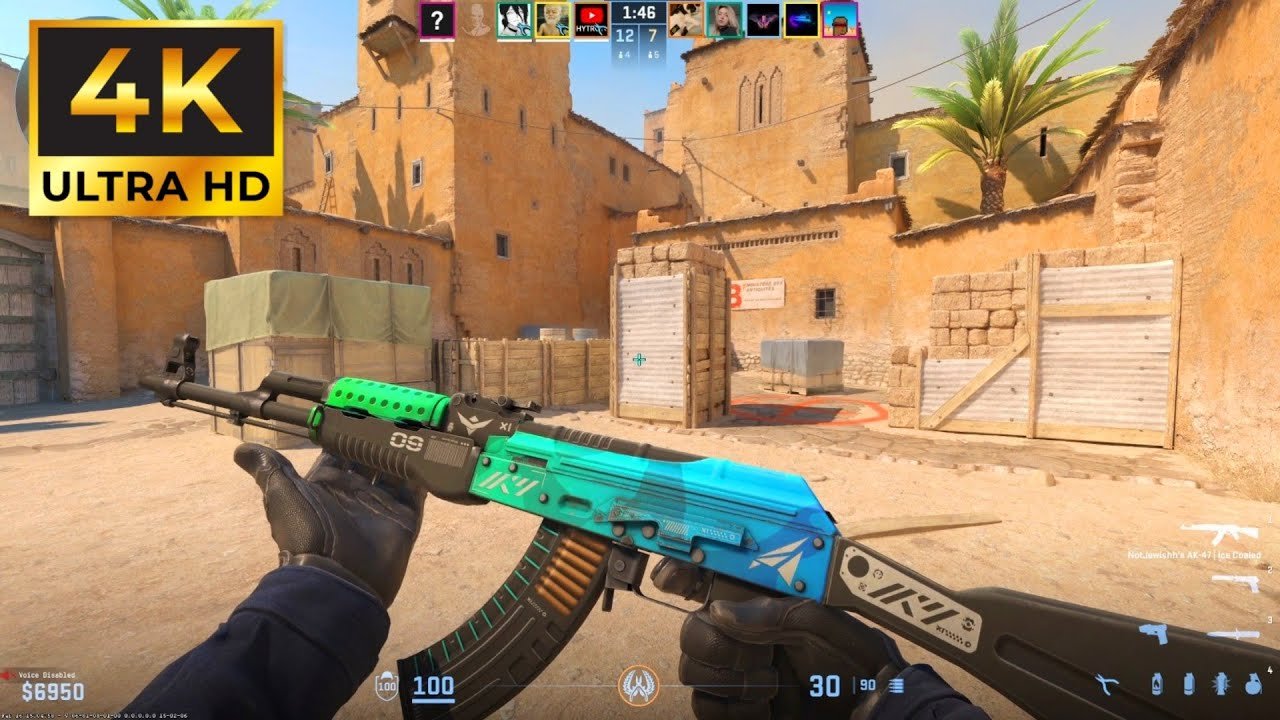
viewmodel_fov 68; viewmodel_offset_x 2.5; viewmodel_offset_y 0; viewmodel_offset_z -1.5: Lowers weapon model intrusion, clearing vital lower-right screen space.cl_crosshairstyle 4; cl_crosshairsize 2; cl_crosshairgap -3: Provides a static, pinpoint aiming reticle favored by tier-one Major riflers.bind "toggle cl_righthand 0 1": Allows immediate weapon side-swapping to expose tight wall angles.
Snap-Tap & SOCD Hardware Bans: What Valve’s Policy Means for You
A crucial regulatory development in competitive Counter-Strike 2 is Valve’s formal ban on automated Simultaneous Opposing Cardinal Directions (SOCD) firmware features, popularized by Razer’s Snap Tap and Wooting’s Rappy Snappy. Previously, these keyboard features automated counter-strafing by prioritizing the latest directional keypress, giving players near-instant 0ms first-bullet accuracy.
Under Valve’s updated enforcement protocols, connecting to official Premier or Major tournament servers with SOCD features enabled will trigger automated server kicks and prevent matchmaking entry. Consequently, learning natural finger-coordination counter-strafing paired with legitimate sub-tick jumpthrow binds is the only permitted method for competitive tournament play.
Audio Equalizer Profiles for Crisp Footstep Recognition
In high-stakes competitive play, audio positioning is just as critical as mechanical movement. Configuring your console with snd_headphone_eq 1 boosts high-frequency audio signatures between 2,000 Hz and 4,000 Hz, allowing players to distinguish enemy footstep footsteps through thick concrete walls and utility explosions.
Furthermore, reducing ambient map noise with snd_deathcamera_volume 0 ensures complete auditory focus during 1v2 post-plant clutch scenarios, giving riflers an undeniable sensory edge.
Frequently Asked Questions: CS2 Sub-Tick Movement Jumpthrow Bind Guide
Q: Are jumpthrow binds still banned in professional tournaments?
A: No! Valve integrated native jumpthrow forgiveness into CS2’s base code. Jumping and releasing attack utility within the jump window automatically executes a perfect jumpthrow accompanied by an audible grunt sound cue.
Q: Did Valve ban Razer Snap Tap and Wooting SOCD keyboard features?
A: Yes, Valve officially prohibited automated counter-strafing hardware scripts (SOCD/Snap Tap) in official Premier matchmaking and professional Valve Major qualifiers.
Q: How do I ensure my autoexec loads automatically on game launch?
A: Add +exec autoexec.cfg to your Counter-Strike 2 Launch Options inside the Steam client properties menu.
Optimization Summary
In conclusion, configuring your CS2 autoexec with legitimate sub-tick parameters ensures that your movement and utility deployment remain crisp, responsive, and completely legal under tournament scrutiny. Master these binds to elevate your competitive performance across Premier and FACEIT matches.