
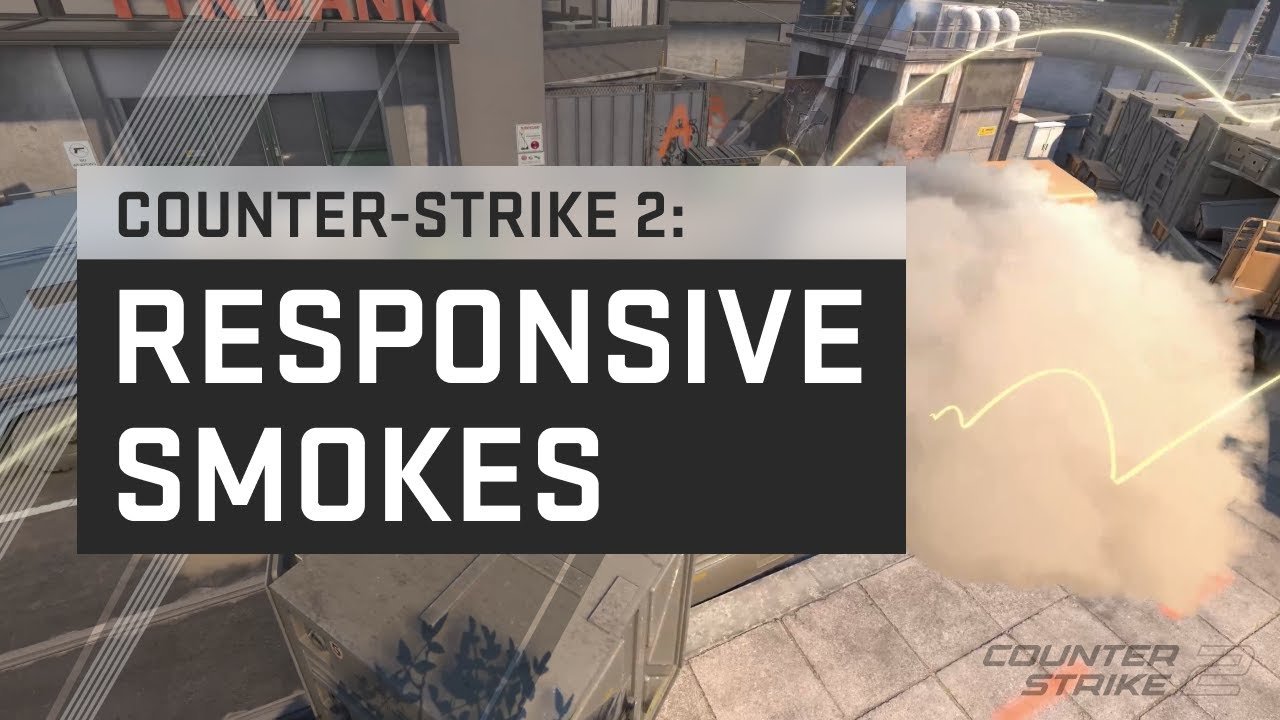
In competitive tactical shooters, informational awareness is the foundational pillar of game sense, and our essential configuration guide to CS2 Best Audio Radar Console Commands provides pro-tested settings to maximize situational awareness in Counter-Strike 2. While default game settings look visually cinematic, they obscure critical auditory cues behind overwhelming gunfire echoes and zoom the mini-map so tightly that cross-map bomb drops go unnoticed. Implementing these console commands will instantly sharpen your auditory and visual intelligence.
The Optimal Radar Autoexec Configuration
First and foremost, the default CS2 radar centers rigidly on your player model, cutting off more than half the map geometry. If a teammate spots an enemy entering B-site while you are holding A-long on Mirage, you cannot see the radar ping. Adding these commands to your `autoexec.cfg` ensures the entire active map remains permanently visible:
Footstep Audio Equalizer Profile: Cutting the Mud
Furthermore, Valve’s new Source 2 audio engine introduces realistic environmental reverberation. However, loud bass explosions from HE grenades and AK-47 muzzle blasts routinely drown out subtle footstep shuffles on concrete and sand. To isolate enemy movement frequencies, configure your PC equalizer (via Peace EQ or Realtek Audio Console) with these frequency bands:
- Cut Low Bass (60 Hz – 125 Hz) by -4 dB: Dampens overwhelming grenade concussion rumbles that induce temporary auditory fatigue.
- Boost Mid-High Frequencies (1,000 Hz – 2,500 Hz) by +5 dB: Enhances the precise mechanical snap of reloading magazines, defuse kit clicks, and grenade pin pulls.
- Boost High Frequencies (4,000 Hz – 8,000 Hz) by +6 dB: Isolates sharp footstep heel strikes across metal grates, water puddles, and wooden floorboards.
In-Game CS2 Audio Settings
Inside the CS2 audio settings tab, set your EQ Profile to “Crisp” rather than “Natural” or “Smooth.” Additionally, enable Perspective Correction, which adjusts directional audio panning to align with your field-of-view angle, eliminating confusion when tracking enemies maneuvering above or below you on vertical maps like Nuke and Vertigo.
- Map Strategy Integration: See these audio settings in action during execute setups in our CS2 Vertigo A Site Rework Guide.
- Esports Circuit Form: Track pro team crosshair and command configurations in our CS2 Shanghai Major European RMR analysis.
Configuration Verdict
In conclusion, professional Counter-Strike mastery is built upon clean sensory information. Spending five minutes tuning your radar scale and audio equalizer ensures that no enemy flank or defuse attempt ever catches you off guard.
Related posts:
 Counter-Strike 2 Premier Mode Deep Analysis: Loss Bonus Economy Math, Map Veto Win Rates & Smoke Timings (2026)
 Valorant Radiant Aim Hacks: Angle Snapping, DPI Scaling & Micro-Adjustment Drills
 CS2 Best Settings for Max FPS and Low Latency: Pro Autoexec, Binds & Resolution Guide
 Marvel Rivals Team-Up Abilities Tier List: Best Character Combinations, Synergy Passives & Combo Ult Hacks