If you are playing Counter-Strike 2 this weekend and keep getting pre-fired by enemies who seem to know exactly where you are, they probably are not using wallhacks. Instead, they are exploiting the game’s audio engine.
While casual players obsess over mouse sensitivity and crosshair colors, Tier-1 professional players are utilizing third-party Equalizer (EQ) settings and Windows audio features to completely manipulate how the game sounds.
By crushing ambient noise and drastically boosting specific frequencies, you can hear enemy footsteps from across the map. Here is how to activate the “Audio Wallhack” legally.
1. The Windows “Loudness Equalization” Exploit
✅ 100% LEGAL TO USE
Because this setting is built directly into the Windows operating system, it is completely undetectable by Valve Anti-Cheat (VAC) and FaceIt Anti-Cheat. It is considered a standard hardware optimization.
The most guarded secret in competitive CS2 is Loudness Equalization. This Windows feature compresses dynamic audio ranges. In simple terms: it makes quiet sounds (like distant footsteps and grenade pin-pulls) much louder, while making deafening sounds (like AK-47 headshots and HE grenade explosions) much quieter.
How to activate it:
- Right-click the Speaker icon on your Windows Taskbar and select Sound Settings.
- Scroll down to More Sound Settings to open the classic control panel.
- Right-click your primary headset and select Properties.
- Navigate to the Enhancements tab.
- Check the box for Loudness Equalization and click Apply.
2. In-Game EQ Manipulation
Once Loudness Equalization is active, you need to adjust CS2’s internal audio profile.
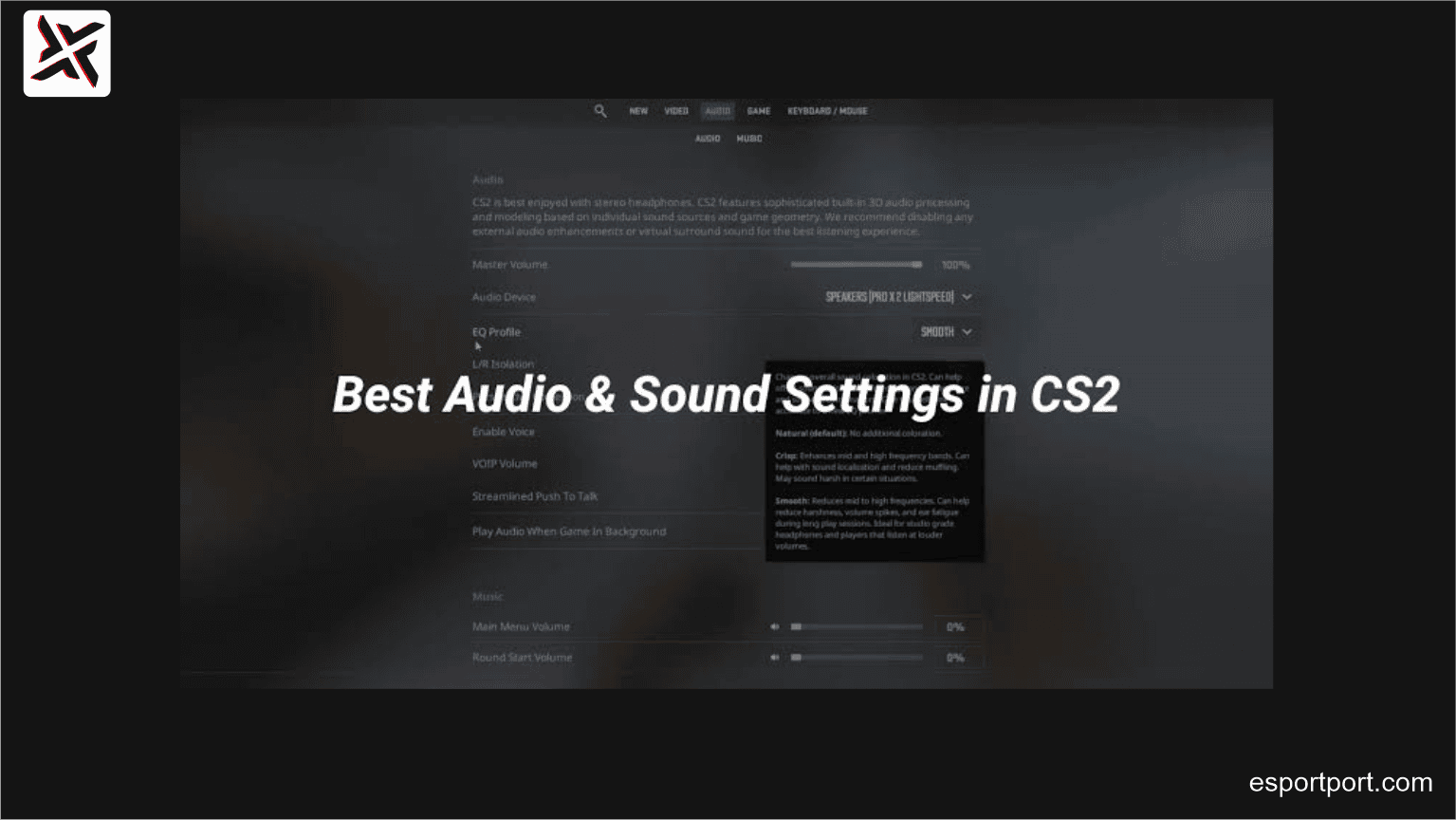
Navigate to the in-game Audio settings and change the EQ Profile from ‘Standard’ to ‘Crisp’. The Crisp setting artificially elevates high-end treble frequencies. Because the sound of a player stepping on metal (Nuke) or crunching on sand (Mirage) registers as a high-frequency treble sound, this profile essentially highlights enemy movement while drowning out the bass-heavy ambient wind of the map.
🚨 Elevate Your Grind
Did This Fix Your Audio?
Activate Loudness Equalization and jump into a Deathmatch. Can you hear the difference in footstep clarity? Let us know your results in the comments below!