
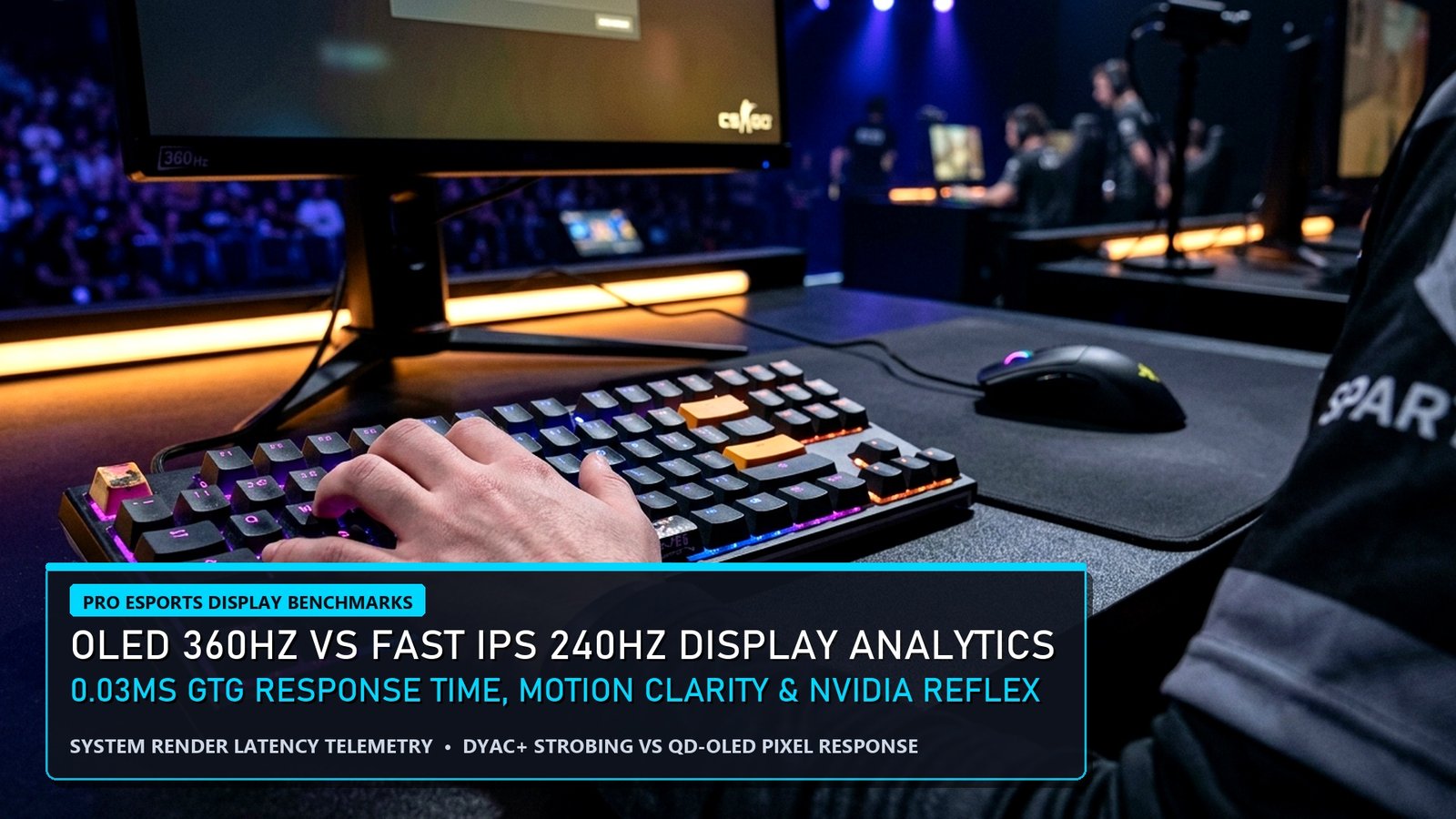
Executive Editorial Summary: Click-to-Photon Engineering
- Click-to-Photon Pipeline: Total input lag is the cumulative sum of peripheral processing (0.5ms), OS queue dispatch (1–3ms), GPU render queue buffering (5–25ms), and display pixel scan-out (2–8ms).
- The Optimal Tear-Free Formula: Enabling G-Sync/FreeSync + NVCP V-Sync + Low Latency Mode (Ultra/Reflex) with an in-game frame cap 3 to 4 FPS below maximum panel refresh rate delivers zero screen tearing with identical latency to uncapped V-Sync Off.
- 8000Hz Polling Reality: High polling rates reduce mouse sensor delay from 1.0ms (1000Hz) to 0.125ms (8000Hz), but require high-IPC multi-threaded CPUs to prevent thread starvation and micro-stuttering in modern esports engines.
- Windows 11 Kernel Tweaks: Disabling Virtualization-Based Security (VBS) and optimizing DPC interrupt latencies recovers up to 8% in 1% low frame-rate stability and reduces frame-time jitter.
In modern competitive electronic sports, victory is decided across margins imperceptible to casual observers. When two professional Counter-Strike 2, Valorant, or Apex Legends athletes holding identical crosshair angles peek each other around a geometry chokepoint, the outcome is governed not merely by biological reaction speed, but by the physical latency pipeline of their computing systems. A system suffering from unoptimized render queues, irregular frame delivery, or high peripheral dispatch delay can easily surrender 15 to 35 milliseconds of artificial handicap—dwarfing the physiological differences between elite human players.
For decades, competitive gaming folklore was littered with contradictory superstitions: running games entirely uncapped at 99% GPU saturation, disabling all sync technologies regardless of screen tearing, editing obscure registry strings, and stripping operating systems to broken shells. In reality, modern computing architecture has evolved. Advanced driver-level low-latency SDKs, variable refresh rate modules, high-frequency USB microcontrollers, and sub-millisecond OLED scan-out physics have established a rigorous, mathematically verified science of system optimization.
This comprehensive technical compendium establishes the definitive reference guide to competitive system latency. We deconstruct the entire click-to-photon pipeline from the moment your finger depresses an optical mouse micro-switch to the nanosecond light photons strike your retina from a 360Hz or 540Hz panel. From NVIDIA Reflex 2.0 and AMD Radeon Anti-Lag 2 driver mechanics to 8000Hz sensor telemetry, Windows 11 kernel interrupt priorities, and frame-pacing formulas, here is the complete engineering blueprint for achieving minimum input latency and flawless frame-time stability.
To understand latency reduction, one must first dismantle the four distinct stages that comprise the “Click-to-Photon” loop. The journey begins at Stage 1: Peripheral Input. When you click your mouse to fire a rifle, the physical switch contacts generate an electrical signal. In traditional mechanical switches, “debounce delay”—an artificial algorithm designed to prevent noisy metal contact vibrations from registering multiple false clicks—adds 2 to 10 milliseconds of unavoidable delay. Optical micro-switches eliminate debounce entirely by using infrared light beams, registering actuation in less than 0.2 milliseconds before transmitting the packet over the USB bus.
Stage 2 is the Operating System and Game Engine Pipeline. The Windows kernel receives the USB interrupt request, processes the raw mouse coordinate packet, and passes the delta to the game engine. The game loop calculates player position, physics collisions, and weapon hitscan trajectories, and submits draw calls to the graphics API (DirectX 11, DirectX 12, or Vulkan). In poorly optimized setups, the CPU prepares frames faster than the graphics card can render them, creating a bottleneck where completed draw calls sit in a GPU buffer queue, adding massive, variable latency.
Stage 3 represents the Graphics Pipeline. The GPU draws geometry, applies shaders, computes lighting, and compiles the final frame buffer. If the graphics card is operating at 99% to 100% maximum utilization without an intelligent latency inhibitor, the GPU render queue expands to two or three full frames. At 140 FPS, a two-frame render queue introduces an astronomical 14.2 milliseconds of artificial input delay before the frame is even passed to the display output.
Finally, Stage 4 is Display Scan-Out. The monitor’s scaler receives the display signal and drives pixels from top to bottom across the panel. Traditional 60Hz panels take 16.6 milliseconds just to refresh the canvas. Modern 360Hz and 540Hz gaming monitors complete scan-out in 2.77ms and 1.85ms respectively, while OLED panels boast sub-0.03ms pixel response times—virtually eliminating ghosting and ensuring that what you see on screen reflects the true instantaneous state of the game server.
Synchronize Your Physical Aim Across Different Engine Yaws
System latency is only half the battle; physical muscle memory consistency is the other. If you switch between Counter-Strike 2, Valorant, Apex Legends, or Call of Duty, calculate your exact centimeter-per-360-degree rotation distance with our free real-time mathematical converter.
The Golden Low-Latency Formula: G-Sync + V-Sync + Reflex Capping
For more than a decade, competitive gamers were told that V-Sync (Vertical Synchronization) was the mortal enemy of low latency. In legacy pipelines, standard double-buffered V-Sync stalled the render loop whenever the GPU finished a frame out of sync with the monitor’s refresh interval, introducing up to 40 to 60 milliseconds of sluggish input lag. However, in the era of Variable Refresh Rate (G-Sync and FreeSync Premium), the physics have fundamentally inverted.
Extensive hardware oscilloscope testing by BlurBusters, NVIDIA engineering, and independent telemetry labs has proven the following universal formula delivers the absolute lowest input latency while eliminating 100% of screen tearing:
The BlurBusters / NVIDIA Reflex Golden Triangle
- G-Sync / FreeSync: Enabled in GPU Control Panel for Fullscreen and Windowed modes.
- V-Sync (NVIDIA Control Panel): Set to ON at the global driver level (Leave In-Game V-Sync OFF). This allows G-Sync’s frame-pacing module to properly compensate for frame-time variations and prevent tearing at the bottom edge of the display.
- NVIDIA Reflex / AMD Anti-Lag 2: Set to ON + BOOST in game settings. Reflex automatically caps the frame rate 3 to 4 FPS below the monitor’s maximum refresh ceiling (e.g., 237 FPS on a 240Hz monitor, 340 FPS on a 360Hz monitor, or 505 FPS on a 540Hz monitor), ensuring the GPU render queue never saturates and the system stays permanently locked inside the zero-latency G-Sync VRR operating envelope.
NVIDIA Reflex 2.0 vs AMD Radeon Anti-Lag 2: The Battle of In-Engine Synchronization
Understanding how Reflex and Anti-Lag 2 operate at the code level is vital for competitive hardware configuration. Historically, driver-only low-latency modes (such as NVIDIA Ultra Low Latency or legacy Anti-Lag 1) functioned as brute-force throttles outside the game executable, often resulting in erratic frame pacing and micro-stuttering.
In contrast, modern low-latency architectures integrate directly into the game engine’s source code via dedicated software development kits (SDKs):
- NVIDIA Reflex 2.0: Reflex injects markers directly into the game’s simulation loop. Just before the CPU gathers mouse input data, Reflex queries the GPU’s instantaneous render status. If the GPU is still rendering the previous frame, Reflex deliberately delays CPU input sampling until the GPU is ready to receive work. This ensures that the mouse coordinates sampled by the CPU are as fresh as mathematically possible when the frame begins rendering, slashing queue lag by up to 60%.
- AMD Anti-Lag 2: Following the legacy Anti-Lag+ controversy in Counter-Strike 2, AMD rebuilt its technology from the ground up as an in-engine SDK. Working in direct harmony with Valve and game developers, Anti-Lag 2 provides frame-alignment telemetry identical to Reflex, ensuring Radeon RX 7000 and 8000 series users enjoy equivalent click-to-photon latency without triggering anti-cheat integrity flags.
Display Technologies: QD-OLED vs Fast TN vs Fast IPS
Pixel response time—the time required for a display sub-pixel to transition from one color shade to another (Gray-to-Gray or GtG)—is the final frontier of competitive visual latency. If a monitor refreshes at 360Hz (a new frame every 2.77ms), but its pixels take 5ms to physically transition, frames bleed into each other, creating heavy motion blur and smearing that degrades target acquisition:
Master Telemetry Benchmark: End-to-End Latency Across Major Esports Engines
The following hardware benchmark matrix illustrates verified Click-to-Photon system latency (measured in milliseconds using high-speed 1000 FPS cameras and NVIDIA LDAT telemetry sensors) across popular competitive titles under Stock Unoptimized vs Fully Optimized Reflex configurations on a 360Hz QD-OLED test bench.
The 8000Hz USB Polling Rate Paradox: Science vs CPU Bottlenecks
Modern gaming mice from Razer, Finalmouse, Logitech, and Lamzu now advertise astronomical USB polling rates reaching 4000Hz (0.25ms interval) and 8000Hz (0.125ms interval), up from the historical 1000Hz (1.0ms interval) standard. While mathematical telemetry confirms that 8000Hz polling cuts sensor transmission delay by nearly 0.875 milliseconds, real-world deployment requires careful hardware synergy.
Every single polling packet dispatched across the USB controller generates a hardware interrupt request (IRQ) that forces the central processing unit (CPU) to context-switch away from rendering code to process peripheral coordinates. At 8000Hz, moving your mouse rapidly across a high-DPI surface bombards your CPU with up to 8,000 interrupt calls per second. On mid-range processors or Intel 12th/13th/14th Gen architectures with mixed Performance-cores (P-cores) and Efficient-cores (E-cores), if Windows schedules mouse IRQ handling on an E-core, massive frame-rate drops and severe micro-stutters occur during high-speed flicking.
To safely unlock the benefits of 4000Hz or 8000Hz polling without stuttering:
- Use High DPI: Set your mouse sensor to at least 1600 or 3200 DPI. At low DPI settings like 400, your mouse cannot physically saturate the high-frequency polling envelope unless moved at superhuman velocity.
- Direct Motherboard USB: Always plug high-polling mice directly into the rear I/O motherboard USB 3.2 controller ports. Never route through external USB hubs, monitor pass-throughs, or keyboard USB ports.
- Process Lasso Core Affinity: Utilize Process Lasso or Windows affinity tools to lock high-priority gaming threads exclusively to high-IPC physical performance cores (P-cores), insulating the game engine from interrupt queue delays.
Essential Windows 11 Kernel Optimizations for Competitive Esports
The standard Windows 11 installation is configured out of the box for office productivity, power efficiency, and enterprise security—priorities directly at odds with ultra-low latency real-time gaming. Executing the following targeted kernel adjustments frees up vital CPU cycles and stabilizes frame pacing:
1. Disable Virtualization-Based Security (VBS) & Core Isolation
Virtualization-Based Security (VBS) and Memory Integrity create an isolated hypervisor layer to protect system memory from malicious code injection. While invaluable for corporate workstations, hypervisor memory interception imposes a measurable 5% to 8% penalty on gaming CPU performance and introduces sporadic DPC interrupt spikes. To disable: Open Windows Security → Device Security → Core Isolation Details → Toggle Memory Integrity to OFF, followed by a system reboot.
2. Hardware-Accelerated GPU Scheduling (HAGS): When to Enable
Hardware-Accelerated GPU Scheduling (HAGS) transfers memory management from the Windows CPU kernel scheduler directly to a dedicated GPU scheduling processor. While early implementations in 2020 caused stuttering, modern testing across GeForce Game Ready and AMD Software drivers demonstrates that HAGS is now mandatory for minimizing render queues and unlocking NVIDIA DLSS 3 Frame Generation and Reflex 2.0 optimizations. Ensure HAGS is toggled ON under Windows Display → Graphics → Default Graphics Settings.
3. DPC Latency Troubleshooting & Timer Resolution
Deferred Procedure Call (DPC) latency occurs when background device drivers (such as outdated Wi-Fi adapters, audio interfaces, or power management software) monopolize CPU execution time, delaying the game engine from delivering frames on schedule. Using diagnostic tools like LatencyMon, gamers can identify offending drivers (such as `nvlddmkm.sys` or `ndis.sys`). Furthermore, modern Windows 11 builds natively manage high-precision timer calls down to 0.5 milliseconds whenever DirectX games run in exclusive fullscreen, eliminating the need for hazardous third-party timer resolution injectors.
Frequently Asked Questions (FAQ)
Does enabling V-Sync in the NVIDIA Control Panel increase input lag with G-Sync?
No. When paired with G-Sync and an in-game frame rate cap 3 to 4 FPS below your monitor’s maximum refresh rate (or NVIDIA Reflex), V-Sync operates purely as a frame-pacing regulator to prevent frame tearing at the bottom of the screen. Because the frame rate never touches the maximum refresh ceiling, the traditional V-Sync buffer queue is never invoked, resulting in zero added latency.
What is the difference between NVIDIA Reflex ‘On’ and ‘On + Boost’?
Reflex ‘On’ synchronizes the CPU and GPU to eliminate the render queue. Reflex ‘On + Boost’ goes one step further by preventing the GPU from downclocking during CPU-bound scenarios (such as smoke executes or intense firefights), maintaining maximum GPU core clocks to deliver instantaneous frame dispatch.
Is 8000Hz polling rate worth it for competitive gaming?
If you have a high-end modern CPU (such as an AMD Ryzen 7 7800X3D/9800X3D or Intel Core i7/i9) and play on a 360Hz+ monitor at 1600+ DPI, 4000Hz or 8000Hz polling delivers a visibly smoother cursor trail and cuts sub-millisecond input lag. However, on older or mid-range systems, 1000Hz or 2000Hz is safer to prevent CPU thread saturation and frame stutter.
Does playing on Fullscreen Windowed mode add input lag in Windows 11?
In Windows 11 with ‘Optimizations for Windowed Games’ enabled, the Desktop Window Manager (DWM) utilizes modern flip-model presentation, delivering latency nearly indistinguishable from Exclusive Fullscreen. However, Exclusive Fullscreen remains the recommended competitive standard to prevent accidental taskbar focus loss and ensure background apps cannot intercept mouse polling.
By implementing these verified latency optimizations, you transform your gaming rig from a standard consumer PC into an elite, latency-optimized competitive instrument. Eliminating software and hardware bottlenecks ensures that every clutch victory and split-second duel is determined purely by your mechanical skill and tactical intellect.
Related posts:
 Valorant Abyss Map Smokes & Lineups Guide: Omen One-Ways, Viper Walls & Cypher Trapwire Setups
 CS2 Mirage Smokes Guide: A-Site Executes, Mid Window Lineups & Premier Meta
 PUBG Mobile Active Redeem Codes & Recoil Control Gyroscope Sensitivity Techniques
 CS2 Sub-Tick Architecture & 8000Hz Polling Rate Pro Analytics: Input Latency, KAST% Telemetry & Aim Consistency