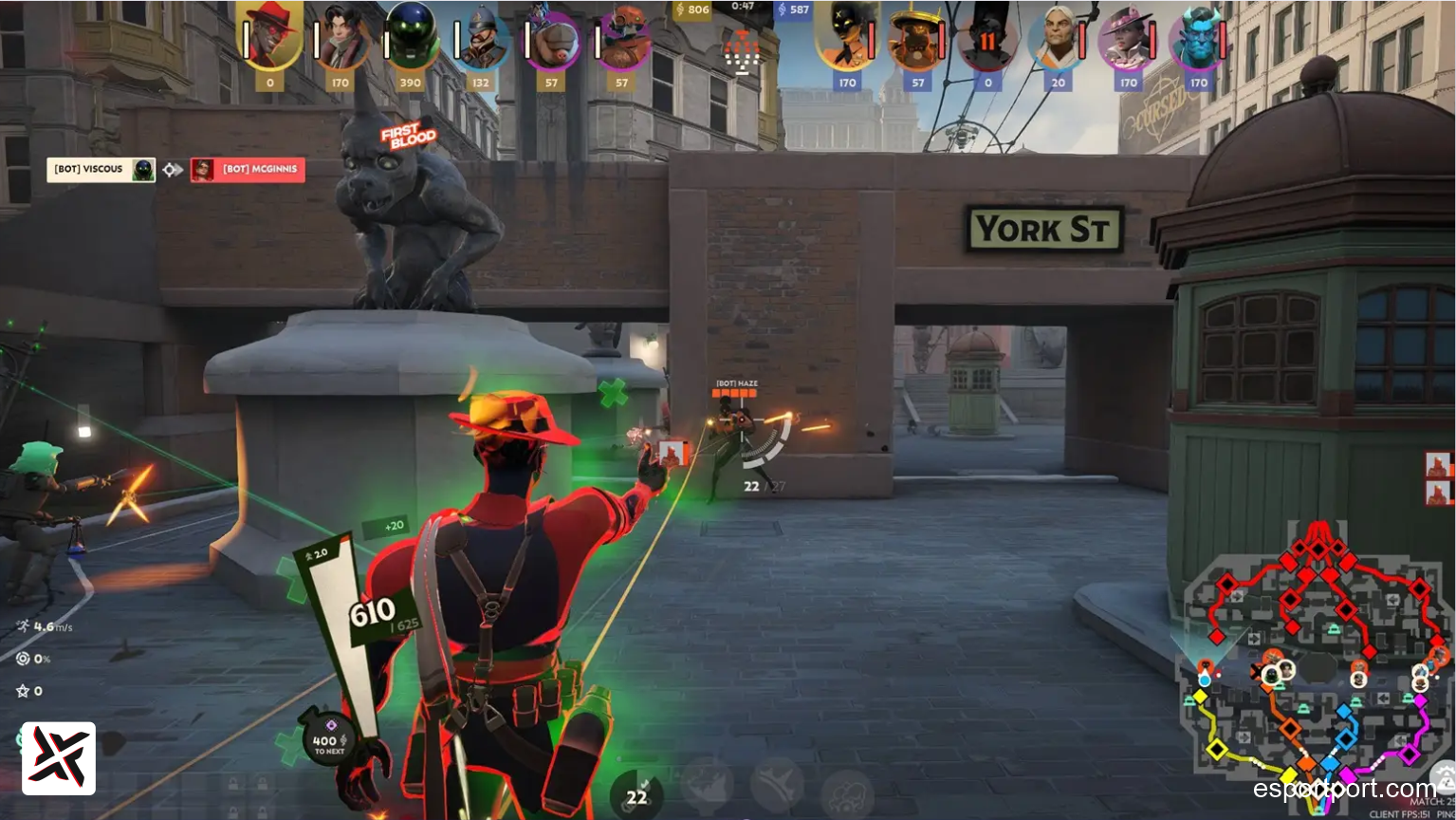
Surviving chaotic 6v6 teamfights and tracking high-mobility heroes across the four-lane steampunk streets of Valve’s breakout shooter requires uncompromised framerates, and configuring the valve deadlock best settings fps profile is the fastest way to eliminate frame drops and micro-stuttering. Built on Valve’s proprietary Source 2 engine, Deadlock features dense urban geometry and demanding particle physics that can cause even powerful RTX 30 and 40-series GPUs to tank below 100 FPS during late-game Patron sieges. Our competitive optimization guide strips away visual clutter, minimizes click-to-photon latency, and provides exact aim sensitivity conversions from Counter-Strike 2 and Valorant.
📱 Join EsportPort VIP Deadlock Alerts
Get breaking closed-playtest invite waves, hero balance patch notes, high-MMR item build spreadsheets, and esports tournament announcements on WhatsApp.
Best Deadlock Video & Display Settings (Max Competitive FPS)
Head to your in-game Settings → Video tab and adjust the following core parameters:
| Setting Option | Recommended Value | Performance & Tactical Impact |
|---|---|---|
| Display Mode | Exclusive Fullscreen | Eliminates Windows desktop composition lag for lowest input delay. |
| Resolution | Native (1920×1080 / 2560×1440) | Keep native for maximum enemy outline clarity at long sightlines. |
| Rendering API | DirectX 11 (or Vulkan on AMD) | DX11 provides higher 1% low framerate stability on NVIDIA systems. |
| Upscaling (FSR / DLSS) | FSR 2 / DLSS “Quality” | Boosts framerates by 25–35% while preserving sharp soul orbs and crosshairs. |
| NVIDIA Reflex Low Latency | On + Boost | Keeps GPU clock speeds locked high to eradicate input lag. |
Advanced Graphics Settings: What to Turn OFF
- Shadow Quality → Low: High shadows tax CPU draw calls heavily during 12-man mid-lane fights.
- Motion Blur & Chromatic Aberration → OFF: Blurs screen edges during rapid dashes and zipline dismounts.
- Ambient Occlusion & Screen Space Reflections → OFF: Eliminates artificial shading that obscures enemies hiding in dark alleyways.
- Post-Processing & Particle Quality → Low: Prevents massive framerate dips when Seven drops Storm Cloud or Kelvin casts Frozen Shelter.
- Model Quality & Texture Quality → Medium / High: Keep this medium so hero hitboxes and animations remain crystal clear without eating VRAM.
Exact Deadlock Aim Sensitivity Conversion Guide
Because Deadlock operates on Valve’s Source 2 engine, its internal yaw and pitch sensitivity scaling mirrors Counter-Strike 2 and Team Fortress 2 exactly:
Pro Sensitivity Conversion Formulas
- From CS2 / CS:GO:
Deadlock Sens = CS2 Sensitivity(Direct 1:1 match!) - From Valorant:
Deadlock Sens = Valorant Sensitivity × 3.1818 - From Overwatch 2:
Deadlock Sens = Overwatch Sens ÷ 3.3333 - From Apex Legends:
Deadlock Sens = Apex Sensitivity(Direct 1:1 match!)
Example Conversion Table (At 800 DPI):
| Your Main Game | Your Current Sens (800 DPI) | Exact Deadlock In-Game Sens |
|---|---|---|
| Valorant | 0.35 | 1.11 |
| Counter-Strike 2 | 1.20 | 1.20 |
| Overwatch 2 | 4.50 | 1.35 |
Pro Tip: Soul Orb Securing Settings
In Deadlock, securing and denying glowing soul orbs when minions die dictates your early-game economy. Set your Field of View (FOV) to Maximum (100–110) to keep both enemy laners and rising soul orbs in your peripheral vision without needing to swing your crosshair away from the fight!