
CS2 best console commands
Counter-Strike 2 demands absolute precision. If your game stutters during a crucial gunfight, you will lose the round. Consequently, professional players spend hours optimizing their setups. Do you want to stop dropping frames and finally reach Global Elite? You absolutely need the CS2 best console commands and launch options. Therefore, we compiled the ultimate 2026 technical guide to maximize your FPS and lower your input latency.
Essential Steam Launch Options
First of all, you must optimize how the game boots up. You can enter these codes by right-clicking CS2 in your Steam Library and opening the “Properties” tab. These launch options tell your computer to prioritize the game over background apps.
-
-novid: This command skips the intro video. It forces the game to load much faster.
-
-high: This code tells Windows to give CS2 high CPU priority. It significantly reduces random stutters.
-
-nojoy: This disables joystick support. It frees up minor system RAM.
-
-freq 240: This forces the game to match your monitor’s refresh rate. (Change the number to 144 or 360 depending on your screen).
-
+fps_max 0: This uncaps your frame rate entirely. However, if you experience screen tearing, you should lock this to your monitor’s refresh rate.
The CS2 Best Console Commands
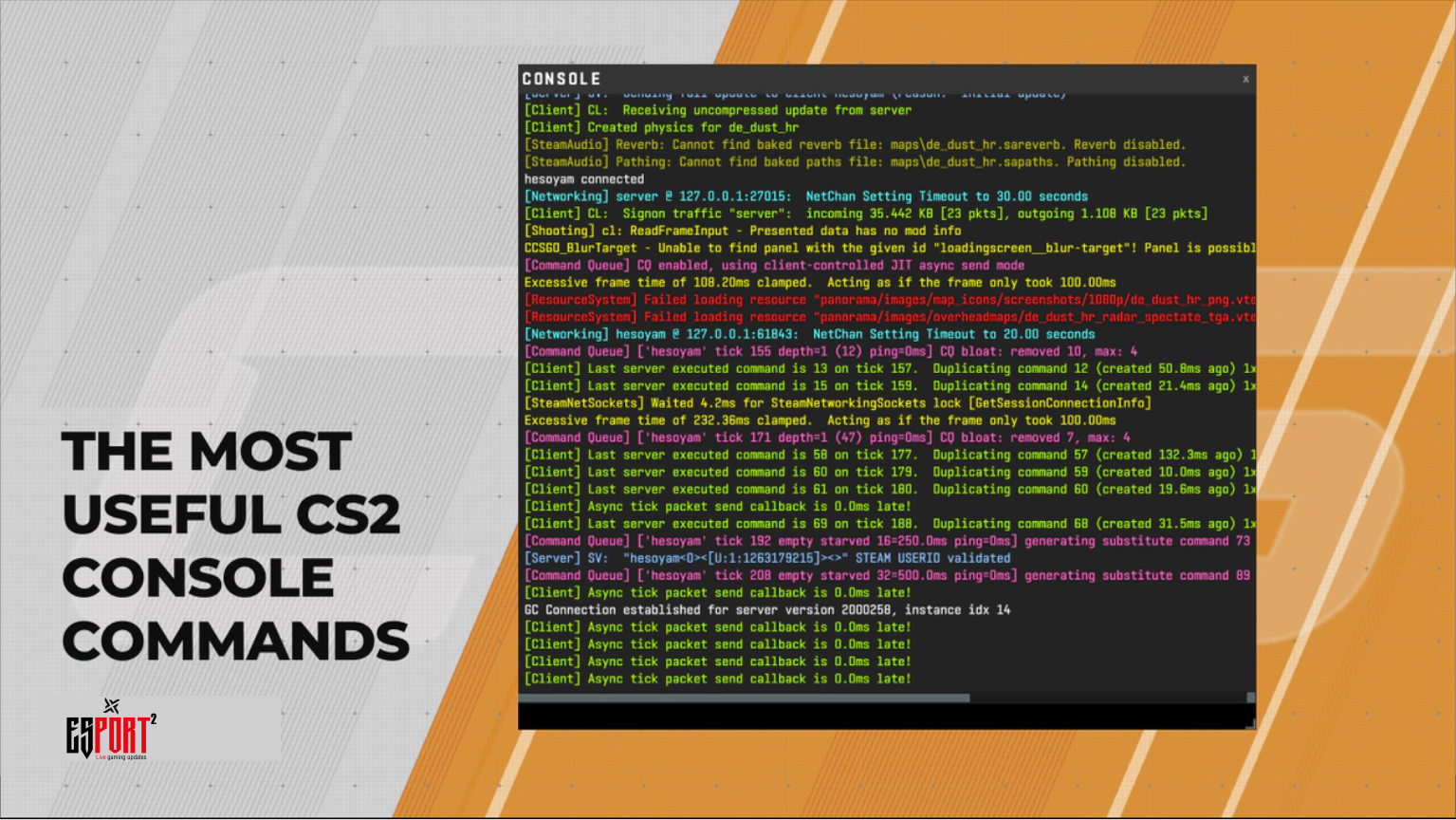
While CS:GO relied heavily on complicated autoexec files, Valve simplified CS2. However, you still need a few vital codes. First, you must enable the developer console in the settings menu. Then, press the tilde (~) key and type these CS2 best console commands:
-
cl_showfps 1: This displays a clean FPS counter in your screen corner. It helps you monitor performance drops.
-
cq_netgraph 1: This reveals your network performance. It quickly shows if you are experiencing packet loss or high ping.
-
disconnect: This instantly pulls you out of a broken server without navigating menus.
You can find a massive list of experimental commands on the Official Valve Developer Wiki.
Optimal In-Game Video Settings
Finally, console commands cannot fix terrible video settings. You must balance visual clarity with maximum frames.
Professional players highly recommend disabling V-Sync. You must also set NVIDIA Reflex to “Enabled + Boost.” This specific setting massively reduces your mouse input lag. Furthermore, you should keep “Global Shadow Quality” on Medium. This allows you to see enemy shadows around corners without tanking your FPS. For more hardware guides, check out our Esports Tournaments page to see what monitors the pros use.
In conclusion, optimizing your game requires a multi-step approach. You must combine clean launch options with smart video settings. Ultimately, once your game runs buttery smooth, ranking up becomes significantly easier.
What is your current CS2 rank? Let us know if these commands helped you rank up in the comments below!