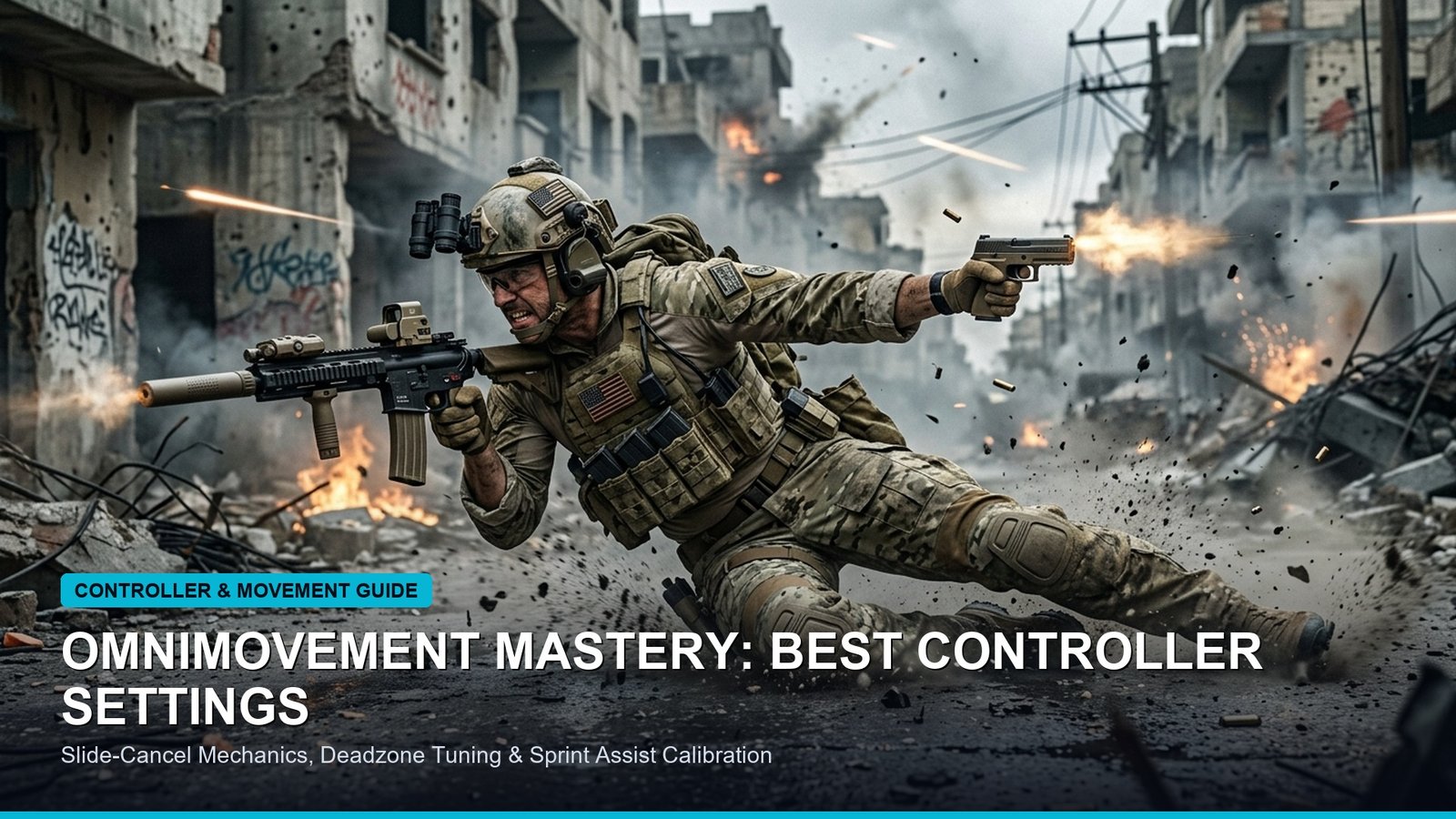
The introduction of Omnimovement in Call of Duty: Black Ops 6 represents the most radical mechanical evolution in franchise history, giving players the ability to sprint, slide, and dive in any 360-degree direction. However, this fluid movement system introduces significant mechanical complexity that can severely hinder your aim and reaction time if your controller or mouse settings are misconfigured. In this definitive movement mastery guide, we break down optimal deadzone calibration, button layout configurations, tactical sprint assist behaviors, and advanced movement combos to turn you into an untouchable target.
Omnimovement Calibration: Quick Tuning Checklist
- Core System: 360-Degree Omnimovement (Sprint, Slide, Dive in all vectors)
- Target Input Deadzones: Left Stick Min 2-3 | Left Stick Max 75-80 (Instant 100% velocity input)
- Recommended Button Layout: Tactical Bumper Jumper or Stick and Move (Prevents taking thumbs off aiming stick)
- Sprint Assist Setting: Tactical Sprint Assist (0ms delay for seamless directional bursting)
- Slide / Dive Behavior: Tap to Slide (Essential for instantaneous slide-canceling)
In this guide
- 1.Omnimovement Fundamentals: Sprinting, Sliding & Supine Aiming
- Master Controller Settings Matrix: Deadzones, Curves & Sensitivity
- Movement Behavior Settings: Sprint Assist, Mantle & Slide Tuning
- Advanced Movement Combos: Lateral Slide-Cancels & Supine Drop-Shots
- Keyboard & Mouse Omnimovement Optimization
- Frequently Asked Questions (FAQ)
1. Omnimovement Fundamentals: Sprinting, Sliding & Supine Aiming
Traditional Call of Duty engines restricted maximum sprint velocity and tactical sprint to the forward directional cone. In Black Ops 6, player velocity is decoupled from camera orientation. You can sprint backwards while facing forward, slide diagonally into cover while continuously firing your weapon, and dive horizontally through doorways to breach heavily defended bomb sites. Furthermore, going prone now transitions into a full 360-degree supine state—allowing you to lie on your back and rotate your torso smoothly without camera stutter.
To fully capitalize on this freedom, players must eliminate input latency. When your controller has high stick deadzones or delayed sprint triggers, your character will hesitate between transitions, converting a planned lateral slide into an awkward walking crouch. Fine-tuning your internal gameplay settings allows you to execute these rapid directional changes effortlessly.
2. Master Controller Settings Matrix: Deadzones, Curves & Sensitivity
Your stick deadzones dictate how quickly the game recognizes movement commands. By lowering the Left Stick Max threshold from the default 99 down to 75, your thumbstick triggers maximum sprint speed with significantly less physical travel time:
3. Movement Behavior Settings: Sprint Assist, Mantle & Slide Tuning
Treyarch has provided an extensive suite of movement automation settings in Black Ops 6. Configuring these options properly is critical for maintaining mechanical control:
4. Advanced Movement Combos: Lateral Slide-Cancels & Supine Drop-Shots
Once your settings are configured, master these three foundational Omnimovement mechanics to dominate multiplayer lobbies:
- The Lateral Slide-Cancel: While holding an angle, sprint horizontally (Left or Right), tap Slide, and immediately tap Jump or ADS. Your character drops low, slides sideways across the enemy crosshair, and snaps into ADS with zero recoil penalty.
- The Supine Backwards Dive: When ambushed by multiple enemies, sprint backwards, hold Dive to launch yourself feet-first behind cover, and spin your crosshair 180 degrees while in mid-air to eliminate pursuing foes while prone on your back.
- The Corner Bunny-Hop Strafe: Sprint toward a corner using Tactical Sprint Assist, slide around the bend, tap Jump to cancel the slide into a bunny hop, and strafe sideways while hip-firing with an SMG.
5. Keyboard & Mouse Omnimovement Optimization
For PC keyboard and mouse players, dedicated keybinds provide exceptional control over directional diving. Assign Dedicated Slide to Left Ctrl and Dedicated Dive to a dedicated mouse side button (Mouse 4 or 5). This eliminates the hold-versus-tap conflict inherent in dual-function binds, guaranteeing that when you want to dive backwards through a window, your operator dives instantly without executing a slide first.
6. Frequently Asked Questions (FAQ)
What is the best controller button layout for Black Ops 6?
For players using standard controllers, ‘Bumper Jumper Tactical’ is considered the competitive benchmark because it maps Jump to L1/LB and Slide/Crouch to the Right Stick (R3). For paddle controllers (e.g., SCUF, Xbox Elite), use default layout with Jump and Slide mapped to your rear paddles.
Why does my character dive instead of sliding in BO6?
This happens when ‘Slide/Dive Behavior’ is set to default. Navigate to Controller Settings > Movement and switch the setting to ‘Tap to Slide’. This ensures a quick tap always triggers an immediate slide, while holding the button initiates a dive.
Does Tactical Sprint Assist cause stick drift?
No. In fact, Tactical Sprint Assist protects your controller hardware from stick drift because you no longer need to violently click the L3 thumbstick to initiate sprint. Simply pushing the stick in any direction automatically triggers full tactical sprint speed.