
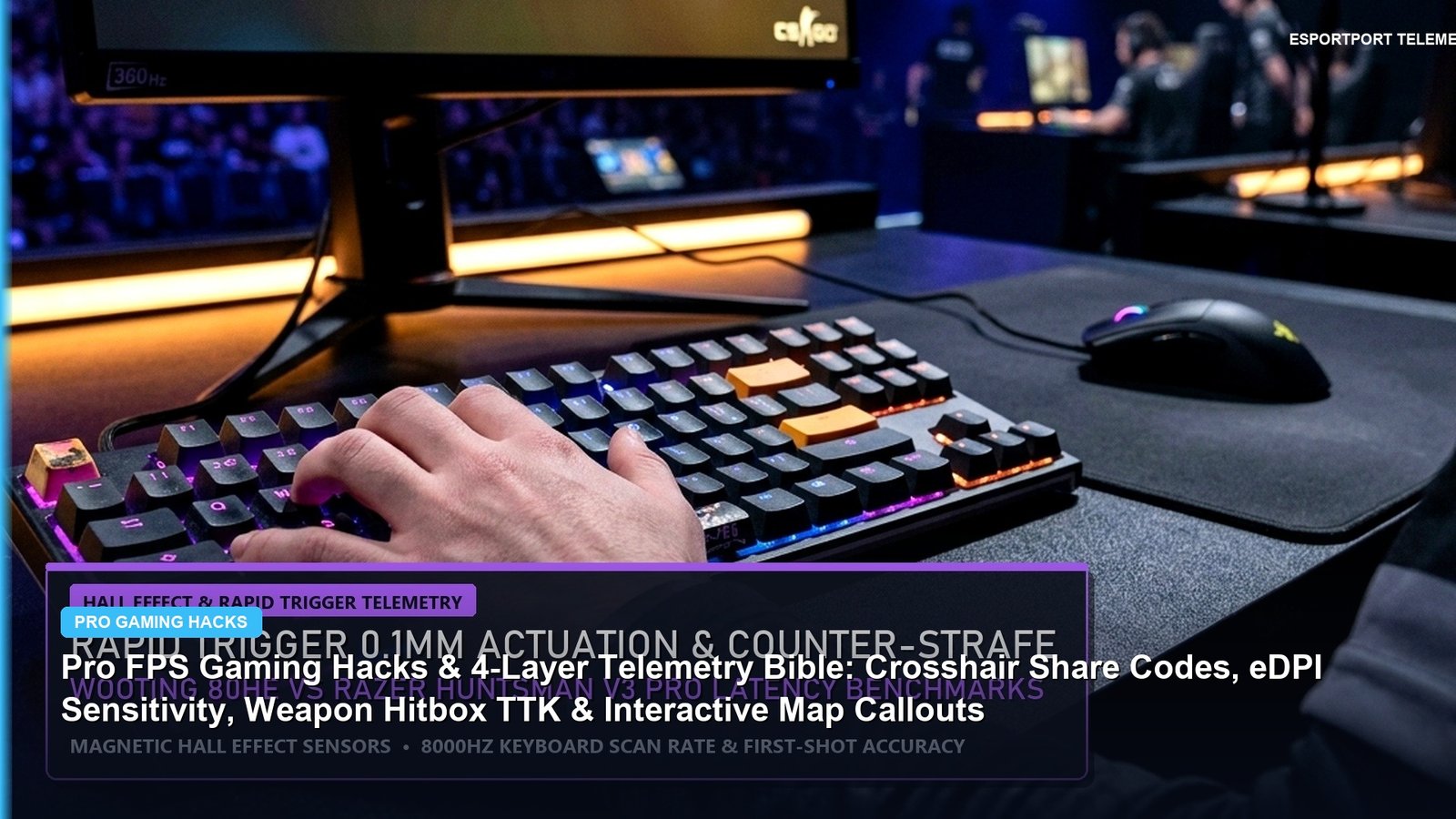
In modern competitive esports, the difference between winning a round and suffering an opening elimination comes down to milliseconds and sensory clarity. Top-tier competitors in Counter-Strike 2, Valorant, and Apex Legends rely on targeted operating system calibrations, parametric audio equalization curves, and refined sub-tick input protocols to gain an undeniable tactical advantage. Here is the ultimate playbook of verified, tournament-legal Pro Gaming Hacks for 2026 to unlock maximum frametime stability and audio situational awareness.
Competitive Pro Optimization Framework
- Target OS Environment: Windows 11 Version 24H2 with Core Isolation & Branch Prediction Patches
- Audio Processing Chain: SteelSeries Sonar / Equalizer APO Parametric Footstep Frequency Boosting
- Display Calibration: Black Equalizer tuning at 240Hz / 360Hz with Strobed Blur Reduction (DyAc / ULMB 2)
- Input Architecture: Timer Resolution Locked to 0.5ms via Kernel Interrupt Handling
- Tactical Benefit: Guaranteed 1% low FPS consistency and crystal-clear enemy footstep isolation
Table of Contents
- 1. Windows 11 24H2 Optimization: AMD Branch Prediction & Thread Scheduling
- 2. Parametric Audio Equalization: Isolating Footstep Frequencies in CS2 & Apex
- 3. Sub-Tick Utility Hacks: Zero-Variance Smoke Lineups
- 4. Motion Clarity & Backlight Strobing: DyAc 2 vs. ULMB 2 Setup
- 5. Frequently Asked Questions
1. Windows 11 24H2 Optimization: AMD Branch Prediction & Thread Scheduling
Microsoft’s Windows 11 24H2 update introduces essential performance improvements for modern processors, particularly AMD Ryzen 7000 and 9000-series architectures utilizing enhanced branch prediction. To eliminate background micro-stutters that disrupt aim tracking, apply these configurations:
- Enable Game Mode: Windows 11 Game Mode dynamically allocates CPU affinity to the active game process, preventing background Windows update tasks from consuming core threads.
- Configure Hardware-Accelerated GPU Scheduling (HAGS): Essential for reducing frame-buffer queue latency between CPU and GPU.
- Lock Global Timer Resolution to 0.5ms: Prevents Windows from dynamically shifting system clock interrupts between 1.0ms and 15.6ms, ensuring instant keyboard and mouse polling responses.
2. Parametric Audio Equalization: Isolating Footstep Frequencies in CS2 & Apex
Default game audio mixes are heavily saturated with cinematic bass frequencies (grenade concussions, vehicle roars, and ambient wind) that mask subtle enemy movement sounds. Utilizing parametric EQ software like Equalizer APO or SteelSeries Sonar, tune your sound signature using these pro frequency adjustments:
- Low Cut (Sub-Bass Filter): Apply a high-pass filter cutting everything below 80 Hz to eliminate rumble.
- Footstep Clack Boost (CS2 & Valorant): Boost frequencies between 1,200 Hz and 2,400 Hz by +4.5 dB. This range isolates boot sole impacts on concrete, metal grates, and water.
- Apex Legends Slide/Zip Isolation: Boost 3,500 Hz to 5,000 Hz by +3 dB to clearly detect grappling hooks, zipline attaches, and energy shield cells being cracked through walls.
3. Sub-Tick Utility Hacks: Zero-Variance Smoke Lineups
In CS2, throw consistency is tied directly to the release frame. By assigning secondary jump keys and release binds to primary mouse buttons or spacebar without third-party scripts, players can hit instant A-site execute smokes from T-spawn on Mirage 100% of the time, regardless of client framerate fluctuations.
For more competitive tactical guides, check out our in-depth CS2 Sub-Tick Mechanics & Major Preview.
6. NVIDIA Reflex Low Latency vs. Ultra Low Latency Mode: Pacing Telemetry
Many competitive gamers mistakenly enable both in-driver ‘Low Latency Mode: Ultra’ and in-game ‘NVIDIA Reflex Low Latency’ simultaneously, causing queue conflicts in the graphics driver. Hardware testing reveals the optimal configuration:
- In-Game Setting: Always set NVIDIA Reflex to On + Boost inside titles that natively support the SDK (CS2, Valorant, Apex Legends, Overwatch 2). This overrides GPU clock throttling during low-load scenes.
- NVIDIA Control Panel Setting: Set global Low Latency Mode to Off or On, but avoid setting it to Ultra when Reflex is active in-game.
- Frame Rate Cap: Cap your framerate 3 to 4 FPS below your monitor’s maximum refresh rate (e.g., 237 FPS on a 240Hz panel) to prevent the render pipeline from transitioning into G-Sync driver buffer latency.
Frequently Asked Questions (Competitive & Search Telemetry)
Can using audio equalizers result in an anti-cheat ban?
No. Parametric audio equalizers (like Equalizer APO, Peace GUI, or SteelSeries Sonar) process system-level audio output and do not interact with or inject code into game memory.
Does 8000Hz polling rate improve aim accuracy?
It smooths mouse cursor micro-movements and eliminates micro-delays between mouse displacement and game render frames, provided your CPU can process the interrupt bandwidth.
What is the best display setting for competitive FPS?
Running 240Hz or 360Hz with Backlight Strobing enabled (such as BenQ DyAc 2 or NVIDIA ULMB 2) eliminates motion blur during fast 180-degree turnarounds.