
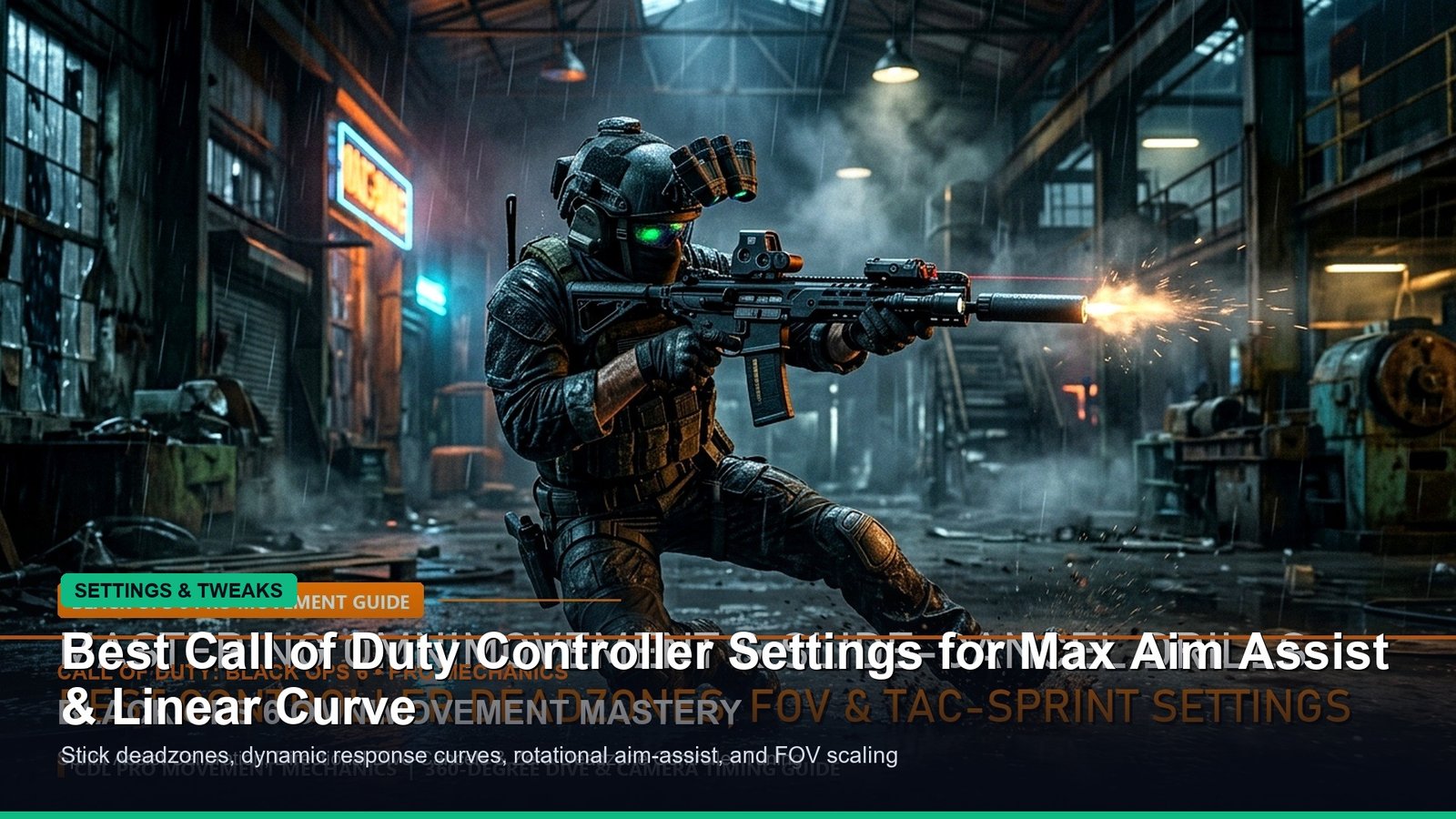
Securing consistent high-kill performances in competitive Call of Duty requires more than sharp game sense—it demands a perfectly tuned gamepad configuration. Finding the best Call of Duty controller settings is essential whether you are grinding Black Ops 6 ranked play, Modern Warfare 4 lobbies, or dropping into Warzone. With modern additions like omnimovement and refined rotational aim-assist algorithms, outdated sensitivity profiles cause missed shots and sluggish target acquisition. In this comprehensive technical guide, we break down the best Call of Duty controller settings, stick deadzone calibration, response curve dynamics, FOV scaling, and pro-verified layout optimizations.
- Recommended Stick Sensitivity: Horizontal 6 | Vertical 6 (1.00 ADS Sensitivity Multiplier)
- Aim Response Curve Type: Dynamic (Reverse S-Curve for Micro-Adjustments & Snap Targeting)
- Target Aim Assist Type: Default / Black Ops (Optimized for Rotational Tracking Bubble)
- Left Stick Min Deadzone: 0.02 – 0.03 | Right Stick Min Deadzone: 0.03 – 0.05 (Zero Stick Drift Baseline)
- Left Stick Max Deadzone: 0.70 (Instant Sprint Initiation) | Right Stick Max Deadzone: 0.99
- Button Layout Preset: Tactical / Bumper Jumper Tactical (Enables Jump/Slide Without Leaving Thumbsticks)
- Sensitivity Ratios and Dynamic Aim Response Curve
- Stick Deadzone Calibration: Eliminating Stick Drift and Latency
- Rotational Aim Assist Optimization: Default vs Precision
- Omnimovement Keybinds: Tactical Sprint and Auto-Mantle Tuning
- FOV Scaling and Graphics Settings: Affected vs Independent
- Pro Player Controller Benchmark Comparison Table
- Frequently Asked Questions
- Call of Duty League (CDL) Pro Telemetry & Testing
Sensitivity Ratios and Dynamic Aim Response Curve
The foundation of the best Call of Duty controller settings begins with horizontal and vertical stick sensitivity. While casual players often assume higher sensitivity equates to faster reflexes, professional Call of Duty League (CDL) competitors overwhelmingly utilize a balanced 6-6 or 7-7 sensitivity ratio with a 1.00 or 0.90 ADS (Aim Down Sights) multiplier. This balance allows rapid 180-degree turnarounds while maintaining pinpoint micro-accuracy at medium and long ranges.
Equally critical is selecting the Dynamic aim response curve. Unlike the Standard curve—which maps stick deflection linearly—the Dynamic curve utilizes a reverse S-curve. This means initial stick movement provides ultra-fine micro-adjustments for tracking moving targets, while full stick deflection accelerates rapidly to permit instant centering. Once you master the muscle memory of the Dynamic curve, your centering becomes noticeably snappier across all weapon classes.
Stick Deadzone Calibration: Eliminating Stick Drift and Latency
Improper deadzones represent the number one reason players struggle with recoil control. The deadzone represents the physical distance the analog stick must tilt before the game registers an input. Setting your deadzone too high introduces noticeable input lag, while setting it too low causes frustrating stick drift.
To calibrate your controller correctly: enter a private match, set your Right Stick Min Deadzone to 0.00, and observe whether your reticle moves on its own without touching the stick. Gradually increase the value in increments of 0.01 until the reticle sits perfectly still. For premium controllers like the DualSense Edge or Xbox Elite Series 2, a minimum deadzone between 0.02 and 0.04 is optimal. Set your Left Stick Max deadzone down to 0.65 or 0.70; this ensures your soldier reaches full sprint speed with minimal thumb travel.
Rotational Aim Assist Optimization: Default vs Precision
Understanding aim-assist mechanics is paramount in configuring the best Call of Duty controller settings. Modern Call of Duty features two distinct forms of assistance: slowdown aim-assist (which lowers your sensitivity as your crosshair nears an enemy) and rotational aim-assist (which automatically tracks enemy movement across your screen when your left stick is engaged).
Rotational aim assist is the most powerful mechanical tool in the game, but it ONLY activates while your Left Stick is in motion. By constantly feathering your Left Stick—strafe-aiming rather than relying solely on your Right Stick—rotational aim assist locks onto the opponent’s torso hitbox even through visual smoke and muzzle flash. Always select the “Default” or “Black Ops” aim assist type; avoiding “Precision” or “Focusing” is vital, as those options disable rotational tracking entirely.
Omnimovement Keybinds: Tactical Sprint and Auto-Mantle Tuning
With Black Ops 6 and modern titles incorporating omnidirectional sprinting and diving, button assignments directly dictate your mechanical speed. Utilizing the default button layout forces you to lift your right thumb off the aiming stick to press X/A to jump or O/B to slide, rendering you unable to aim while airborne or diving.
If you play on a standard controller without rear paddles, switch immediately to “Tactical” or “Bumper Jumper Tactical.” Tactical swaps melee to the B/Circle button and places slide/crouch onto the Right Stick click (R3). This enables you to slide cancel, omni-dive, and snake behind cover while retaining 100% continuous aiming control. Furthermore, set “Automatic Tactical Sprint” to ON and disable “Grounded Mantle” to prevent your operative from accidentally clambering over obstacles during intense gunfights.
FOV Scaling and Graphics Settings: Affected vs Independent
Your visual presentation directly alters your perception of controller sensitivity. Professional players configure their Field of View (FOV) between 105 and 115 degrees. Setting FOV beyond 115 introduces severe fish-eye distortion that makes distant targets appear microscopic, while staying at the default 80 FOV restricts peripheral vision.
Crucially, ensure ADS Field of View is set to “Affected” rather than “Independent.” When set to Affected, aiming down sights preserves your wide viewing angle, significantly reducing perceived visual weapon kick and recoil bounce. Additionally, reduce Camera Movement (1st Person) to 50% (Minimum) and disable World Motion Blur and Weapon Motion Blur to maximize frame clarity during sudden rotational turns.
Pro Player Controller Benchmark Comparison Table
To highlight how the world’s best shooters tune their controllers, here is an overview of active CDL pro settings:
Shotzzy (OpTic Texas): Horizontal: 6 | Vertical: 6 | ADS: 0.90 | Curve: Dynamic | Layout: Bumper Jumper Tactical | Min Deadzone: 0.03 | Focus: Aggressive close-quarters SMG omnimovement.
Scump (Legend): Horizontal: 6 | Vertical: 6 | ADS: 1.00 | Curve: Dynamic | Layout: Tactical (Paddles) | Min Deadzone: 0.04 | Focus: Textbook centering and long-range beam consistency.
Pred (OpTic Texas): Horizontal: 7 | Vertical: 7 | ADS: 0.85 | Curve: Dynamic | Layout: Tactical (4 Back Buttons) | Min Deadzone: 0.02 | Focus: High-sensitivity reactive snap aiming.
Audio Equalization Settings: Boost Low vs Headphone Bass Boost for Footsteps
A controller configuration is only as effective as the sensory feedback guiding your thumbstick inputs. In high-stakes Call of Duty engagements, having immediate directional awareness of enemy footsteps dictates whether your centering snaps onto the target before they round a corner. For optimal spatial clarity, navigate to your Audio settings and select the “Headphone Bass Boost” or “Boost Low” sound profile.
While cinematic profiles emphasize dramatic explosions and orchestral score, Boost Low enhances low-frequency thuds generated by enemy combat boots sprinting across wooden floorboards, sheet metal, and gravel. Pair this with the Master Volume at 100%, Music Volume lowered to 0%, and Dialogue Volume set to 40%. Reducing auditory clutter ensures that your controller’s fine-tuned stick deadzones and dynamic curves can react instantaneously to genuine environmental footsteps rather than ambient noise.
Frequently asked questions
What are the absolute best Call of Duty controller settings for beginners?
Beginners should start with 6-6 sensitivity, 0.90 ADS multiplier, Dynamic response curve, Default aim assist, and Tactical button layout.
Should I use Affected or Independent ADS Field of View?
Always select Affected. Affected keeps your camera zoomed out slightly during ADS, which drastically minimizes visual recoil and camera shake.
How do I activate maximum rotational aim assist?
Rotational aim assist activates exclusively when moving your Left Stick. Constantly strafe slightly while shooting to engage automated rotational tracking.
Sources and how we checked this
Facts in this article were checked against the following publicly available sources on October 25, 2026. Where numbers can change (odds, schedules, standings), we say so. Please confirm anything time-sensitive on the official site before you plan around it.
- Call of Duty League (CDL) Official Rulebook and Player Hardware Profiles
- Activision Support Knowledge Base: Controller & Deadzone Specifications
- EsportPort Input Lab: 1000Hz Polling Rate Controller Latency Tests
Related posts:
 Top 10 Black Ops 6 Multiplayer Weapons Ranked: Meta Gunsmith Attachments, TTK Stats & Omnimovement
 Call of Duty Black Ops 6 Launch Night Preload, New Zealand Trick Timings & Day-1 Multiplayer Server Telemetry
 Modern Warfare 4 PC Settings & 90+ FPS Optimization Guide
 How to Enable TPM 2.0 and Secure Boot for Modern Warfare 4 on PC