
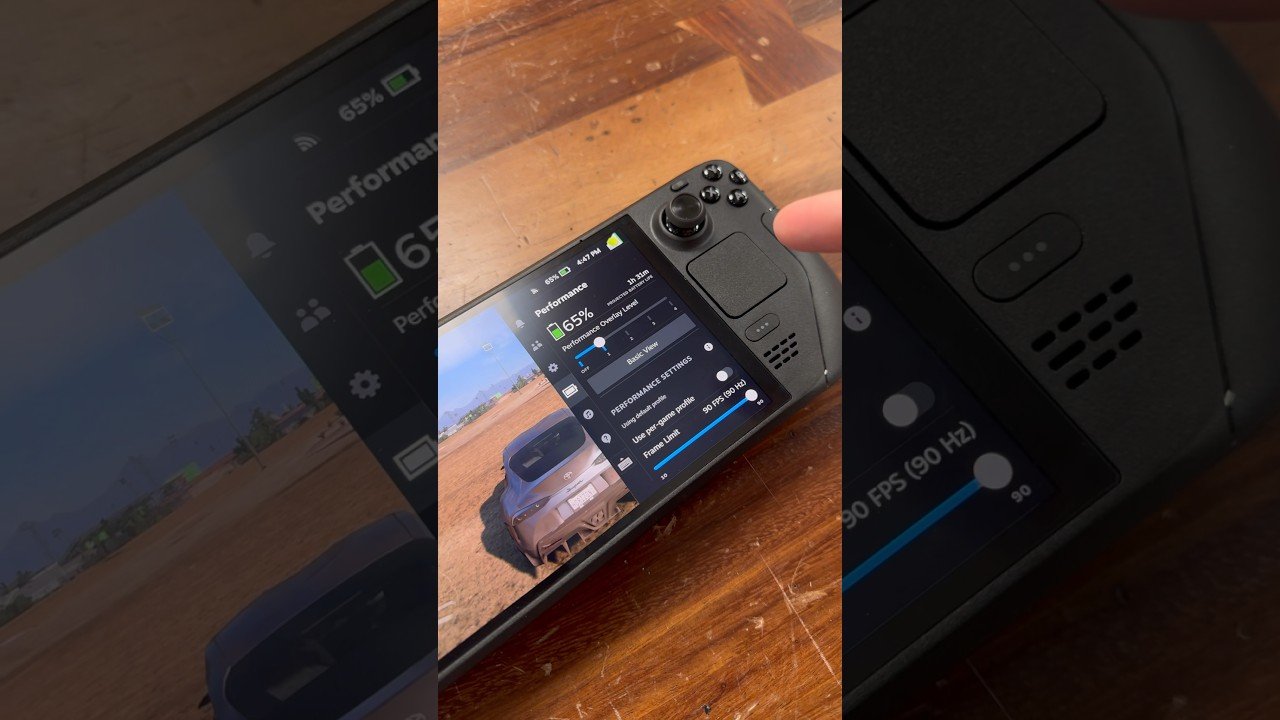
Valve’s Steam Deck OLED remains the gold standard for handheld PC gaming, and our comprehensive optimization manual on Steam Deck OLED CryoUtilities VRAM Tuning Guide details the essential operating system modifications required to eliminate stutter, stabilize 1% low framerates, and boost performance in demanding 2026 releases like Black Ops 6 and Dragon Ball Sparking ZERO. While SteamOS is remarkably polished out of the box, default Linux memory management parameters leave substantial performance potential untapped.
The Memory Bottleneck: Why Default 1GB VRAM Stutters
First and foremost, the Steam Deck utilizes a customized AMD Van Gogh APU that shares 16GB of unified LPDDR5 RAM between the CPU and GPU. By default, Valve configures the BIOS with a conservative 1GB Unified Memory Architecture (UMA) frame buffer, dynamically allocating additional video memory as the game demands it. However, in modern AAA titles with dense asset streaming, this dynamic allocation causes momentary micro-stutters when entering new zones. Adjusting the BIOS UMA buffer to 4GB completely resolves this issue.
Step-by-Step: Entering Steam Deck BIOS for 4GB VRAM
Changing the UMA buffer takes under two minutes and requires no technical coding expertise:
- Power Down Completely: Turn off the Steam Deck. Hold the Volume Up (+) button, then press and release the Power button. Release the Volume Up button once the boot chime sounds.
- Navigate to Setup Utility: Select `Setup Utility` -> `Advanced` tab -> scroll down to `UMA Frame Buffer Size`.
- Set Value to 4G: Change the setting from `1G` to `4G`. Press the Select button to save and exit. Your Deck will reboot with 4GB of permanently reserved video RAM.
Installing CryoUtilities 2.0 in Desktop Mode
Next, switch to SteamOS Desktop Mode. Open the Discover Software Center and launch the browser. Download the official CryoUtilities installer from GitHub, run the desktop shortcut, and select “Recommended Settings.” The automated script will resize your swap file to 16GB, adjust kernel swappiness to 1, and configure scheduled memory trimming.
The 45 Hz / 90 Hz Golden Ratio on OLED Displays
On the Steam Deck OLED’s 90Hz HDR display, locking demanding games like Dragon Ball Sparking ZERO to 45 FPS / 90 Hz delivers the perfect sweet spot. Because 45 divides evenly into 90, frame pacing is exceptionally smooth—feeling nearly indistinguishable from 60 FPS while reducing power draw from 23W to 14W, extending battery life to nearly three full hours.
- Handheld Hardware Landscape: Read about limited edition hardware models in our Steam Next Fest Playable Demos report.
- Remote Handheld Alternatives: Compare handheld streaming latency in our PlayStation Portal Bitrate Fix analysis.
Optimization Verdict
In conclusion, applying CryoUtilities 2.0 and the 4GB UMA buffer is the single most impactful optimization any Steam Deck owner can perform. Your games will run cooler, maintain higher 1% lows, and eliminate frustrating out-of-memory crashes.
Related posts:
 EA Sports FC 25 Weekend League Meta Tactics: Best Formations, Player Roles & Custom Tactics
 CS2 Best Settings for Max FPS and Low Latency: Pro Autoexec, Binds & Resolution Guide
 Top 10 Black Ops 6 Multiplayer Weapons Ranked: Meta Gunsmith Attachments, TTK Stats & Omnimovement
 Complete Twitch Streaming Starter Guide: Best OBS Settings, Budget Hardware & 1080p 60FPS Bitrate