
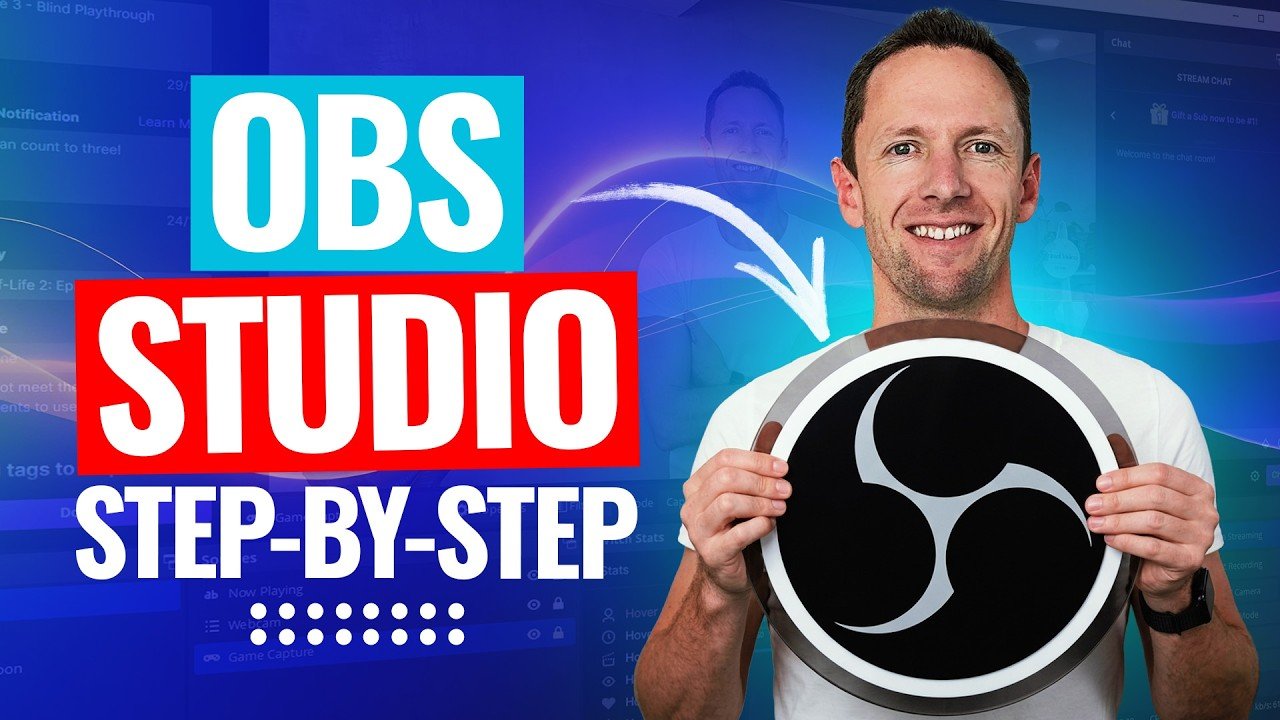
Launching a broadcast channel has never been more accessible, and our expert Twitch Streaming Starter Guide OBS Settings provides an exhaustive walkthrough for achieving pristine 1080p 60FPS video and studio-grade audio on a modest budget. While top creators utilize dual-PC broadcast rigs, modern hardware encoders allow any gaming PC to deliver flawless livestreaming without sacrificing gameplay framerates.
Optimal OBS Studio Encoding Settings
First and foremost, video stutter and pixelation occur when bitrate and encoder settings are misaligned with your GPU capabilities. Below is our standardized configuration table optimized for Twitch’s 2026 RTMP ingest servers:
Essential Audio Chain: Zero-Cost Mic Filters
Furthermore, viewers will forgive average webcam video, but harsh, clipping audio will drive viewers away within seconds. In OBS Studio, click the gear icon on your microphone source and apply these three filters in exact sequence:
- Noise Suppression (RNNoise): Uses lightweight AI neural networks to completely eliminate mechanical keyboard clicks and PC cooling fan hum.
- Compressor (3:1 Ratio): Set threshold to -18 dB and attack to 2 ms to automatically tame loud laughter or screaming without audio distortion.
- Limiter (-2.0 dB): Prevents your voice channel from ever entering the red clipping zone, protecting viewer headphone volume.
Network Latency & Bitrate Troubleshooting
Always connect your PC via an ethernet cable rather than Wi-Fi to eliminate dropped frames caused by packet jitter. For mobile and remote broadcasting insights, review our latency testing in the PlayStation Portal Bitrate Fix guide and hardware benchmarks in our PS5 Pro Enhanced Games List.
Starter Streamer Verdict
In conclusion, configuring these proven OBS settings guarantees a broadcast output that rivals top verified partners. Download the latest release from the official OBS Project portal.
Related posts:
 EA Sports FC 25 Weekend League Meta Tactics: Best Formations, Player Roles & Custom Tactics
 Twitch Affiliate to Partner Roadmap 2026: Exact Requirements, Sub Splits & Plus Program Secrets
 CS2 Best Settings for Max FPS and Low Latency: Pro Autoexec, Binds & Resolution Guide
 Top 10 Black Ops 6 Multiplayer Weapons Ranked: Meta Gunsmith Attachments, TTK Stats & Omnimovement