
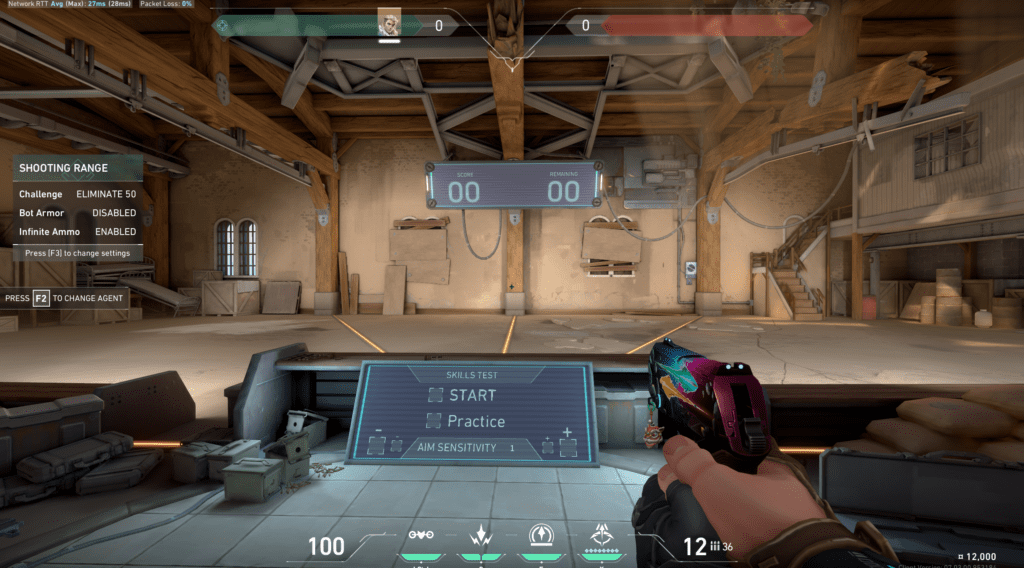
In the world of competitive first-person shooters, the difference between winning a clutch 1v1 duel and staring at a respawn timer comes down to single-digit milliseconds. When casual players hear the word “hacks,” they often think of illicit software, but legitimate pro gaming aim hacks encompass legal hardware optimizations, low-latency driver configurations, and scientific warmup protocols utilized by elite esports athletes.
If your aim feels sluggish, floaty, or inconsistent across high-stakes ranked matches, the bottleneck is rarely your talent—it is your input latency pipeline. Below is our complete technical guide to stripping delay from your system, calibrating your optical sensor, and maximizing hit registration.
Eliminating System-Level Input Delay
Before training your muscle memory, you must guarantee that what happens in your hand translates instantaneously onto your monitor.
Nvidia Reflex Low Latency & AMD Anti-Lag 2
- Enable Reflex + Boost: In titles supporting Nvidia Reflex (such as Valorant, CS2, Overwatch 2, and Apex Legends), set Reflex to On + Boost. This prevents the GPU memory queue from buffering frames, locking your GPU clock speeds at maximum frequency to ensure sub-10ms render latency even during visually intense firefights.
- DPC Latency Optimization: Background processes, audio drivers, and power-saving sleep states create Deferred Procedure Call (DPC) spikes that disrupt frame pacing. Use tools like LatencyMon to identify faulty drivers and set your Windows Power Plan to Ultimate Performance to eliminate CPU core throttling.
Understanding these hardware-level pro gaming aim hacks enables esports competitors to react to enemy pixels faster than humanly possible on standard rigs.
Mouse Sensor Calibration: 1000Hz vs 4000Hz / 8000Hz
Sensor polling rate determines how frequently your mouse reports its physical coordinates to the operating system each second.
| Polling Rate | Report Interval | CPU Usage Impact | Recommended Gaming Scenario |
|---|---|---|---|
| 125 Hz (Office Standard) | 8.0 ms delay | Negligible (< 1%) | Casual office work; unplayable for competitive shooters |
| 1000 Hz (Esports Standard) | 1.0 ms delay | Minimal (~ 1–2%) | Rock-solid stability across all games, older CPUs, and tournament setups |
| 2000 Hz – 4000 Hz | 0.5 ms – 0.25 ms delay | Moderate (~ 3–5%) | High-end multi-core CPUs paired with 240Hz+ high-refresh gaming monitors |
| 8000 Hz (Extreme Enthusiast) | 0.125 ms delay | High (~ 6–10%) | Requires flagship CPUs (Ryzen 7800X3D/Intel 14th Gen); can cause stutter in legacy engines |
Pro Tip: For 95% of competitive gamers, 1000 Hz or 2000 Hz remains the optimal sweet spot. Above 2000 Hz, the diminishing returns in input latency (less than 0.5 ms) are often outweighed by frame-time micro-stutters in unoptimized game engines.
Competitive players looking to upgrade their portable battlestations can explore our tested rankings in the Best Gaming Laptops Under 70000 in India to find machines capable of driving ultra-high frame rates with dedicated MUX switches.
Windows Raw Input & Driver Tweaks
To achieve pinpoint mechanical precision, your operating system must deliver 1:1 raw sensor data to your game engine:
- Disable Enhance Pointer Precision: Navigate to Mouse Properties -> Pointer Options and immediately uncheck Enhance Pointer Precision. This Windows setting introduces non-linear mouse acceleration, meaning moving your mouse faster covers more distance than moving it slowly across the exact same mousepad area—destroying your muscle memory.
- Registry Raw Input Bypasses: In competitive shooters, always verify that Raw Input Buffer is enabled in the game’s mouse settings menu. This bypasses the Windows desktop window manager (DWM) API, feeding hardware interrupts directly to the game process.
Applying these system-wide pro gaming aim hacks ensures that every physical movement of your hand maps 1:1 onto your crosshair without software smoothing.
High-Refresh Monitor Tuning & Motion Clarity
A 240Hz or 360Hz monitor is useless if pixel response times produce ghosting trails behind moving targets:
- Overdrive Setting (Fast vs Extreme): Set your monitor’s pixel overdrive to Fast or Normal. Avoid “Extreme” or “Ultra-Fast” settings, which introduce severe inverse ghosting (pixel overshoot coronas) that distort enemy silhouettes during rapid horizontal flicks.
- Black Frame Insertion (DyAc / ELMB): If your monitor features strobed backlight technology like BenQ ZOWIE DyAc 2 or ASUS ELMB, enable it during competitive sessions. Backlight strobing eliminates eye-tracking motion blur, keeping fast-moving enemy models crystal clear during dynamic swings.
The 15-Minute Dynamic Muscle Memory Warmup
Elite pros never jump directly into ranked matches cold. Calibrate your neuromuscular pathways using this focused routine:
- Minutes 0–5 (Micro-Adjustments): In Aimlabs or The Range, practice static clicking on small targets (Gridshot or Sixshot). Focus 100% on accuracy rather than speed; aim for a 95%+ hit rate.
- Minutes 5–10 (Dynamic Target Tracking): Switch to smooth tracking drills (SphereTrack or StrafeBot). Match the velocity of moving targets without letting your crosshair stutter or jitter.
- Minutes 10–15 (Flick-to-Center Recalibration): Engage moving targets from a resting position at the center of your screen. Flick, hit, and immediately reset your mouse to your neutral arm position.
Technical Summary
True mechanical mastery is built upon the foundation of an ultra-responsive, zero-latency system. By implementing sub-millisecond polling rates, eliminating Windows acceleration, optimizing Nvidia Reflex pipelines, and executing structured daily warmups, you transform your setup into an extension of your reflexes. Mastering these legitimate pro gaming aim hacks will unlock the ultimate competitive edge and maximize your precision across every competitive title.
Related posts:
 Mouse Sensitivity Converter
 LoL Worlds Quarterfinals Bracket & Match Schedule: T1 vs TES, Gen.G vs FlyQuest & Pick’em Predictions
 Dota 2 BetBoom Dacha Belgrade Standings & Meta Report: Team Falcons, Tundra Esports & Patch 7.37d Heroes
 Advanced Movement & Peeking Hacks: How Pro Players Abuse Camera Angles in Black Ops 6, Valorant & Apex Legends Season 23