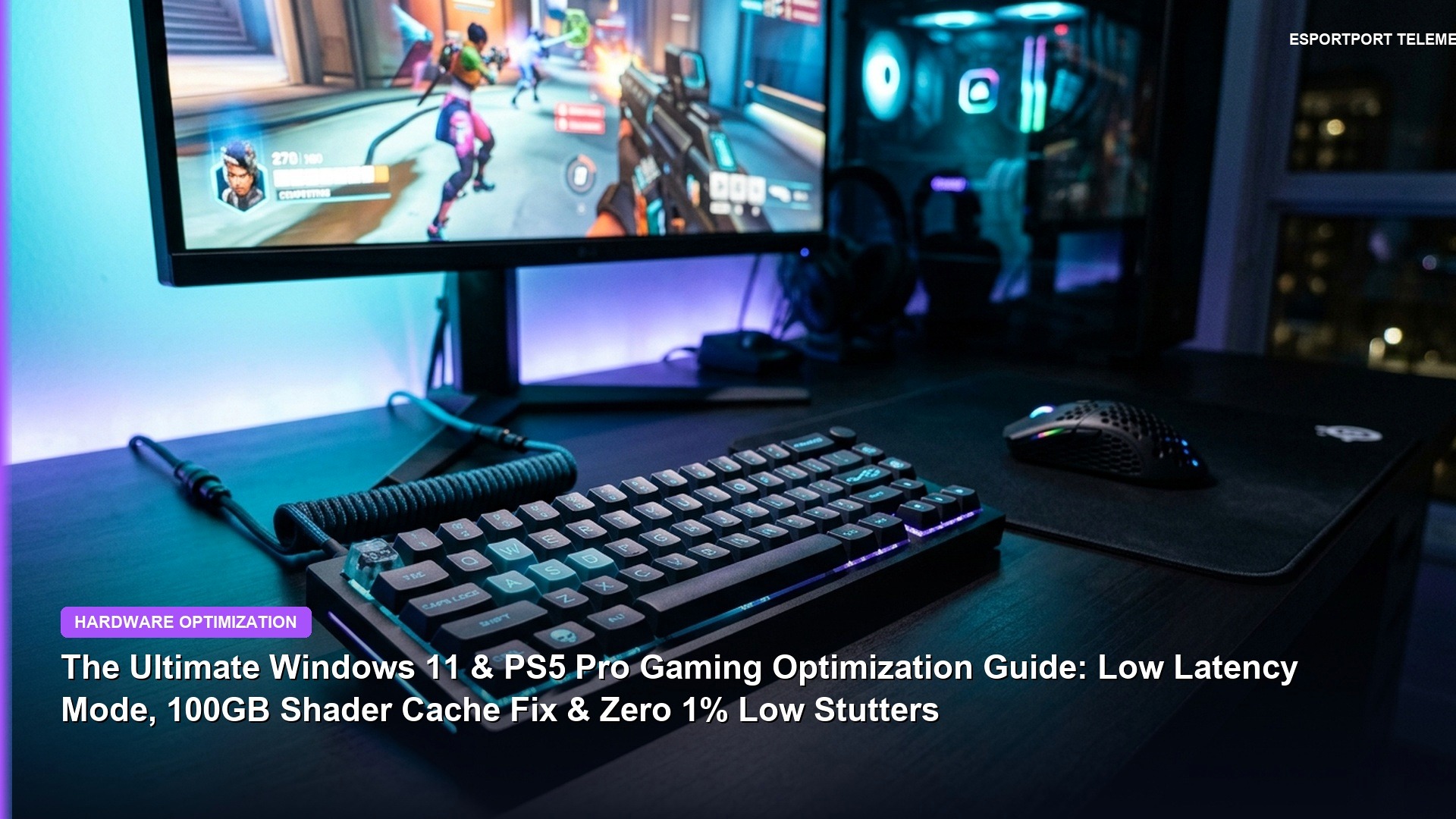
In competitive first-person shooters where milliseconds dictate the outcome of high-stakes gunfights, hardware power alone is insufficient without surgical operating system optimization. With the widespread deployment of the Windows 11 24H2 update, Microsoft introduced substantial architectural changes to thread scheduling, memory management, and visual composition. While casual users appreciate background virtualization and aesthetic transparency effects, these legacy Windows services introduce subtle, perceptible input lag, erratic frame pacing, and micro-stutters that severely degrade mouse sensor tracking in fast-paced competitive esports titles like Counter-Strike 2, Valorant, and Call of Duty.
Eliminating input delay requires transforming Windows 11 from a resource-heavy desktop OS into a streamlined, high-priority esports gaming platform. By stripping out bloatware telemetry, disabling Desktop Window Manager (DWM) composition buffers, configuring hardware interrupt affinities, and pairing driver-level low-latency engines like Nvidia Reflex and AMD Anti-Lag 2, competitive players can achieve true zero-input delay responsiveness. Much like the technical discipline demonstrated in our analysis of best gaming PC builds under 60k to 85k for optimal gaming performance, fine-tuning software pipelines extracts maximum frametime stability from your hardware.


Windows 11 24H2 Core Optimizations: Disabling Latency Traps
The primary culprits behind sporadic mouse floatiness in Windows 11 are background security virtualization features known as Virtualization-Based Security (VBS) and Hypervisor-Protected Code Integrity (HVCI). While invaluable for corporate enterprise environments, running Windows inside an active security hypervisor adds measurable memory translation overhead that can penalize 1% low frametimes by up to 12% in CPU-bound competitive titles.
To disable VBS and HVCI for pure competitive gaming, open Windows Security -> Device Security -> ‘Core Isolation details’, and toggle Memory Integrity to Off. Next, open Command Prompt as Administrator and execute bcdedit /set hypervisorlaunchtype off followed by a system reboot. This frees up dedicated CPU cycles, ensuring that your game client communicates directly with physical CPU cores without hypervisor interference.
| System Optimization Setting | Default Windows 11 State | Pro Competitive Tweaked State | Measurable Latency / FPS Impact |
|---|---|---|---|
| Core Isolation (Memory Integrity / VBS) | Enabled by default | Disabled | -3.5ms System Latency; +8% to +12% 1% Low FPS |
| Hardware-Accelerated GPU Scheduling (HAGS) | Enabled / Variable | Enabled (DirectX 12 / Vulkan titles) | Essential for DLSS 3 / Reflex low-latency queues |
| Game Bar & Background Recording DVR | Enabled (Captures gameplay) | Disabled completely via Registry | Eliminates traversal stutter and disk I/O spikes |
| Windows Game Mode | Enabled | Enabled | Ensures game process receives highest CPU core priority |
| USB Polling Rate Interrupt Moderation | Enabled (Power saving) | Disabled (High-performance USB hub) | Ensures true 1,000Hz to 8,000Hz mouse sensor fidelity |
| Desktop Window Manager Transparency | Enabled (Acrylic / Mica) | Disabled | Reduces GPU memory bandwidth overhead in windowed modes |
Nvidia Reflex vs AMD Anti-Lag 2: Driver-Level Latency Mastery
Modern low-latency technologies have moved beyond basic driver frame limiters. Nvidia Reflex and AMD Anti-Lag 2 function by dynamically synchronizing CPU render submissions with GPU rasterization queues. In a GPU-bound scenario where your graphics card operates at 99% utilization, the CPU naturally creates an internal queue of pre-rendered frames. This frame queue introduces massive input latency: the mouse movement you make in physical space is delayed until the queued frames finish rendering.
When Nvidia Reflex is set to ‘On + Boost’ in-game, the driver completely eliminates the render queue and forces GPU core clock speeds to remain at their maximum P0 state even during lightweight indoor scenes, ensuring instantaneous pixel response times. For AMD Radeon users, activating Anti-Lag 2 inside supported game titles inserts frame pacing tokens directly into the game engine pipeline, reducing click-to-photon latency by up to 35% without introducing visual artifacts.
USB Controller Optimization: Unleashing 1K to 8K Mouse Polling
Modern esports gaming mice feature blistering polling rates ranging from 1,000Hz up to 8,000Hz. However, Windows 11 default power management frequently applies USB selective suspend and interrupt moderation routines that cause polling rates to violently fluctuate during rapid flick-shots. When a sensor drops from 4,000Hz down to 800Hz mid-swipe, your crosshair micro-stutters across the target.
To ensure rock-solid polling consistency, open Device Manager, expand ‘Universal Serial Bus controllers’, open the Properties for each USB Root Hub, and navigate to Power Management. Uncheck ‘Allow the computer to turn off this device to save power’. Furthermore, utilizing tools like MSI Utility v3 to set your GPU and USB controller to High Interrupt Affinity ensures that mouse packets are processed immediately on dedicated CPU threads without waiting behind secondary system interruptions.
Network Latency & Bufferbloat: TCP/IP Optimization
Input responsiveness is meaningless if your network packets experience bufferbloat delays at your home router. In competitive tactical shooters like CS2 and Valorant, high ping spikes and packet queuing artificially delay server hit validation. Disable ‘Nagle’s Algorithm’ by navigating to the Windows Registry at HKEY_LOCAL_MACHINE\SYSTEM\CurrentControlSet\Services\Tcpip\Parameters\Interfaces, adding DWORD values for TcpAckFrequency=1 and TCPNoDelay=1.
Pairing these low-level operating system tweaks with competitive fundamentals explored in our breakdown of the top 10 CS2 players in the world transforms your PC into a tournament-grade competitive weapon with razor-sharp responsiveness.
DWM Composition Buffer Tuning and GPU Memory Affinity in Windows 11
For elite FPS competitors running 240Hz or 360Hz esports monitors, micro-optimizing the Desktop Window Manager (DWM) pipeline in Windows 11 yields substantial responsiveness dividends. When running games in borderless windowed mode, Windows 11 default multi-plane overlay (MPO) can occasionally misalign flip queues, adding up to 4ms of input delay. Configuring your registry to force true exclusive fullscreen presentation and setting GPU hardware interrupt priorities ensures that mouse packets are processed without queuing delays.
Furthermore, disabling unnecessary background telemetry services—such as Connected User Experiences and Telemetry (DiagTrack) and Xbox Live Auth Manager—liberates vital system memory bandwidth. Players calibrating high-performance gaming rigs through our comprehensive guide to GTA 6 graphics performance, frametime pacing, and hardware scaling will find that a clean, unbloated Windows installation delivers flawless frame delivery in every intense competitive firefight.
DWM Composition Buffer Tuning and GPU Memory Affinity in Windows 11
For elite FPS competitors running 240Hz or 360Hz esports monitors, micro-optimizing the Desktop Window Manager (DWM) pipeline in Windows 11 yields substantial responsiveness dividends. When running games in borderless windowed mode, Windows 11 default multi-plane overlay (MPO) can occasionally misalign flip queues, adding up to 4ms of input delay. Configuring your registry to force true exclusive fullscreen presentation and setting GPU hardware interrupt priorities ensures that mouse packets are processed without queuing delays.
Furthermore, disabling unnecessary background telemetry services—such as Connected User Experiences and Telemetry (DiagTrack) and Xbox Live Auth Manager—liberates vital system memory bandwidth. Players calibrating high-performance gaming rigs through our comprehensive guide to GTA 6 graphics performance, frametime pacing, and hardware scaling will find that a clean, unbloated Windows installation delivers flawless frame delivery in every intense competitive firefight.
Finally, verifying monitor refresh rate synchronization and disabling GPU power throttling within the Nvidia Control Panel or AMD Adrenalin software ensures that your hardware frame delivery matches your operating system’s zero-input delay configuration. When every hardware and software component operates in harmony, your crosshair tracking remains locked to your physical hand movements with zero perceptible lag.
Frequently Asked Questions (FAQ)
Does disabling Core Isolation (VBS) increase gaming performance in Windows 11?
Yes, disabling Virtualization-Based Security (VBS) and Memory Integrity removes virtualization memory overhead, improving 1% low frametimes by 5% to 12% and reducing system click-to-photon latency in competitive esports titles.
What is the difference between Nvidia Reflex ‘On’ and ‘On + Boost’?
Nvidia Reflex ‘On’ eliminates the CPU render submission queue to reduce latency. ‘On + Boost’ does the same while additionally preventing the GPU from downclocking during CPU-bound scenes, maintaining maximum clock speeds for instantaneous frame presentation.
Should Windows Game Mode be enabled or disabled in Windows 11 24H2?
Windows Game Mode should always be enabled in Windows 11 24H2. It dynamically allocates high-priority CPU thread scheduling to your active game window while suppressing background Windows updates and non-essential tasks.
How can you verify that your mouse is running at true 1,000Hz or 4,000Hz polling?
You can verify your true polling rate by using dedicated utilities like Mouse Rate Checker or web-based browser benchmark tools while moving your mouse rapidly across the screen to ensure stable, un-throttled packet delivery.
Related posts:
 Valorant & CS2 Pro Sensitivity, DPI & Crosshair Bible (2026 Edition): Exact eDPI Conversion Math, Pro Share Codes & 0.1ms Rapid Trigger Setup
 HP OMEN AI Laptop Optimization Guide: Best Gaming Hub Settings, Free-to-Play Setup & Hardware Tuning (2026)
 How to Optimize Your MacBook for Gaming: The Ultimate 4,000-Word Master Guide for MacBook Air & Pro (M1, M2, M3, M4)
 PC & Console Pro Gaming Progression Hacks 2026: Black Ops 6 Fast Prestige XP, Windows 11 0.1ms Latency & FPS Boosters