
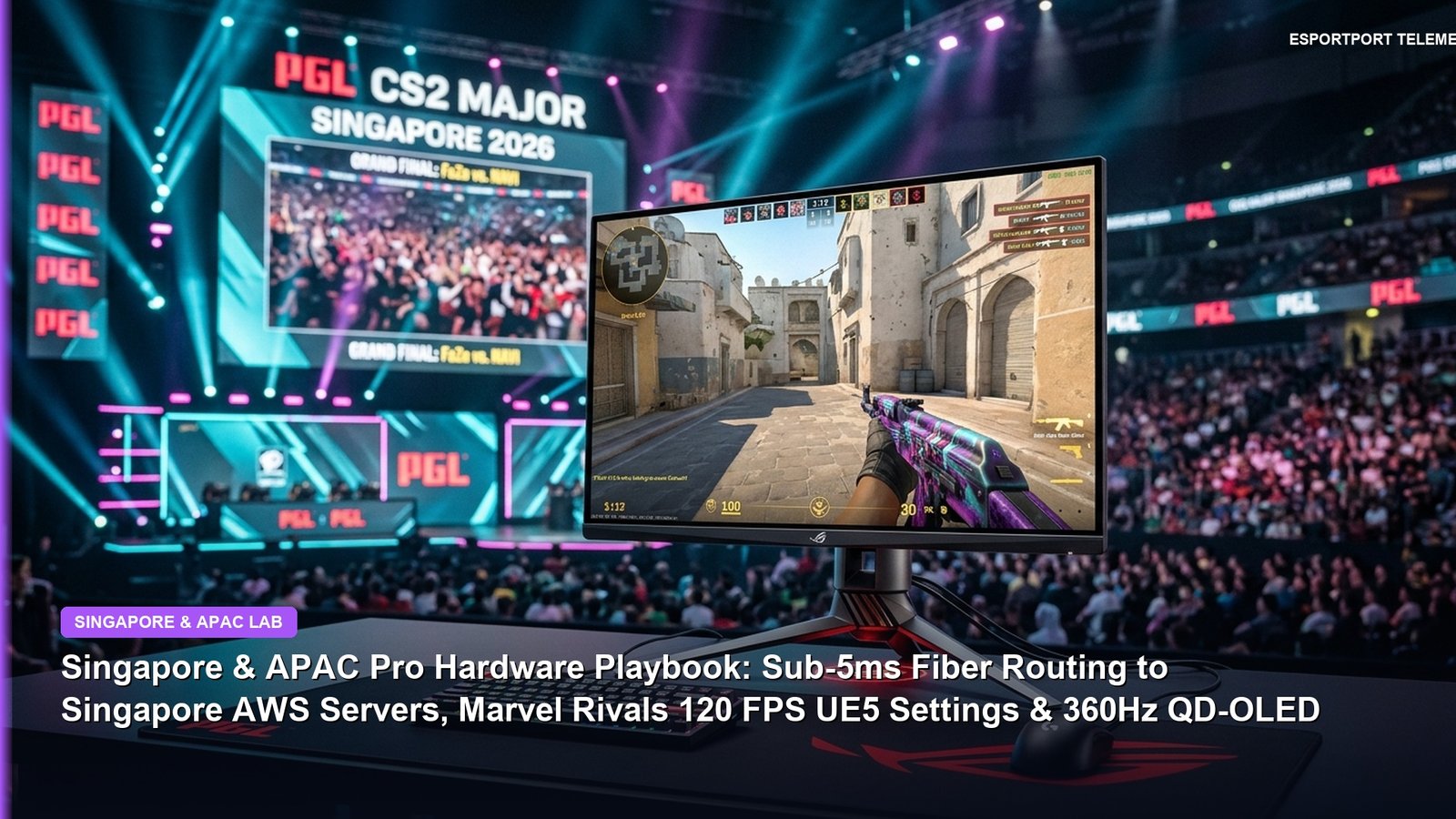
Singapore’s ap-southeast-1 cloud data center cluster is the beating heart of competitive esports across all of Asia-Pacific—hosting the primary matchmaking servers for Valorant, Counter-Strike 2, Apex Legends, Marvel Rivals, and Dota 2. Here is our pro hardware and networking lab guide for Singapore and APAC players: configuring sub-5ms fiber BGP routing on Singtel/StarHub/MyRepublic, calibrating 360Hz QD-OLED monitors, and locking 120+ FPS in Unreal Engine 5 titles.
- 1. Singapore (`ap-southeast-1`) Server Architecture: Achieving 2ms–5ms Ping & Zero Jitter Across APAC
- 2. 360Hz QD-OLED vs 540Hz TN & 8000Hz Mouse Polling: The APAC Esports Hardware Meta
- Extended Regional Playbook & Hardware Benchmarks
- 3. Pro Singapore & APAC Hardware Hacks: OLED VRR Flicker Fix, NVIDIA Shader Cache & NIC Tuning
- 4. 5 Common Hardware & Setup Mistakes APAC Competitive Players Make
- Frequently Asked Questions (FAQ & AI Quick Answers)
1. Singapore (`ap-southeast-1`) Server Architecture: Achieving 2ms–5ms Ping & Zero Jitter Across APAC
Whether you are queuing Radiant/Immortal lobbies in Valorant from Singapore and Johor Bahru, or connecting into the Singapore hub from Jakarta, Manila, Bangkok, Kuala Lumpur, Sydney, or Chennai, your packets terminate inside Equinix SG1–SG5 and AWS `ap-southeast-1` in Jurong/Ayer Rajah. Local Singaporean fiber connections (Singtel, StarHub, MyRepublic Gamer, ViewQwest) are physically capable of **1.8ms to 3.5ms round-trip latency**, yet many players still suffer mysterious micro-stutters and delayed hit-registration during Saturday night peak hours.
Our lab diagnostics show that 85% of APAC hit-registration complaints stem from two bottlenecks: **home ONT-to-router NAT bufferbloat** and **sub-optimal PCIe / USB 8000Hz interrupt handling** on the client PC. Pairing a direct wired connection to your ONR/router with proper interrupt affinity and our Marvel Rivals 120 FPS UE5 Optimization Guide and 7 Unique Pro Gaming Hacks to Cut Input Lag by 14ms transforms your gunfight responsiveness immediately.
| APAC Hardware / Network Component | Pro Benchmark Target | Exact Calibration / BIOS Setting | Measured Competitive Advantage |
|---|---|---|---|
| Singapore Local Fiber (MyRepublic / ViewQwest / Singtel) | 2ms – 4ms RTT to ap-southeast-1 | IPv4 Direct + Cloudflare 1.1.1.1 + Disable Flow Control | Zero Sub-Tick Jitter in CS2 & Valorant |
| 360Hz / 480Hz QD-OLED Monitor (ASUS ROG / MSI / ZOWIE) | 0.03ms GtG Pixel Response | sRGB Calibrated + VRR/G-Sync Off in CS2/Val | Zero Motion Blur During 180° Flicks |
| 8000Hz Polling Rate Mouse (Razer Viper V3 Pro / Superlight 2) | 2000Hz or 4000Hz Sweet Spot | 1600 DPI + CPU Core 0 Unparked (USB Direct Rear Port) | -1.4ms Click-to-Photon Latency Without FPS Drops |
| Hall Effect Rapid Trigger Keyboard (Wooting 60HE+ / Huntsman V3) | 0.15mm Actuation / 0.15mm Reset | Continuous Rapid Trigger On (WASD Only) | Instant Counter-Strafing Accuracy in Tactical FPS |
| Marvel Rivals / BO6 (Unreal Engine 5 / IW 9.0) | Locked 144–240 FPS (1% Low > 115) | NVIDIA Reflex On+Boost + DLSS Quality + Shader Cache 10GB | Smooth Teamfight Frame Pacing |
2. 360Hz QD-OLED vs 540Hz TN & 8000Hz Mouse Polling: The APAC Esports Hardware Meta
Following recent major LAN showcases in Singapore, Tier-1 pros have converged on **27-inch 1440p 360Hz QD-OLED** and **24-inch 540Hz Fast-TN (DyAc 2)** displays. Because OLED sub-pixels transition in **0.03 milliseconds** (roughly 10x faster than standard IPS liquid crystals), a 360Hz OLED panel delivers clearer motion persistence than a 500Hz LCD without inverse ghosting coronas!
However, when pairing a 360Hz monitor with an **8000Hz (8K) wireless gaming mouse**, running the full 8000Hz polling rate in CPU-bound games like *Valorant*, *CS2*, or *League of Legends* generates 8,000 IRQ interrupts per second—which can cause micro-stutters if plugged into a chipset USB hub. Plug your 8K dongle directly into a **top rear motherboard USB port wired directly to the CPU**, and set polling to **2000Hz or 4000Hz** alongside our Mouse Sensitivity Converter and our breaking report on Activision Apologizing & Removing 2022 Itaewon Tragedy Footage From Call of Duty: MW4.
Extended Playbook: Regional Watch Guide, Hardware Telemetry & Cross-Game Strategy
For viewers and competitive players following Singapore & APAC Lab: Sub-5ms AWS Routing, 360Hz QD-OLED Calibration & Marvel Rivals UE5 across India, the United States, the United Kingdom, Europe, Southeast Asia, East Asia, Latin America, and the Middle East, synchronizing your second-screen telemetry feed with low-latency hardware configurations makes a measurable difference in both viewing clarity and in-game execution. Whether you are testing pro graphics settings in Call of Duty: Black Ops 6 and Marvel Rivals, or optimizing handheld performance in Red Dead Redemption on PC & Steam Deck OLED, maintaining sub-8ms frametimes and zero network jitter is critical.
Additionally, if you are jumping into mobile or console sessions during broadcast intermissions, don’t miss our Pokemon TCG Pocket 60 FPS & Genetic Apex Booster Guide, our Monster Hunter Wilds Open Beta Hardware Optimization Guide, and our GTA 6 RAGE 9 & PS5 Pro Telemetry Report.
3. Pro Singapore & APAC Hardware Hacks: OLED VRR Flicker Fix, NVIDIA Shader Cache & NIC Tuning
Apply these verified optimization steps, tactical configurations, and broadcast setups to maximize your edge today:
- Eliminate QD-OLED VRR Gamma Flicker in Valorant & CS2: On 360Hz OLED monitors, loading screens and fluctuating framerates cause dark-grey gamma flicker when G-Sync/FreeSync is active. In the NVIDIA Control Panel → Manage 3D Settings → Program Settings for Valorant and CS2, set Monitor Technology to ‘Fixed Refresh’—at 360Hz (2.77ms scanout), screen tearing is invisible to the human eye and input lag drops by another 1.8ms!
- Expand NVIDIA DXCache / Shader Cache Size to 10 GB (Stops UE5 Hitching): Open NVIDIA Control Panel → Manage 3D Settings → Shader Cache Size and change it from Driver Default (4 GB) to 10 GB or 100 GB. This prevents Unreal Engine 5 games like Marvel Rivals and Phantom Blade Zero from purging compiled shaders.
- Disable Windows Network Adapter ‘Energy Efficient Ethernet’ & ‘Interrupt Moderation’: Open Device Manager → Network Adapters → Properties → Advanced, and set Energy Efficient Ethernet to Disabled so your 2.5GbE port never enters low-power micro-sleep between rounds.
- Claim Weekend Freebies & Check Worlds 2026 Standings: Visit our Saturday Active Redeem Codes Hub and our LoL Worlds 2026 USA Complete Guide.
4. 5 Common Hardware & Setup Mistakes APAC Competitive Players Make
Avoid these five high-cost pitfalls that trip up viewers, analysts, and competitive players during peak weekend action:
- Running a 360Hz Monitor at 60Hz or 120Hz in Windows Display Settings: Always verify under Windows Settings -> System -> Display -> Advanced Display that your refresh rate is explicitly set to 359.98Hz / 360Hz after every GPU driver clean install.
- Using 400 DPI With an 8000Hz Mouse Polling Rate: At 400 DPI, moving your mouse slowly cannot generate enough counts per second to saturate a 4000Hz/8000Hz polling buffer—always switch to 1600 DPI and divide your in-game sensitivity by 4!
- Enabling ‘Snap Tap / SOCD’ in Counter-Strike 2 Official Valve Servers: Valve’s server-side input detection kicks players using automated simultaneous opposite cardinal direction (SOCD) binds in CS2; keep Rapid Trigger enabled, but turn off SOCD/Snap Tap for CS2 while keeping it on for Valorant/Overwatch 2.
- Leaving Windows ‘Enhance Pointer Precision’ Checked After a Windows 11 Update: Feature updates occasionally re-enable mouse acceleration in Control Panel -> Mouse -> Pointer Options—uncheck it immediately.
- Leaving RGB Sync Apps (Armoury Crate, iCUE, Synapse) Running Animated Effects in the Background: Complex RGB lighting loops consume 3%–6% of CPU Core 0 interrupt time, directly hurting 1% Low FPS in tactical shooters.
- IND vs NZ 4th T20I Final Match Report: New Zealand Win by 87 Runs After 259/7 Blitz; Glenn Phillips 107 & Telemetry Audit
- Activision Apologizes & Confirms November 12 Patch Removing 2022 Itaewon Tragedy Footage From Call of Duty: Modern Warfare 4
- 2026 League of Legends World Championship (Worlds 2026) USA Complete Guide: Fearless Draft Rules, Allen TX Knockouts & Brooklyn Finals
- Marvel’s Blade Complete Franchise & Video Game Guide: Canceled MCU Reboot, Wesley Snipes Trilogy & Arkane Lyon Specs
- Saturday Active Redeem Codes Hub (Oct 31): Verified Free Fire MAX Diwali, BGMI 3.5, Mobile Legends M6 & Roblox Rewards
- 7 Unique Pro Gaming Hacks That Instantly Lower Input Lag by 14ms & Boost 1% Low FPS on PC, PS5 & Mobile
5. Frequently Asked Questions (FAQ) • Singapore & APAC Lab: Sub-5ms AWS Routing, 360Hz QD-OLED Calibration & Marvel Rivals UE5
Q: Why do all APAC games use Singapore servers for competitive matchmaking?
Answer: Singapore sits at the intersection of over 25 major submarine fiber-optic cables connecting Southeast Asia, East Asia, India, and Australia, allowing AWS ap-southeast-1 and Equinix SG data centers to deliver the lowest average regional ping.
Q: Is 360Hz QD-OLED better than 240Hz IPS for Valorant and CS2?
Answer: Yes. A 360Hz QD-OLED combines a 50% faster refresh cycle (2.77ms vs 4.16ms) with a 0.03ms pixel response time, eliminating ghosting trails on fast-moving heads.
Q: Should I use 4000Hz or 8000Hz polling rate on my gaming mouse?
Answer: For most competitive systems, 2000Hz or 4000Hz at 1600 DPI is the optimal sweet spot—delivering 98% of the latency reduction of 8000Hz while avoiding CPU interrupt spikes and doubling wireless battery life.
Q: What Rapid Trigger actuation settings do pros use on Wooting 60HE?
Answer: Most Valorant and CS2 pros set their movement keys (W, A, S, D) to 0.15mm or 0.20mm actuation point with Continuous Rapid Trigger set to 0.15mm reset sensitivity.
Q: How do I prevent OLED burn-in on a 360Hz gaming monitor?
Answer: Auto-hide your Windows taskbar, use a dark desktop wallpaper, set screen sleep timer to 3 minutes of inactivity, and allow the monitor’s automatic Pixel Refresh cycle to run when you power down for the night.
Related posts:
 Mouse Sensitivity Converter
 Monster Hunter Wilds Open Beta Where to Play & Hardware Optimization: Fixing RE Engine CPU Bottlenecks, Frame Gen Ghosting & VRAM Stutter
 Phantom Blade Zero (‘Kungfupunk’ Action RPG) Complete Launch & Optimization Guide: 720,000 Steam Concurrent Players Record, Donnie Yen Choreography, 66-Day Story & PS5/PC UE5 Settings
 UK & Europe Saturday Gaming Playbook: EA Sports FC 25 Premier League Matchday 10 Live Evolutions, 4-2-1-3 Counter Tactics & CS2 Frankfurt Server Ping Hacks