
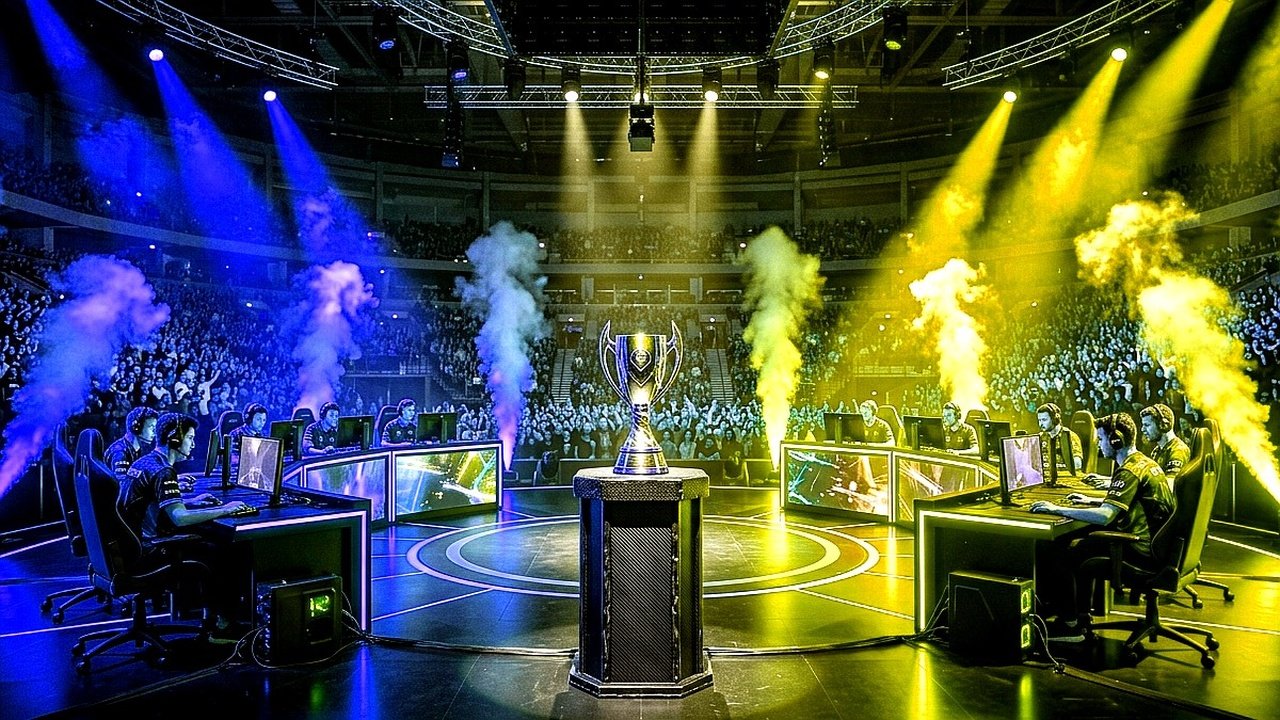
Maximizing frame rates and eliminating micro-stutters requires a comprehensive Windows 11 laptop gaming optimization strategy that addresses aggressive background resource throttling, OEM thermal limitations, and operating system latency buffers. Unlike desktop rigs with endless thermal headroom, portable gaming machines operate within razor-thin power envelopes where unoptimized CPU spikes immediately trigger severe GPU downclocking.
Fortunately, strategic registry adjustments and proper hardware scheduling allow competitive players to unlock stable frametimes without risking thermal damage. Specifically, modern Windows builds contain legacy telemetry routines that continuously poll background threads during intense gaming sessions. Consequently, configuring dedicated gaming priorities delivers immediate responsiveness across competitive shooters.
⚡ Critical Hardware Rule: MUX Switch & Dedicated GPU Forcing
Most modern gaming laptops feature NVIDIA Advanced Optimus or a physical MUX switch. If your laptop routes display output through the integrated Intel or AMD iGPU before reaching the screen, you suffer a mandatory 10% to 15% latency penalty.
Pro Action: Open your OEM control center (ASUS Armoury Crate, Lenovo Vantage, or Alienware Command Center) and select ‘Discrete GPU Only’ or ‘Ultimate Mode’. This completely bypasses the iGPU bottleneck for raw pixel rendering.
Zero-Latency Windows Registry Tweaks for Competitive Gaming
Windows 11 prioritizes multi-tasking network throughput by default, which inadvertently introduces artificial polling delays for low-latency UDP game packets. Implementing verified registry tweaks safely reclaims dedicated gaming cycles.
First, access HKEY_LOCAL_MACHINE\SOFTWARE\Microsoft\Windows NT\CurrentVersion\Multimedia\SystemProfile. Change the SystemResponsiveness value from the stock hex 14 to 0. This informs the Windows kernel that foreground gaming processes demand 100 percent priority over background Windows services.
Second, locate NetworkThrottlingIndex inside the same key and set its hexadecimal value to ffffffff (disabled). By terminating default network packet coalescing, your network interface card processes incoming ticks instantly, dramatically smoothing online hit registration similar to the audio optimizations detailed in our Warzone audio and footstep EQ guide.
Hardware Benchmark Matrix: Stock vs Optimized Laptop Performance
The following benchmark metrics illustrate real-world frametime and thermal improvements across popular gaming laptop architectures running demanding modern titles:
Thermal Throttling Fixes: Fan Curves and Undervolting
Thermal throttling is the single greatest enemy of gaming laptop performance. When your mobile processor hits its TjMax threshold (typically 95°C to 100°C), hardware safety mechanisms slash clock frequencies by upwards of 40 percent.
To eliminate these thermal cliffs, configure an aggressive pre-emptive fan curve. Set cooling fans to reach 80 percent speed once temperatures hit 72°C, rather than waiting for 85°C. This pre-cools the copper vapor chambers before heat saturation occurs.
Furthermore, utilizing software like ThrottleStop on supported Intel platforms or Universal x86 Tuning Utility for AMD Ryzen chips allows gamers to apply a modest -50mV core undervolt. This reduces wattage draw and heat output by up to 15 watts without sacrificing a single megahertz of boost frequency. These tuning concepts mirror the architectural efficiency benchmarks analyzed in our PS5 Pro PSSR hardware benchmark analysis.
Software Hygiene and Background Telemetry Cleanup
Finally, strip away bloatware that runs persistent background services. Disable Discord hardware acceleration, turn off Xbox Game Bar background recording if you already use NVIDIA ShadowPlay, and prevent automated cloud syncs during gaming sessions.
In addition, gamers collecting live streaming rewards through our Twitch Drops rewards and account linking guide should ensure browser hardware acceleration is locked to integrated graphics to preserve dedicated GPU cycles for active rendering.
Related posts:
 EA Sports FC 25 Weekend League Meta Tactics: Best Formations, Player Roles & Custom Tactics
 CS2 Best Settings for Max FPS and Low Latency: Pro Autoexec, Binds & Resolution Guide
 Dragon Ball Sparking ZERO Secret Unlockable Characters: How to Unlock Goku Black, Fused Zamasu & Super Shenron Wishes
 Twitch Drops Rewards Guide: How to Link Accounts, Claim In-Game Loot & Unlock Evolving Badges